
Table of Contents
Creating a Simple Vehicle Blueprint
Overview
In this chapter, we will create a Simple Vehicle Blueprint.
Vehicle Blueprints are responsible for combining all previously created assets — such as the Skeletal Mesh, Animation Blueprint, and Control Rig — into a single, functional vehicle entity.
They define:
- What is loaded into the game
- How the vehicle is positioned on the tracks
- Where bogies and couplings are located
- How the vehicle interacts with the simulation
In simple terms, the Vehicle Blueprint acts as the master container for everything related to the vehicle that will later be spawned and used in SubwaySim 2.
Creating the Vehicle Blueprint
Creating the Blueprint Asset
As a first step, we create an empty Vehicle Blueprint.
Navigate to the root folder of your vehicle, for example:
`SubwaySim_SDK_Testplugin_Content/TestVehicle`
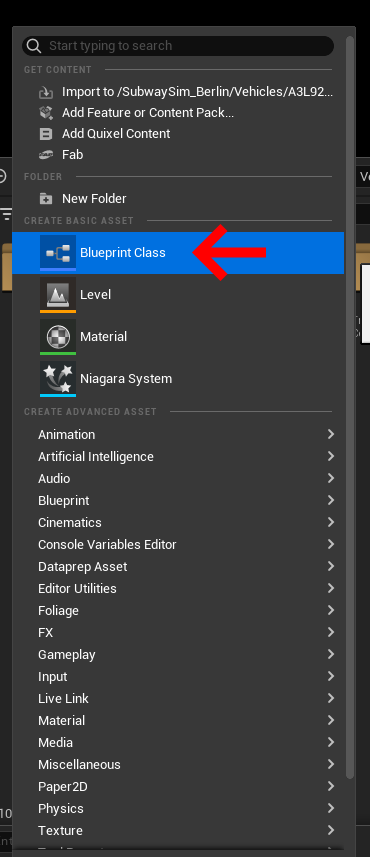
Inside the Content Drawer:
- Right-click
- Select Blueprint Class
- Click All Classes
- Search for Rail Vehicle
- Select it and click Select
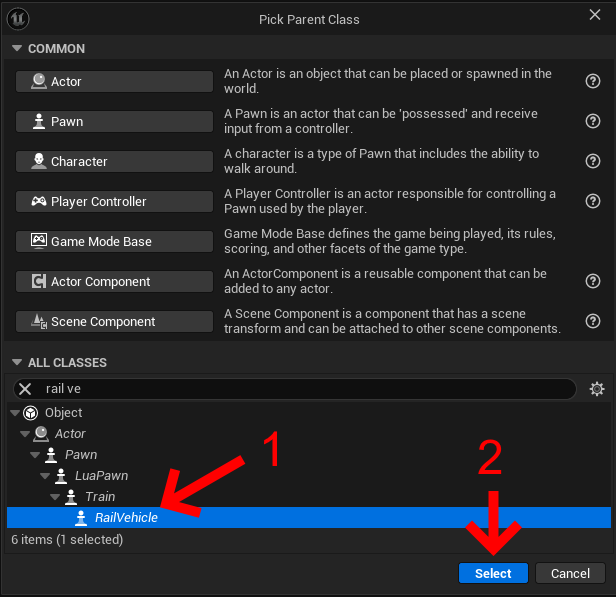
This creates a new Blueprint based on the Rail Vehicle class.
Name the Blueprint using a clear naming convention:
- Prefix: BP_
- Example: `BP_TestVehicle`
Vehicle Blueprint Setup
Opening the Vehicle Blueprint
Open the newly created Vehicle Blueprint.
You will now see an empty Blueprint with no components assigned yet. This is expected and serves as the foundation for assembling the vehicle.
Setting the Lua Class Name
Before adding any components, we must define which Lua class this vehicle belongs to.
In the Details panel of the Vehicle Blueprint, locate the field Lua Class Name and set it to:
`RailVehicle`
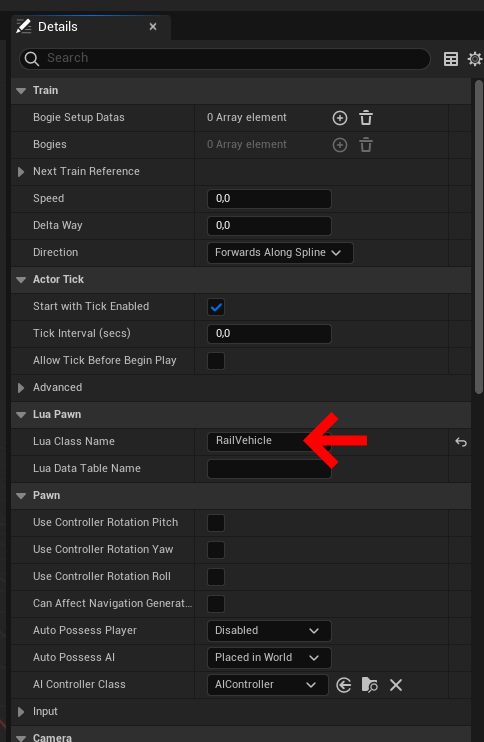
This step is required so SubwaySim 2 knows which Lua logic is responsible for controlling this vehicle.
Adding Required Components
Skeletal Mesh Component
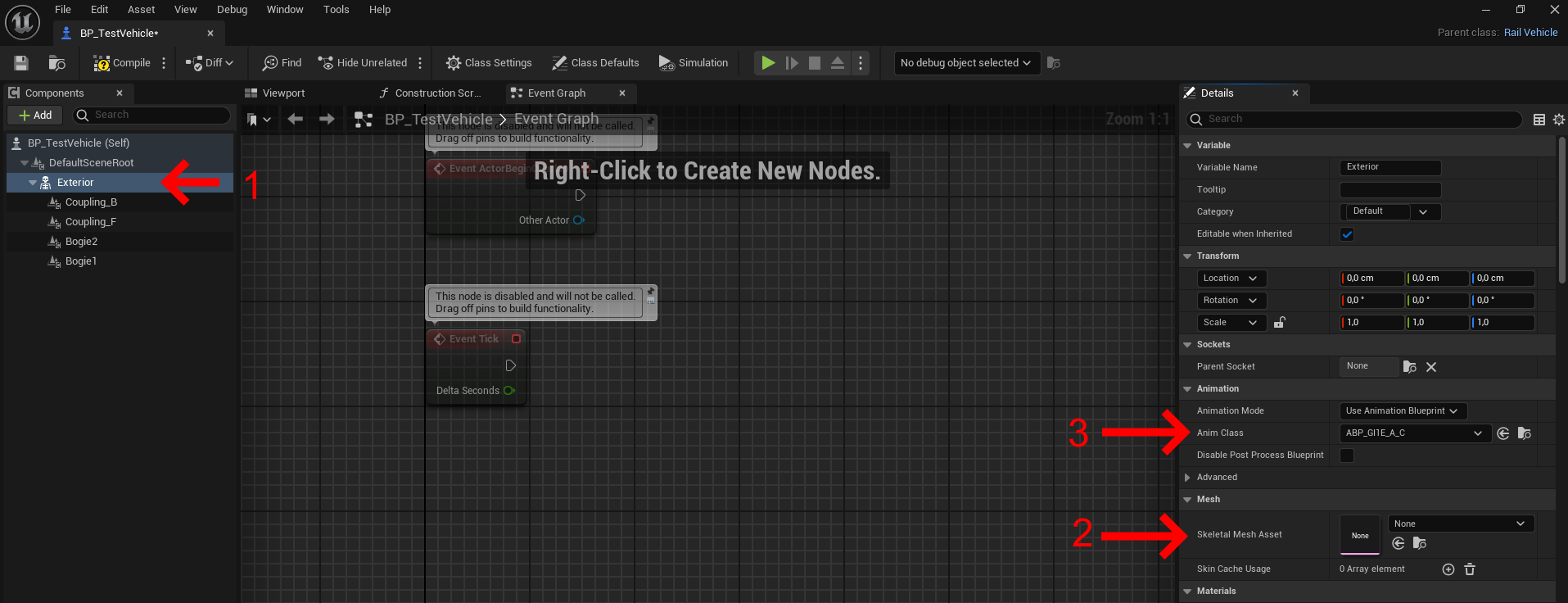
Add a Skeletal Mesh component:
- Click Add in the Components panel
- Search for Skeletal Mesh
The name of this component can be chosen freely, but a clear structure is recommended.
Example:
- Exterior – exterior vehicle mesh
In the Details panel:
- Assign the Skeletal Mesh that was imported earlier
Assigning the Animation Blueprint
To enable animations (including the Control Rig), the Animation Blueprint must be assigned manually.
In the Details panel of the Skeletal Mesh component:
- Locate Anim Class
- Select the Animation Blueprint (ABP_) created earlier
Use the Animation Blueprint defined in the chapter: Creating a Simple Animation Blueprint
Collision Settings
To ensure that the vehicle uses the collision data defined in the Physics Asset, the collision preset must be set correctly.
In the Details panel of the Skeletal Mesh component:
- Locate the Collision section
- Set Collision Preset to Vehicle
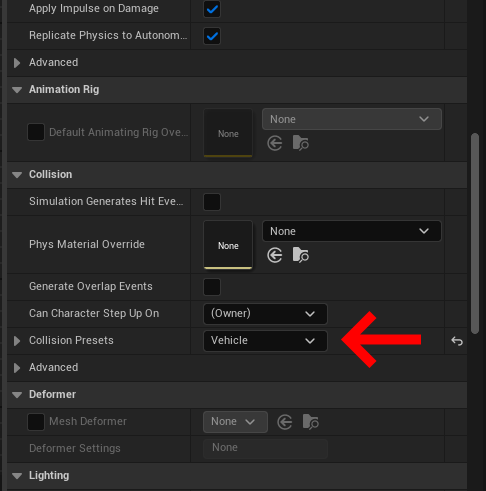
Without this setting:
- Physics Asset collisions will not be applied correctly
- The vehicle may not collide properly with the environment
- Interaction and physics behavior can break in-game
Bogie and Coupling Setup
Scene Components for Bogies and Couplings
Add four Scene Components:
- Bogie1 – first bogie
- Bogie2 – second bogie
- Coupling_F – front coupling
- Coupling_B – rear coupling
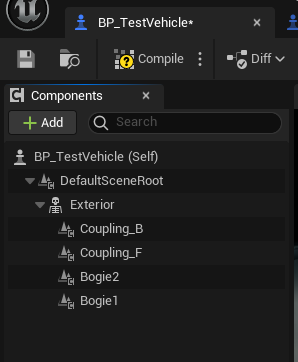
The naming of these components is mandatory and must follow this exact structure.
Positioning the Scene Components
Correct positioning is critical:
- Bogie1 / Bogie2
- Origin at the exact center of the bogie
- Z-position must be 0
- Coupling_F / Coupling_B
- Origin at the rotation or mounting point of the Scharfenberg coupling
These reference points are used by SubwaySim 2 to:
- Place the vehicle on the tracks
- Calculate correct alignment
- Connect vehicles into train formations
Incorrect positioning will result in faulty coupling behavior or incorrect track placement.
Bogie Initialization
Initializing Bogie Data
After adding all required components, the bogie data must be initialized.
This setup is done in the Event Graph of the Vehicle Blueprint.
Adding the Required Nodes
Open the Event Graph.
Add the initialization event:
- Right-click → Event Initialize Bogies
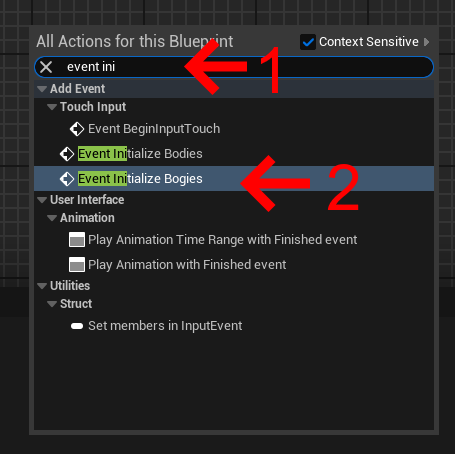
Add two bogie nodes:
- Right-click → Add Bogie
- Repeat until you have two Add Bogie nodes
Preparing the Bogie Data
For each Add Bogie node:
- Right-click the Bogie Data pin
- Select Split Struct Pin
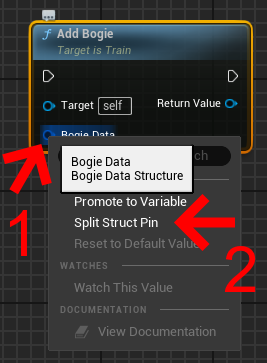
Assigning the Bogie Scene Components
Assign the Scene Components to the bogies:
- First Add Bogie → Bogie1
- Second Add Bogie → Bogie2
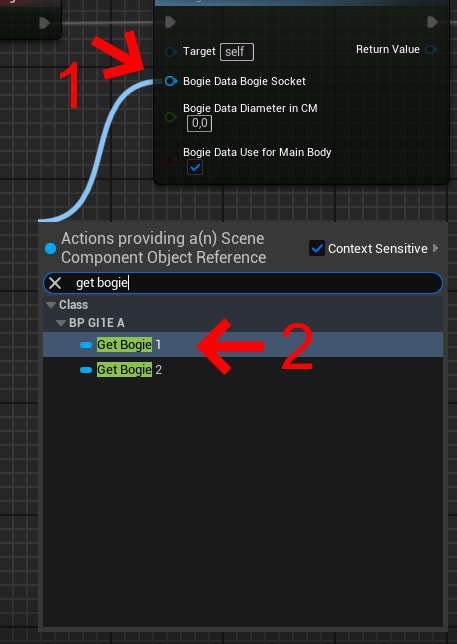
This ensures SubwaySim 2 knows the exact position of each bogie.
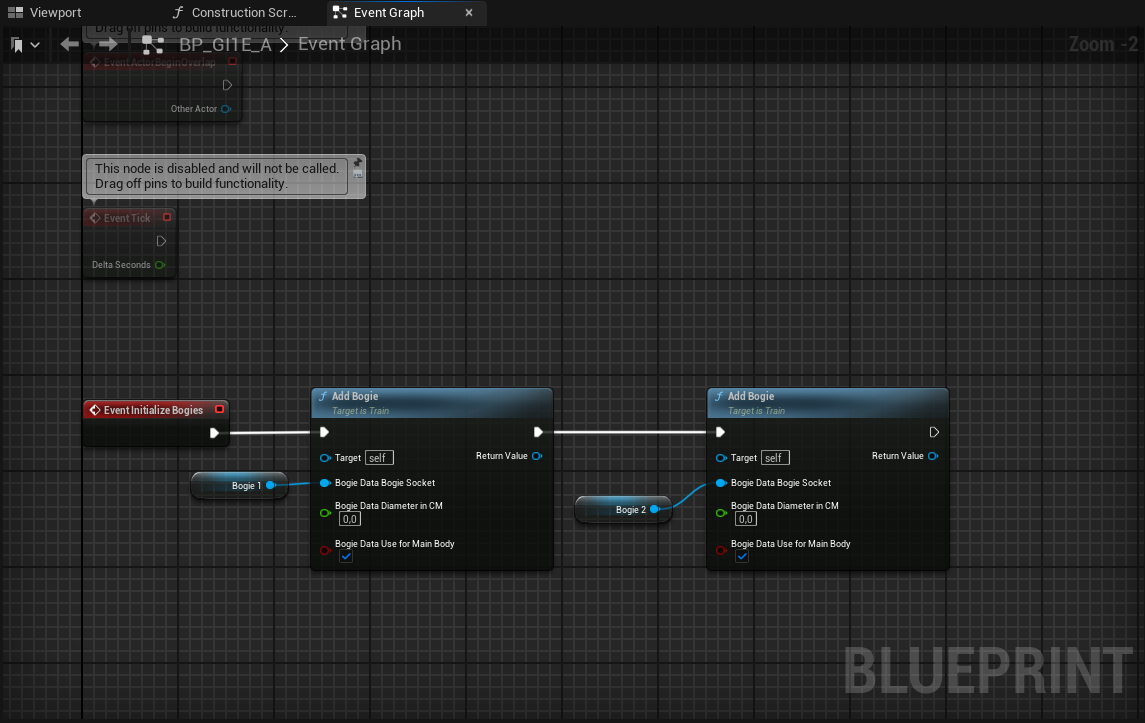
Completion of the Simple Vehicle Blueprint
With the bogie data initialized, the Simple Vehicle Blueprint setup is complete.
This blueprint is suitable for:
- Simple AI-controlled vehicles
- Static or basic rolling stock
- Vehicles without interactive systems
Important Note
This setup does not include:
- Player interaction
- Advanced vehicle systems
- Door, coupling, or cab logic
- Extended animation or gameplay features
For vehicles requiring more advanced functionality, continue with: Creating a Complex Vehicle Blueprint
© 2026 Simuverse Interactive · SubwaySim 2 Modding Wiki
All trademarks and registered trademarks are the property of their respective owners. This Wiki is provided for documentation and modding purposes only.