
This is an old revision of the document!
Table of Contents
Laying Tracks
Overview
In this section you will learn how to place railway tracks in your map using the Railtool. Placing tracks comes with several important considerations and requires basic familiarity with the Unreal Editor.
If you are not yet comfortable with Unreal Editor navigation and controls, please take some time to familiarize yourself before continuing.
Initial Setup: RailwaySubSystem
Placing the RailwaySubSystem Blueprint
The first step is to place the RailwaySubSystem master Blueprint into your level.
This Blueprint acts as the central configuration point for all railway-related systems and defines:
- Superstructures
- Data Layers
- Track behavior settings
To place it:
- Open the Content Drawer
- Navigate to SubwaySim2_Modding Content
- Locate the Blueprint BP_RailwaySubSystem
- Drag it into your level
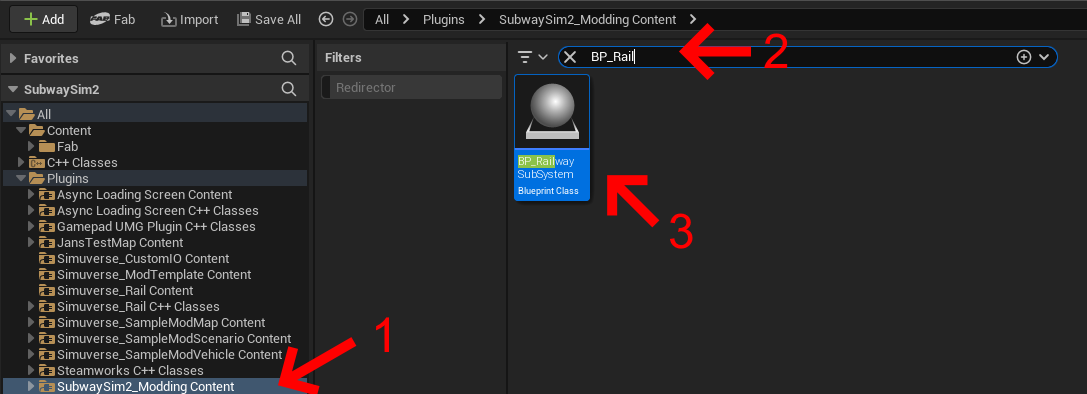
Select the Blueprint in the World Outliner and set its position in the Details panel to: X = 0.000000 / Y = 0.000000
This ensures the subsystem is positioned correctly.
Railway System 2 Settings
With BP_RailwaySubSystem selected, scroll down in the Details panel to the section Railway System 2.
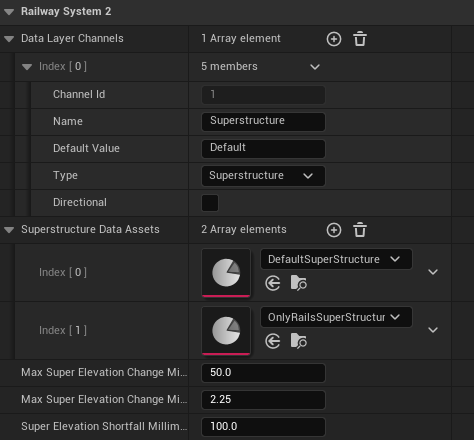
This section contains all settings required before placing tracks.
Data Layer Channels
The Data Layer Channels section defines which Data Layers the Railtool can use.
These include:
- Superstructure Data Layers
- Guide Rail Data Layers
- Third Rail Data Layers
- Custom Data Layers
You can:
- Add a channel using the + button
- Remove a channel using the Trash icon
Each channel consists of the following fields:
| Property | Description |
|---|---|
| Channel Id | Automatically assigned index. Channel 1 should always be the Superstructure. |
| Name | Name of the Data Layer. |
| Default Value | Default value applied when no track data is set. |
| Type | Data Layer type: Side, Superstructure, String, Integer, Float |
| Directional | If enabled, the Data Layer is applied only in one direction. Default is both directions. |
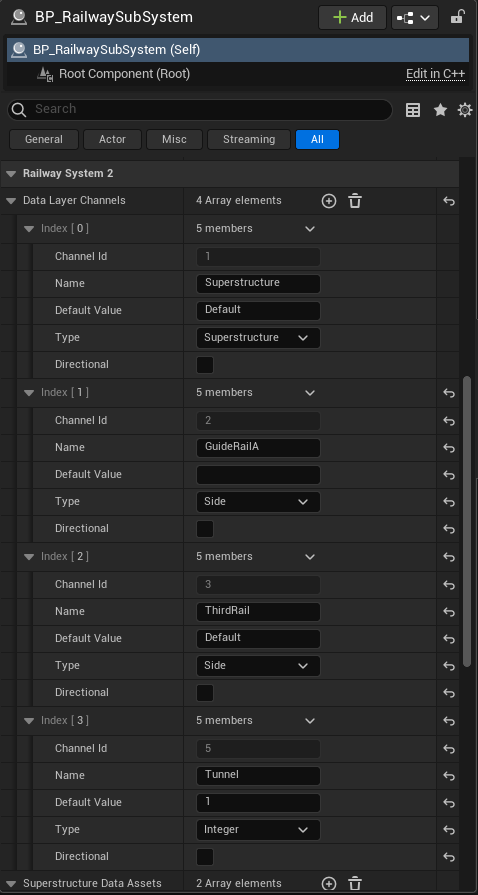
Once Guide Rails, Third Rails, and other infrastructure elements are configured in your Superstructure, the Data Layer Channels section will contain multiple entries.
This typically includes:
- A Superstructure Data Layer
- One or more Guide Rail Data Layers
- A Third Rail Data Layer
- Additional custom Data Layers
One commonly used custom Data Layer is Tunnel.
The Tunnel Data Layer is used to mark tunnel sections along the track. When applied, it ensures tunnel areas are treated correctly by the game, including proper lighting behavior.
Without this Data Layer, tunnel sections may appear incorrectly lit or not fully dark during gameplay.
Superstructure Data Assets
In this section, you add all Superstructure Data Assets that should be available for track creation.
These assets define:
- Rail geometry
- Sleeper meshes
- Ballast
- Clamps
- Guide Rail and Third Rail behavior
Make sure all required Superstructures are added here before placing tracks.
Superelevation
Superelevation describes the banking of tracks in curves to compensate for centrifugal forces.
The Railtool supports automatic superelevation using the following parameters:
| Property | Default | Description |
|---|---|---|
| Max Super Elevation Change Millimeter Per Sec | 50.0 | Maximum change per second |
| Max Super Elevation Change Millimeter Per Meter | 2.25 | Maximum change per meter |
| Super Elevation Shortfall Millimeter | 100.0 | Allowed deviation / tolerance |
These default values are suitable for most cases and can be adjusted depending on track design and realism requirements.
Entering Rail Mode
After setting up the RailwaySubSystem correctly, we can begin placing tracks.
Open the Mode Selection in the Unreal Editor and switch to Simuverse Rail Mode.
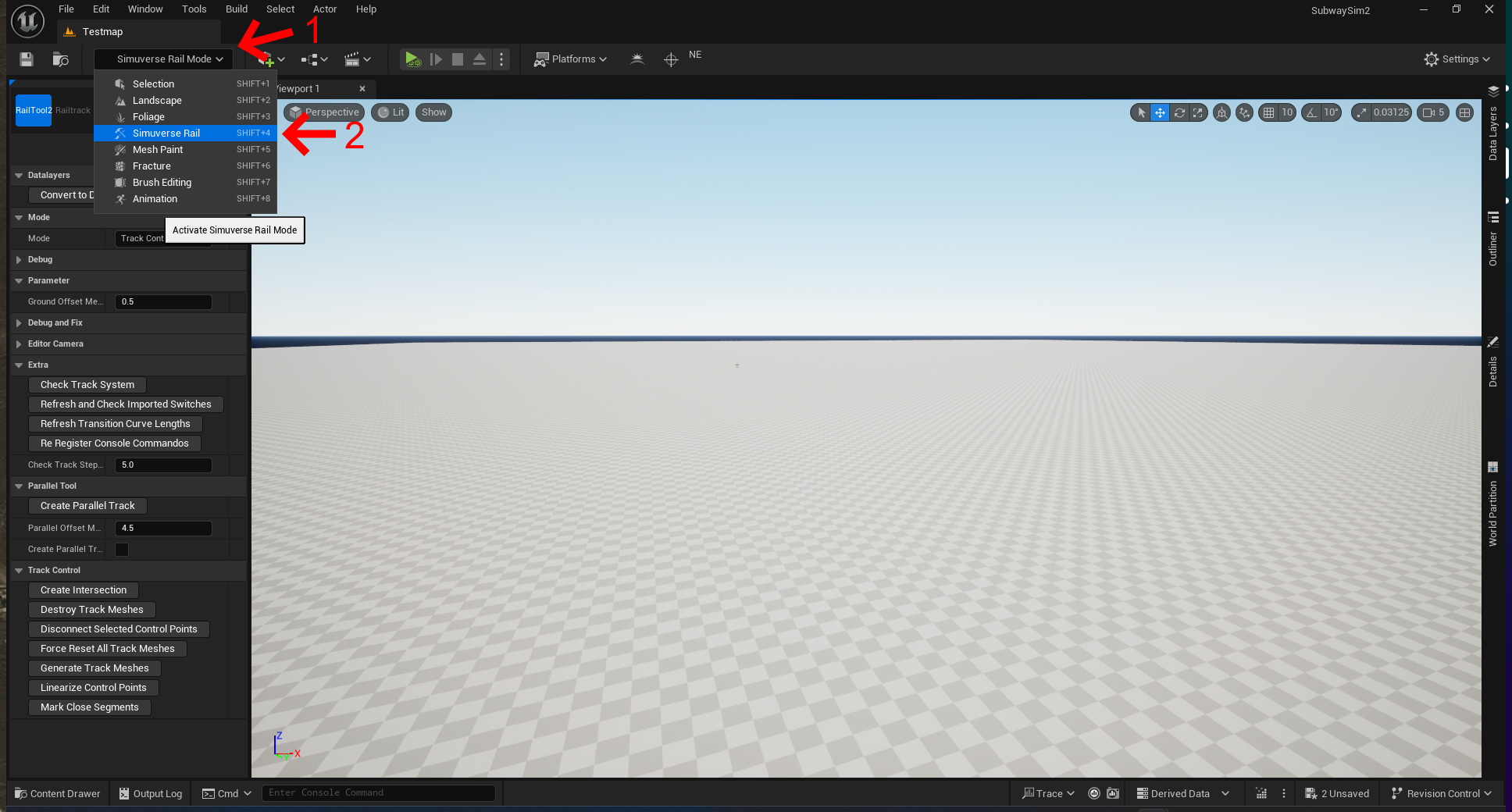
⚠️ Important: Tracks can ONLY be created, edited, or removed in Simuverse Rail Mode. Do not delete track meshes in Selection Mode, as this can cause severe rendering and logic issues within the Railtool.
Rail Mode Interface
When entering Simuverse Rail Mode, a tool panel appears on the left side of the editor.
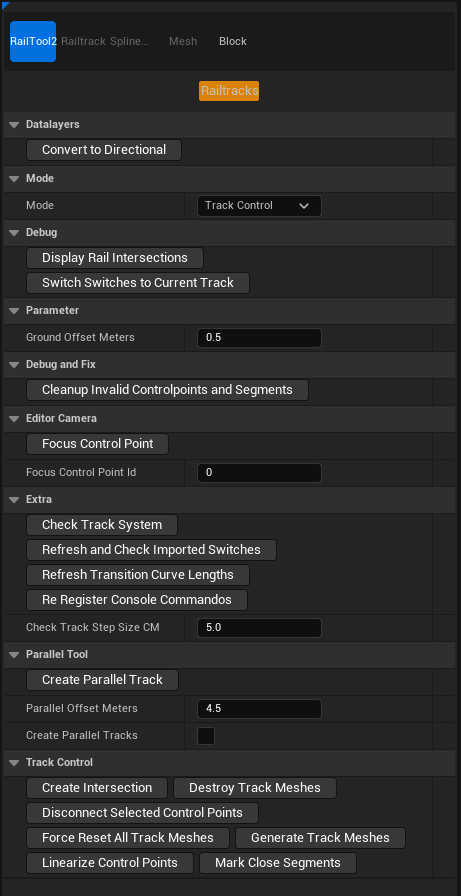
Left Sidebar Overview
Data Layers
This section controls how Data Layers are handled on tracks.
- Convert to Directional
Converts existing Data Layers into directional layers, allowing different values depending on track direction.
Mode
Defines the active editing mode. You can switch between the following modes using the dropdown menu:
- Track Control
Used for creating, connecting, and editing track control points.
- Height Control
Used to adjust vertical alignment and elevation of tracks.
- Data Layer
Used to assign or modify Data Layer values along track segments.
Debug
Debugging tools to visualize and inspect track behavior.
- Display Rail Intersections
Displays intersections and connection points between tracks.
- Switch Switches to Current Track
Forces switches to align with the currently selected track.
Parameters
General configuration values for track placement.
- Ground Offset Meters
Defines the vertical offset of tracks above the ground.
Default value: **0.5 meters**
Debug and Fix
Tools for cleaning up and repairing track data.
- Cleanup Invalid Controlpoints and Segments
Removes invalid or corrupted control points and track segments from the map.
Editor Camera
Camera helper functions for navigating complex track layouts.
- Focus Control Point
Moves the editor camera to the control point specified by ID.
- Focus Control Point ID
The control point number used for focusing the camera.
Extra
Advanced diagnostic and maintenance tools.
- Check Track System
Scans the entire track system for errors or inconsistencies.
- Refresh and Check Imported Switches
Validates imported switches and refreshes their data.
- Refresh Transition Curve Length
Recalculates transition curve length for smooth geometry and correct superelevation behavior.
- Re-Register Console Commands
Re-registers Railtool-related console commands in case they were lost.
- Check Track Step Size CM
Validates the internal step size (cm) used for mesh generation.
Parallel Tool
Tools for creating parallel tracks.
- Create Parallel Track
Creates a new track parallel to the selected one.
- Parallel Offset Meters
Defines the distance between selected and parallel track.
- Create Parallel Tracks
If enabled, track meshes are generated immediately.
If disabled, only control points are created.
Track Control
Core tools for managing track geometry.
- Create Intersection
Creates a connecting control point between two existing control points.
- Destroy Track Meshes
Removes all generated track meshes from the map.
- Disconnect Selected Control Points
Breaks the connection between selected control points.
- Force Reset All Track Meshes
Resets all track meshes to their default state.
- Generate Track Meshes
Regenerates all track meshes on the map.
- Linearize Control Points
Aligns the middle point (of three) into a straight line.
- Mark Close Segments
Highlights segments that are placed too close to each other.
At this point, the Rail Mode interface should be fully understood, and you are ready to begin placing and shaping track geometry.
Understanding Track Placement
Before we start placing tracks, it is important to understand how track placement works in SubwaySim 2.
Unlike classic spline-based tools, the Railtool uses Control Points.
Control Points Instead of Spline Points
Control Points describe:
- Track direction
- Curve radius
- Transition behavior
- Connections between track segments
Example: an S-curve can be defined using only four Control Points:
- Entry direction
- First curve transition
- Second curve transition
- Exit direction
This mirrors real-world railway alignment planning and ensures:
- Smooth geometry
- Predictable curvature
- Proper superelevation handling
(See the attached diagram.)
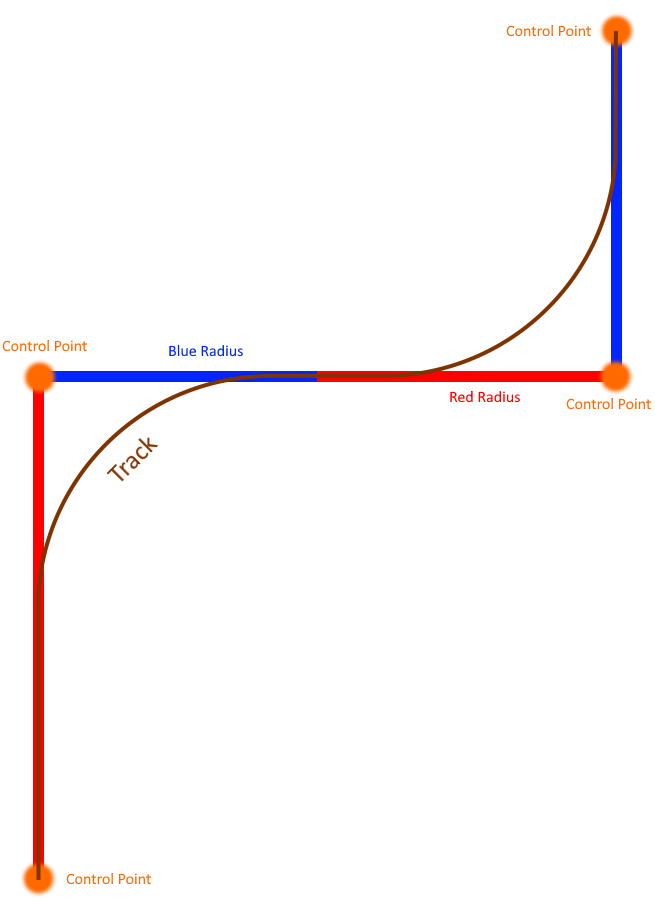
Advantages of the Control Point System
- Fewer points for complex track shapes
- Cleaner and more readable layouts
- More realistic curves and transitions
- Easier maintenance and modification
- Better compatibility with switches and intersections
Creating Your First Track
Now we can begin creating our first track.
Creating Control Points
To create a Control Point:
- Hold CTRL
- Left-click on the Landscape
Repeat at another position:
- Hold CTRL
- Left-click at a different location
A straight track segment will be generated between the points.
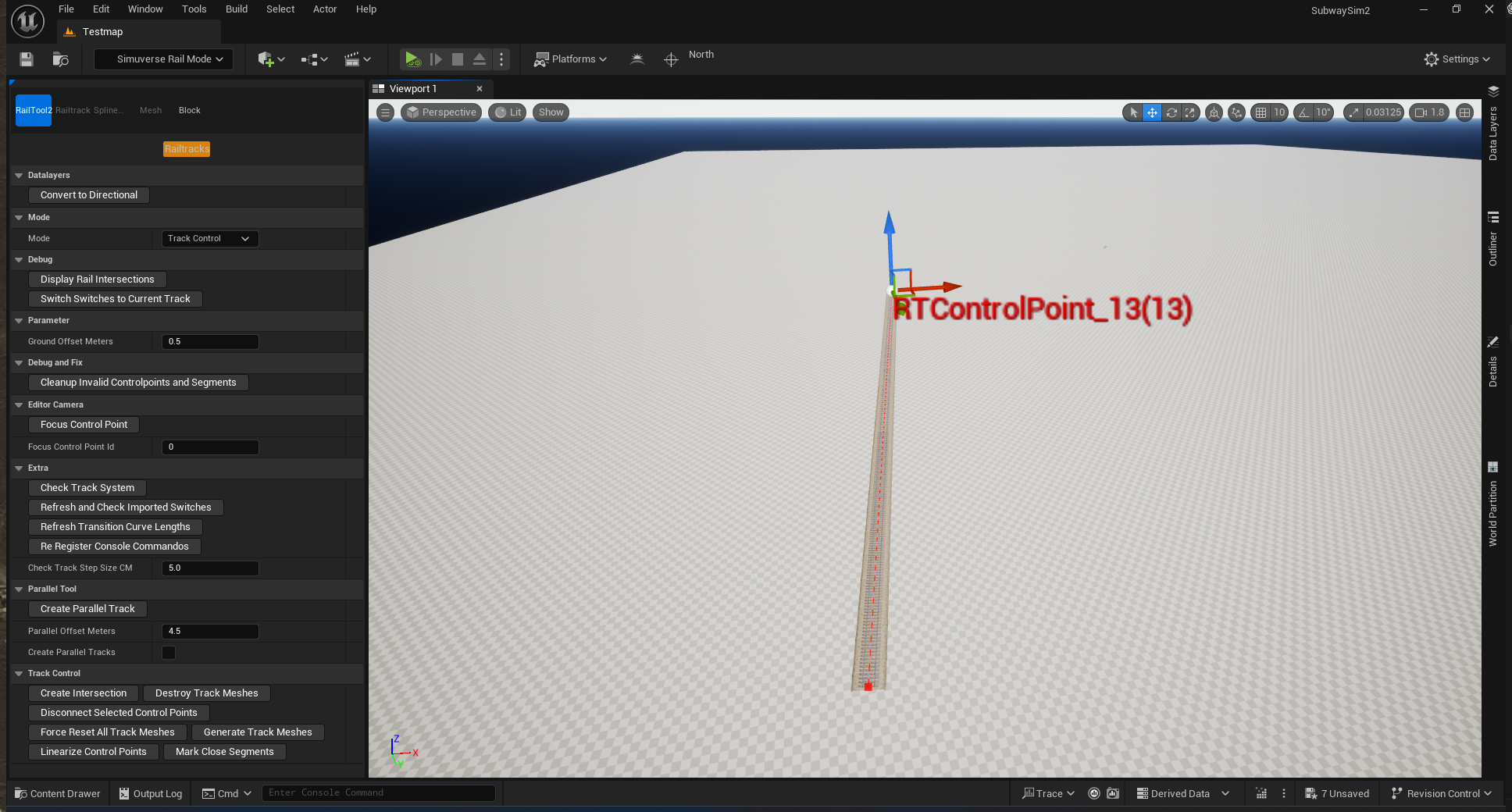
Recreating the Example Layout
Recreate the layout shown in the diagram by placing Control Points for:
- Straights
- Curves
- Smooth transitions
Your track should look similar to the example below:
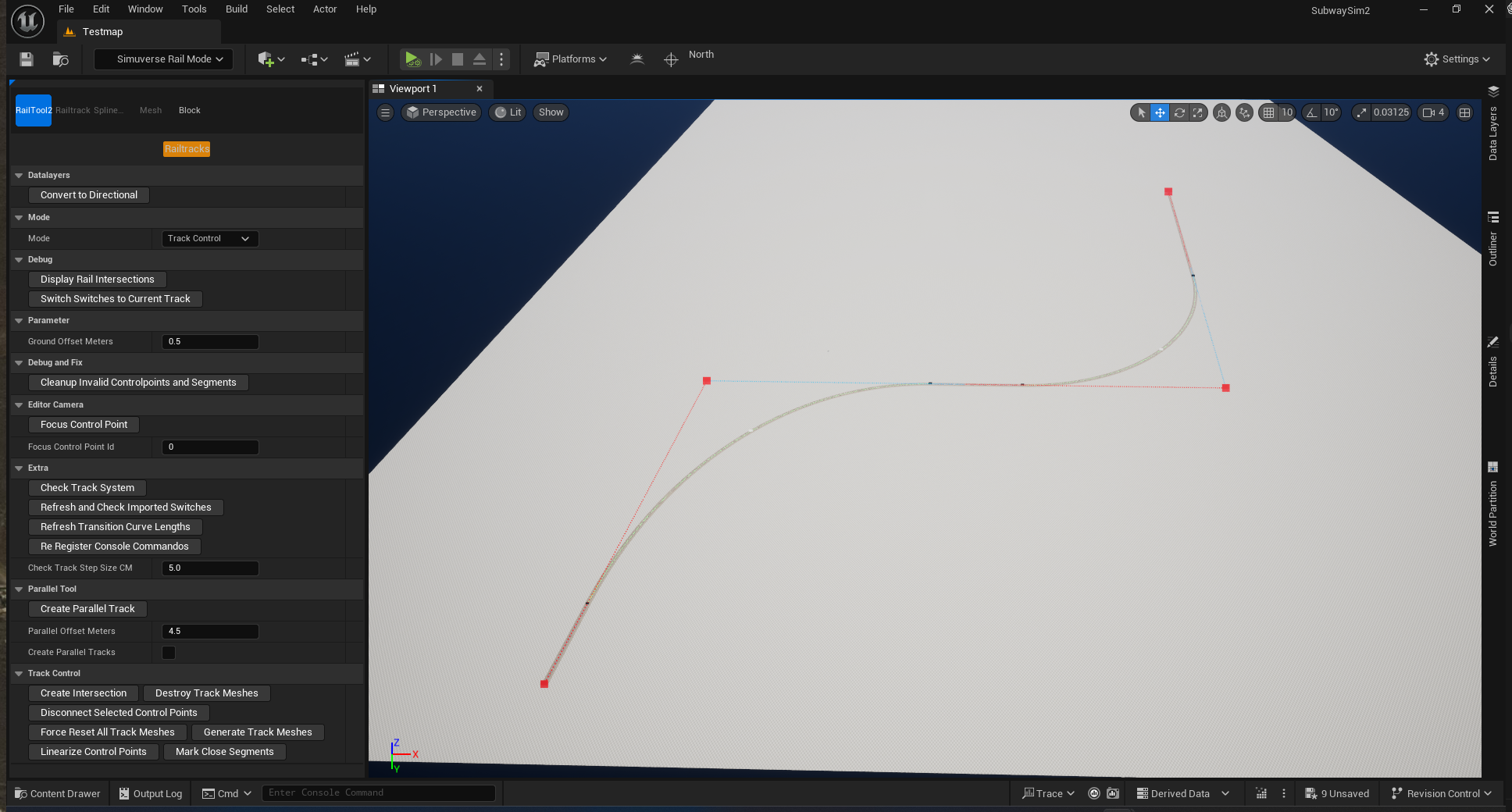
Editing a Control Point for Curves
To shape curves:
- Select a Control Point
- Open the Details panel
If Control Points are hard to select:
- Move the camera around
- Click from a different angle
- Zoom in closer
Control Point Parameters Explained
When selecting a Control Point, the Details panel exposes parameters for curve behavior, transitions, and superelevation.
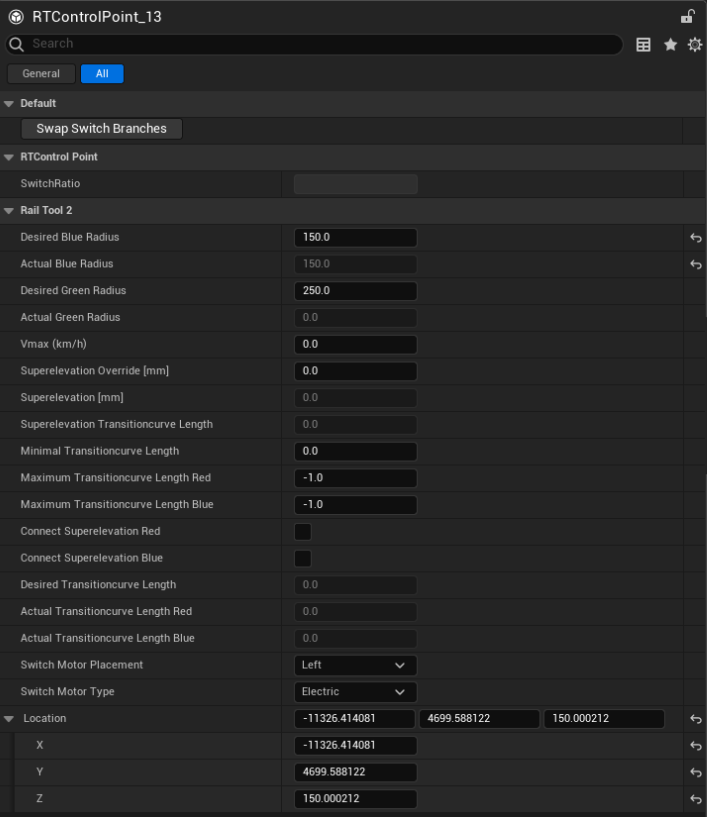
Curve Radius Settings
| Parameter | Description |
|---|---|
| Desired Blue Radius | Target curve radius of the blue control line. |
| Actual Blue Radius | Currently generated radius for the blue line. |
| Desired Green Radius | Target curve radius of the green control line. |
| Actual Green Radius | Currently generated radius for the green line. |
Superelevation Settings
| Parameter | Description |
|---|---|
| Vmax (km/h) | Internal value for superelevation calculations (not in-game max speed). |
| Superelevation Override [mm] | Manual override for calculated shortfall. |
| Superelevation [mm] | Currently applied superelevation in millimeters. |
| Superelevation Transitioncurve Length | Length for gradual banking change. |
| Minimal Transitioncurve Length | Minimum allowed transition length. |
Transition Curve Settings
| Parameter | Description |
|---|---|
| Desired Transitioncurve Length | Target transition curve length. |
| Actual Transitioncurve Length Red | Actual length on the red side. |
| Actual Transitioncurve Length Blue | Actual length on the blue side. |
| Maximum Transitioncurve Length Red | Maximum allowed on red side. |
| Maximum Transitioncurve Length Blue | Maximum allowed on blue side. |
Superelevation Connection
| Parameter | Description |
|---|---|
| Connect Superelevation Red | Connects banking to the red neighboring segment. |
| Connect Superelevation Blue | Connects banking to the blue neighboring segment. |
Switch-Related Settings
| Parameter | Description |
|---|---|
| Switch Motor Placement | Side of track for switch motor placement. |
| Switch Motor Type | Manual or electrically driven. |
Transform Settings
| Parameter | Description |
|---|---|
| Location | World-space XYZ location of the Control Point. |
Understanding these parameters enables precise control over track geometry and realistic results.
Creating Switches
In this section we will create our first switch.
Creating the Base Tracks
Create a straight track using two Control Points. Then:
- Select the required Control Points using SHIFT + Left Click.
In this example, two Control Points are selected, but any number of Control Points can be used if multiple parallel connections are needed.
- Enable the Parallel Tool
- Click Create Parallel Track
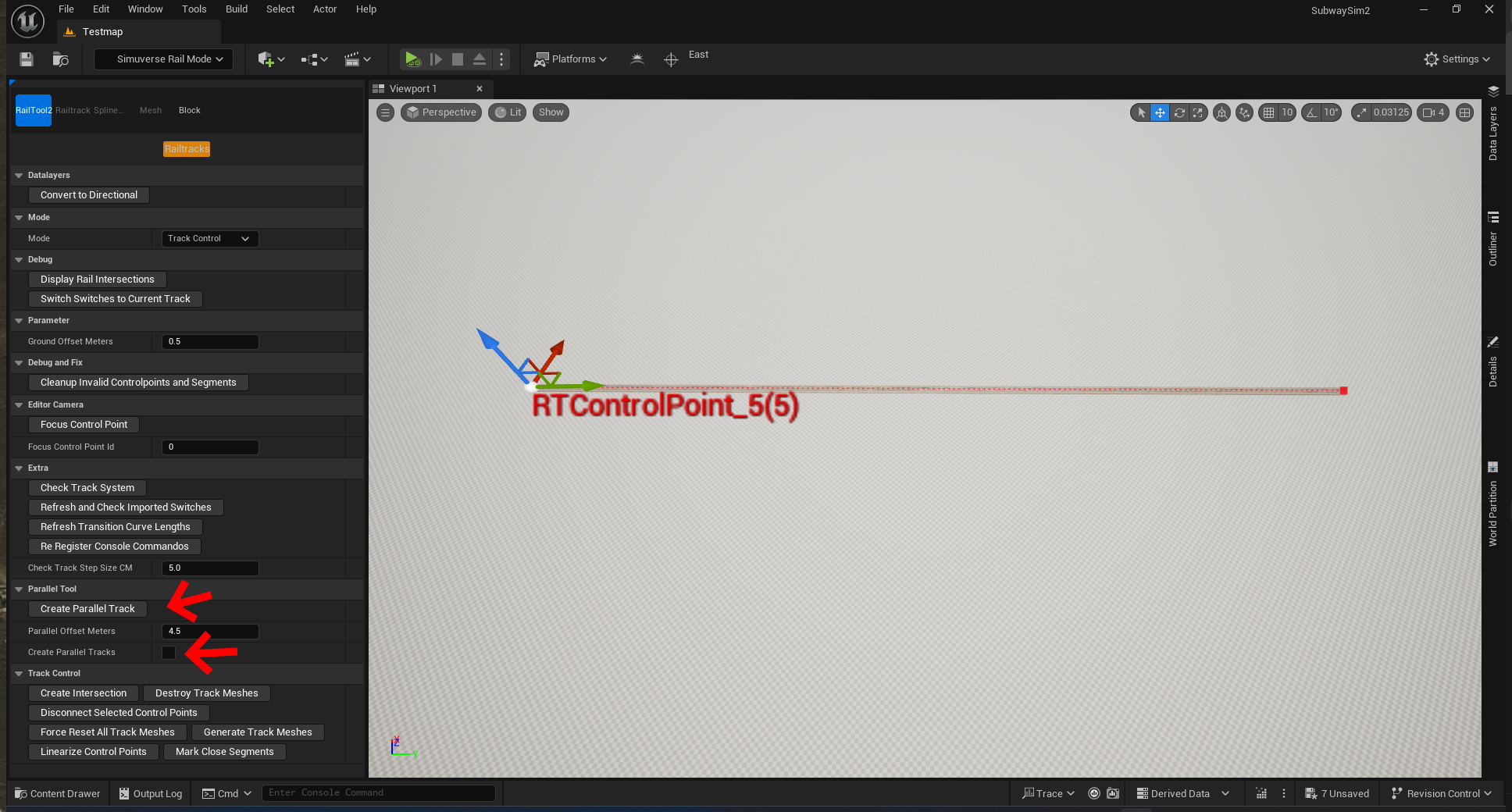
A second, parallel track is created.
Gizmo Setup (Important)
For precise duplication and movement:
- Set the gizmo coordinate system to Local
- Align it to the track axis
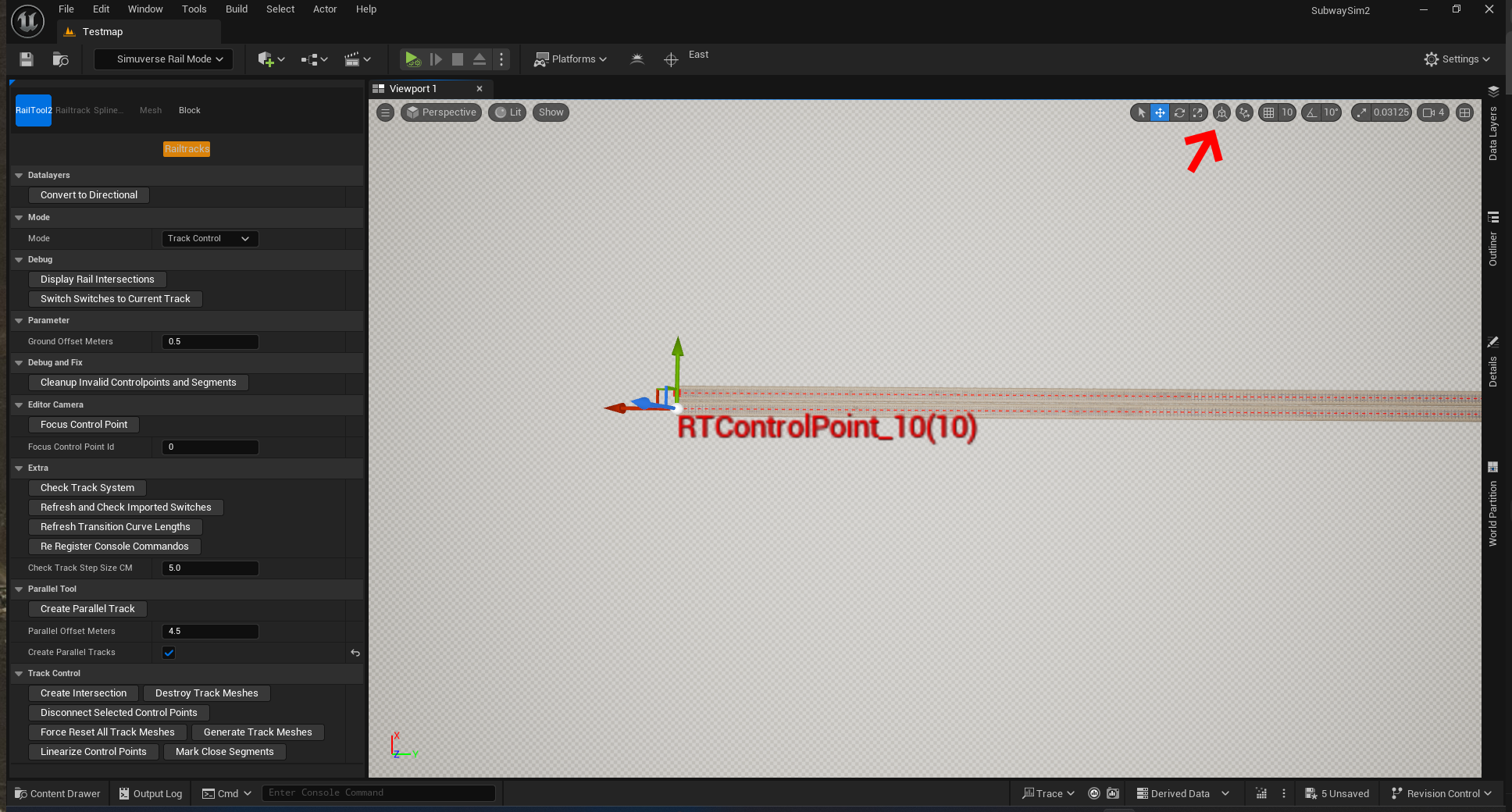
Aligning the Gizmo Rotation
- Press M to cycle gizmo rotation modes
- Align the gizmo with the track direction
Duplicating Control Points
For the first track:
- Select a Control Point
- Hold ALT
- Drag it along the track direction
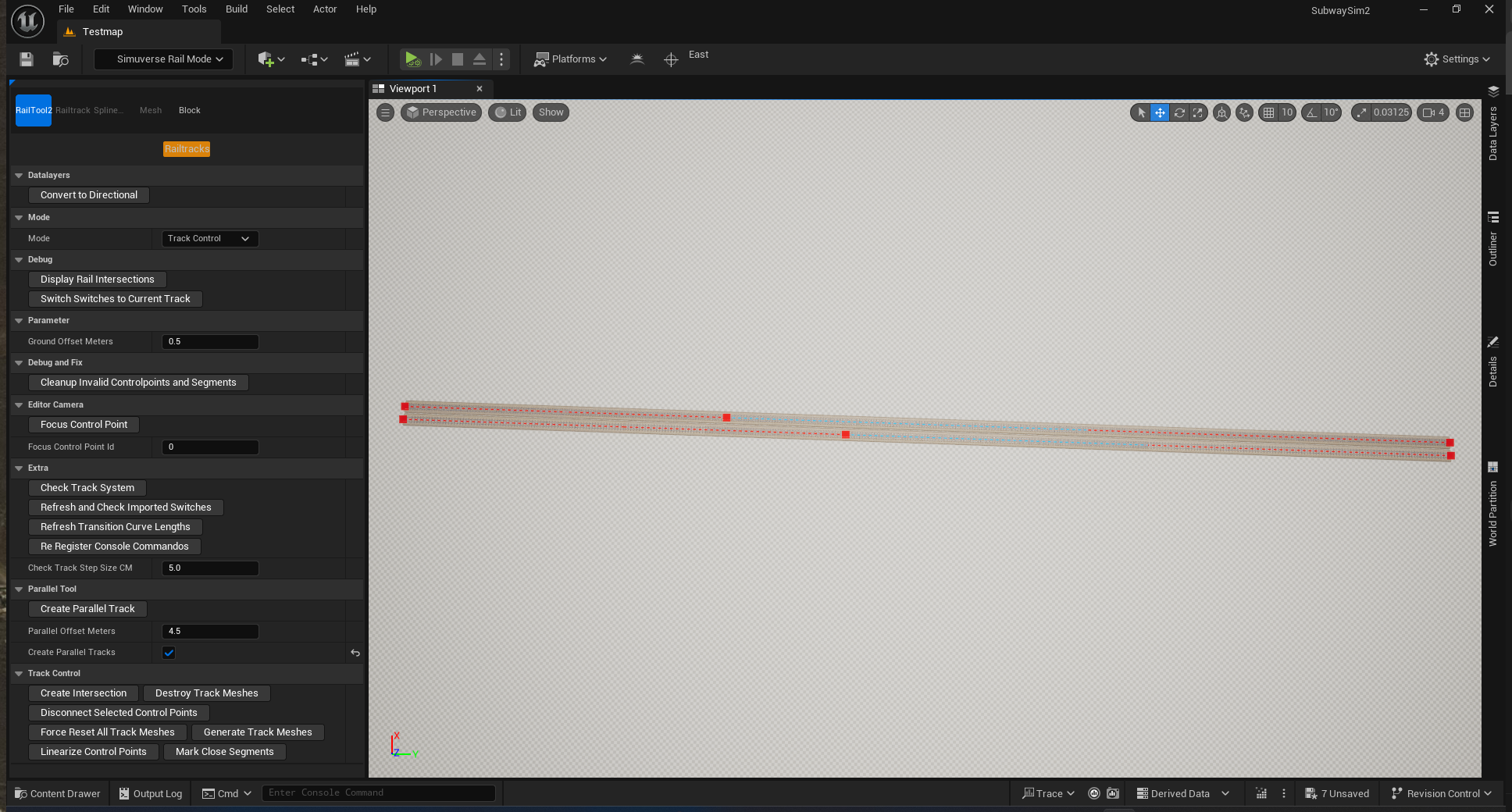
Repeat on the parallel track and offset slightly to create the diverging branch.
Connecting Control Points to Create a Switch
- Select one Control Point
- Hold CTRL
- Left-click the other Control Point
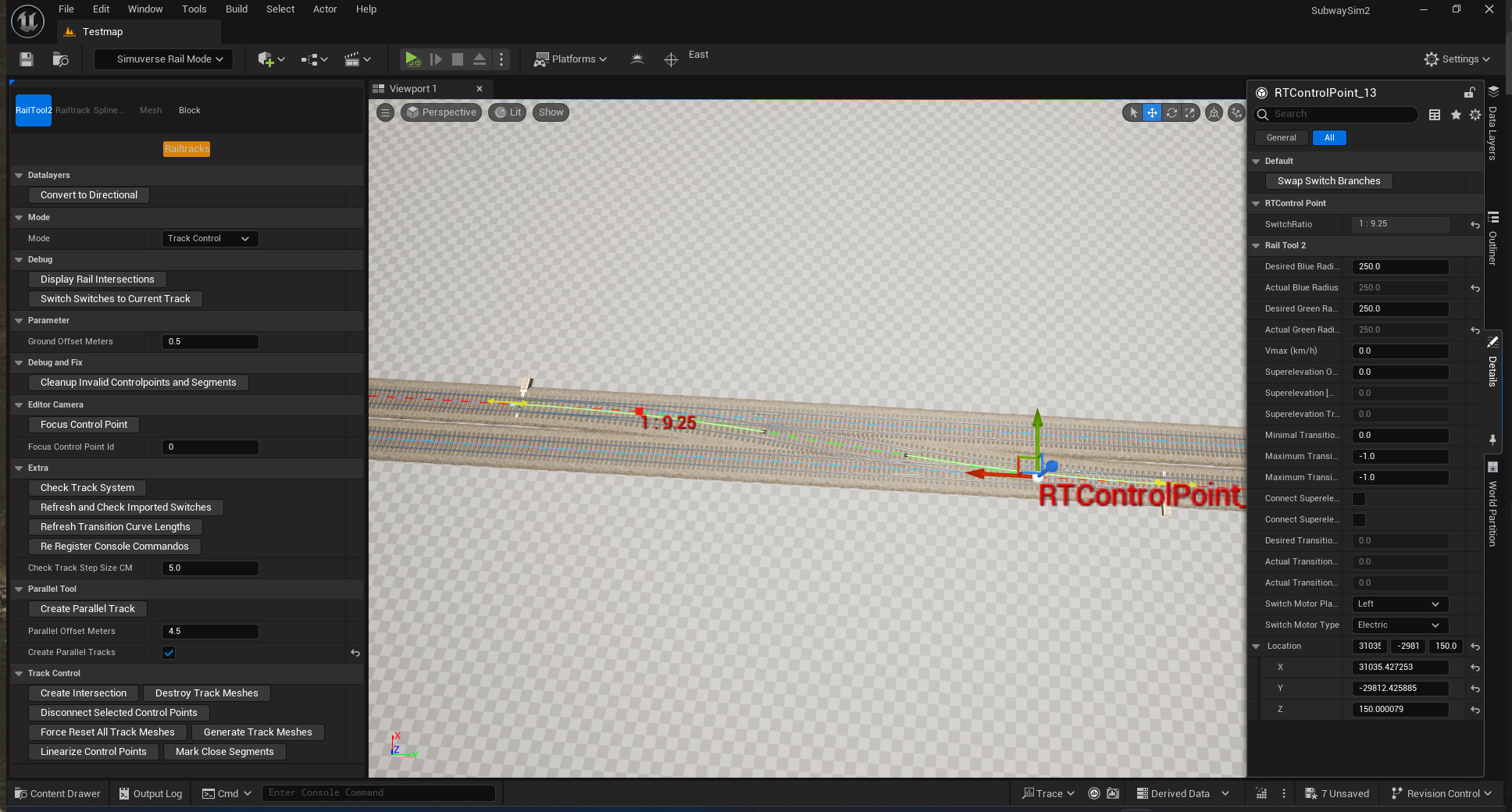
The Railtool generates a switch between the two tracks.
Editing the Switch
You can refine a switch by:
- Moving Control Points
- Changing curve radius
- Adjusting switch motor type
- Adjusting motor placement
The Railtool displays the frog type in red text and in the Control Point Details panel.
Height Control Points
The Railtool also supports vertical geometry using Height Control Points.
Creating Height Control Points
- Open the Mode dropdown
- Select Height Control
- Hold CTRL
- Left-click directly on the track
Defining Track Elevation
Select a Height Control Point and adjust:
| Parameter | Description |
|---|---|
| Desired Radius Meters | Target radius for vertical transitions. |
| Current Radius Meters | Calculated and applied radius. |
The Railtool calculates:
- Gradients between points
- Smooth vertical transitions
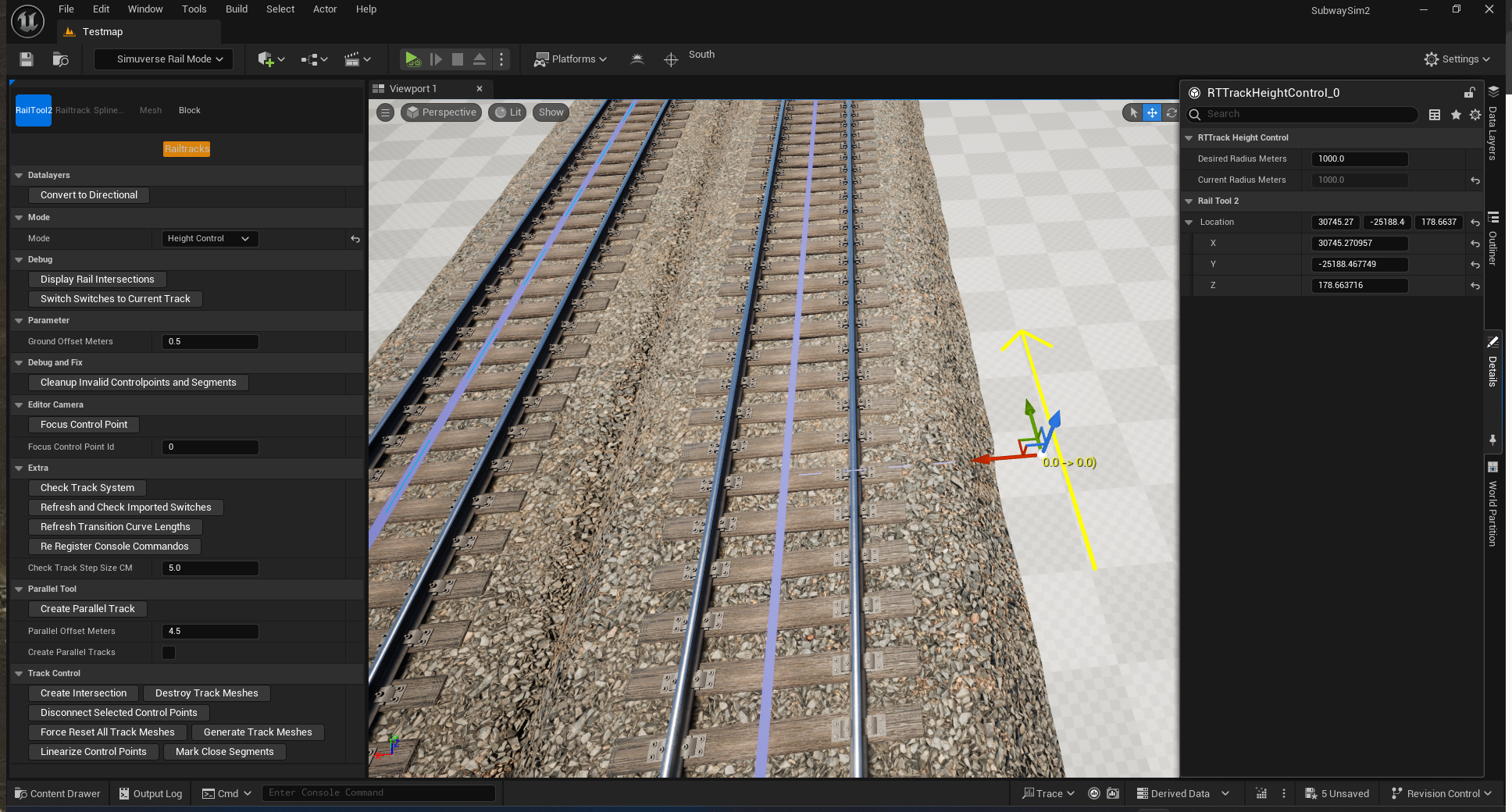
Important Notes
- Height Control Points affect only vertical alignment
- Horizontal geometry remains unchanged
- Avoid placing points too close together
Working with Data Layers
Data Layers define additional track properties such as:
- Third Rail
- Guide Rails
- Tunnel markers
- Speed limits
To work with Data Layers:
- Open the Mode dropdown
- Select Data Layers
Data Layer Mode – Settings Overview
| Setting | Description |
|---|---|
| Mode | Direction behavior of the Data Layer. |
| Add Channel | Selects which channel is applied. |
| Visualize Channel | Visual overlay for a selected channel. |
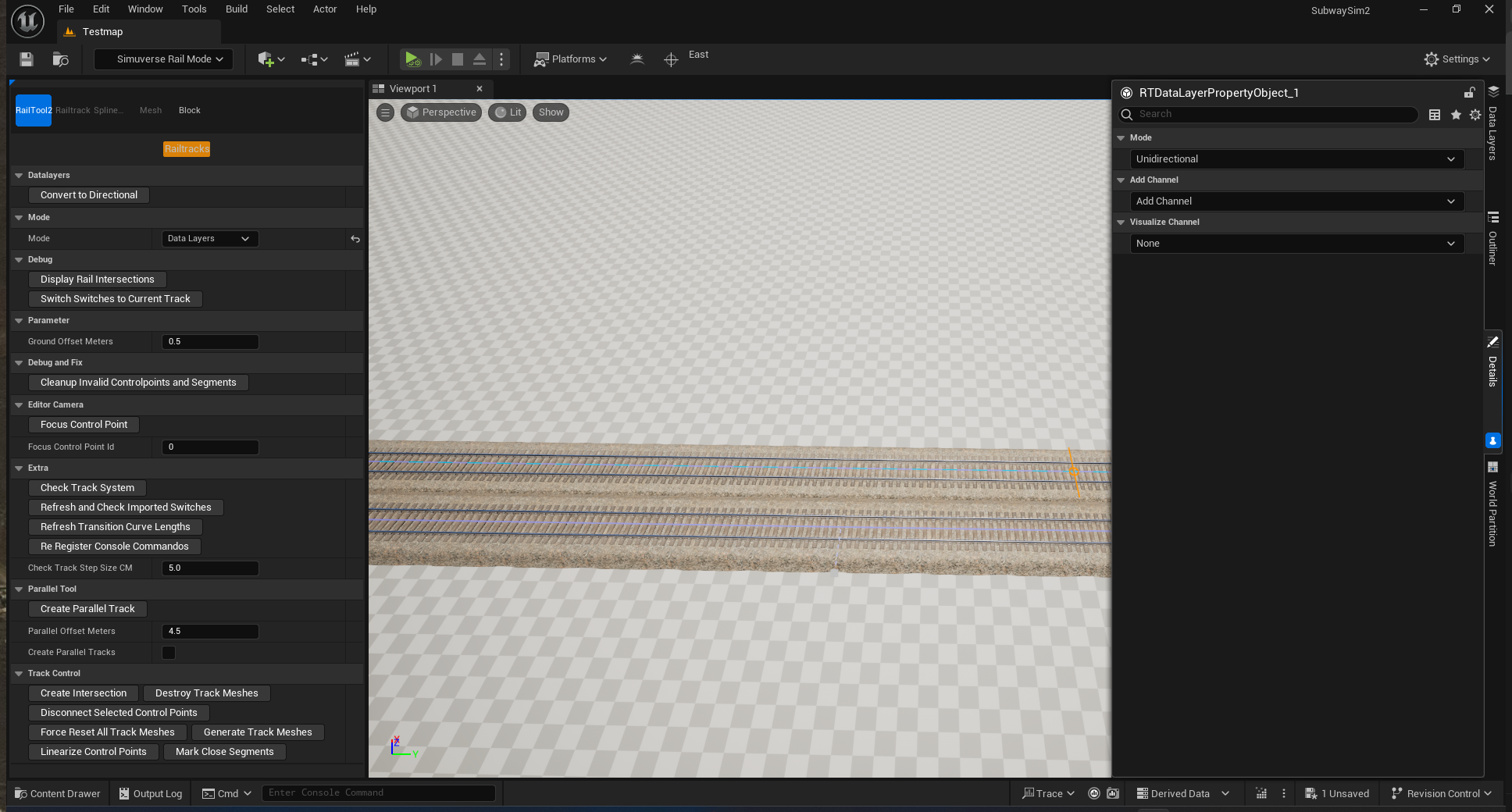
Mode Settings
| Option | Description |
|---|---|
| Unidirectional | Applies in both directions (e.g. Third Rail, Tunnel). |
| Bidirectional | Applies only in one direction (e.g. Speed Limits). |
Placing a Data Layer (Example: Third Rail)
- Hover over a segment (highlighted orange)
- Left-click to set a start point
- Move along the track
- Left-click again to set the end point
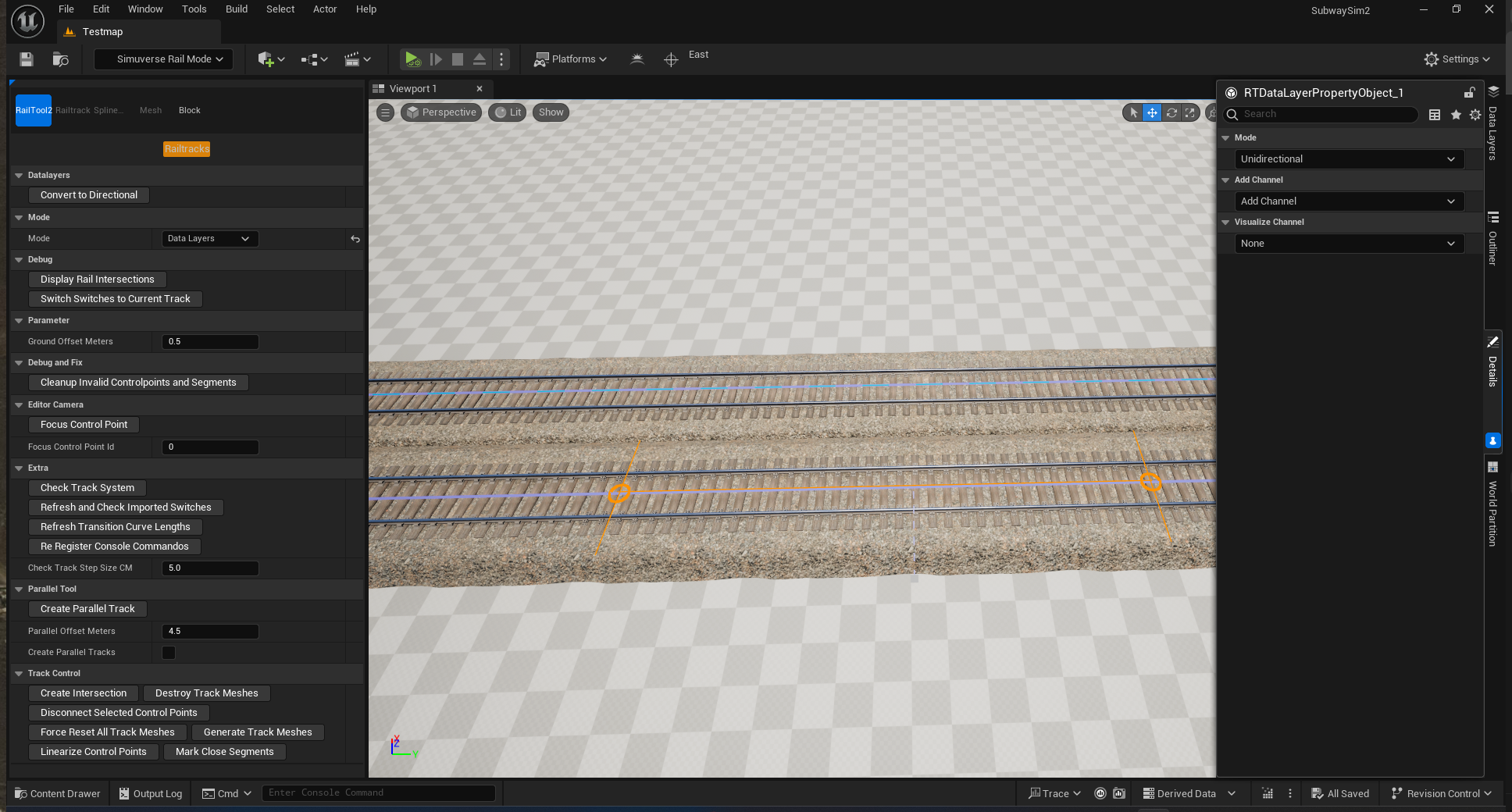
Assigning the Data Layer
- Open Add Channel
- Select ThirdRail
- Choose placement: None / Left / Right / Both
- Select Left
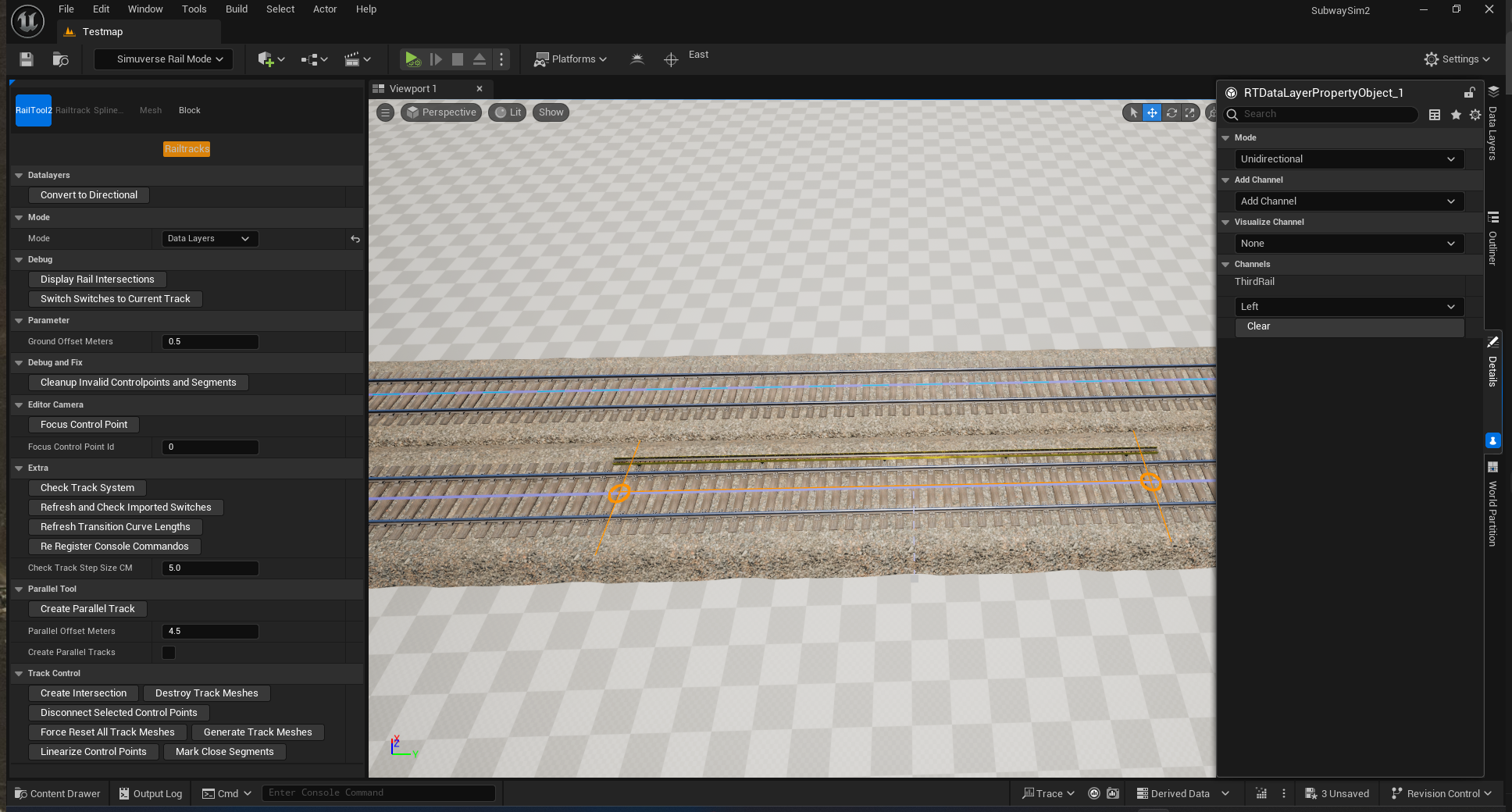
Visualizing Data Layers
Optional:
- Open Visualize Channel
- Select Third Rail
Removing or Modifying Data Layers
- Select a track section
- Open Add Channel
- Set value to None or Clear
Conclusion
With this, the basic principles of track placement have been explained.
Creating clean and realistic railway layouts requires practice. We recommend studying the tracks used in the SampleModMap to learn proper Control Point placement, curve design, and Data Layer usage.
Importing Switches
This page explains how imported rail switches are used in SubwaySim 2 and how custom switches are designed, built, rigged, animated, and integrated into the game.
Imported switches are required whenever the Railtool cannot reliably generate a specific switch geometry or when a switch is a special construction (e.g. DKW / EKW / DW).
When Are Imported Switches Required?
The Railtool supports:
- straight tracks
- curves
- standard single switches
- crossings without moving parts
However, some switch types are:
- geometrically very complex
- highly variable between real-world construction standards
- not safely generatable by procedural tools
In these cases, switches must be:
- modeled manually in a 3D application (e.g. Blender)
- imported into SubwaySim 2 as custom assets
- connected to tracks via Control Points like any Railtool switch
SDK Provided Imported Switches
The Modding SDK already includes a variety of imported switches.
They are located in:
SubwaySim2_Modding / RailwaySystem / ImportedSwitches
These switches are used in the base game and serve as:
- production-ready assets
- technical reference for correct setup
- examples for naming, paths, animations, and Blueprints
Placing Imported Switches in a Level
To place an imported switch:
- Make sure the Unreal Editor is in Selection Mode
- Drag one of the BP_… switch Blueprints into the level
⚠️ Only use the BP_… Blueprints. Do not place raw meshes directly.
After placement:
- the switch can be freely moved and rotated
- align it according to your track design
Once positioned:
- open the Railtool and connect the switch to the surrounding tracks via Control Points
See:
Rail Switch Terminology
| English | German |
|---|---|
| Rail | Gleis |
| Blade | Zunge |
| Stock Rail | Backenschiene |
| Frog | Herzstück |
| Flangeway | Rillenweite |
| Guard Rail | Radlenker |
| Guide Rail | Leitschiene |
| Switch Motor | Weichenmotor |
| Sleepers | Schwellen |
| Hollow Sleeper (Tub) | Trogschwelle |
Parts and Concepts
Rail Profile
We generally build everything in the 60E1 rail profile.
This ensures:
- correct wheel / rail interaction
- consistent visuals
- compatibility with existing base game assets
Blade and Stock Rails
The blade rail is the moving rail part of a switch. The stock rail is the non-moving rail part that the blade rests against.
Important characteristics:
- the blade starts very thin and becomes thicker until it matches the normal rail profile
- the stock rail also changes profile near the blade contact area
- the blade sits higher than the standard rail while keeping the same track gauge
- shortly after the thick section, both transition back into the standard profile
Frog
The frog is where rails interconnect and split. This is often the most complicated part of the switch.
Depending on switch type, frogs can exist as:
- single frog
- double frog
- triple frog
Frog geometry must ensure:
- flangeway clearance
- correct wheel guidance
- no wheel drops and no clipping
Throw Bar and Switch Motor / Lever
The throw bar and switch motor are what move the blades.
- the throw bar grabs the blade
- the motor pulls or pushes the throw bar
- blades do not move at the same time — one starts moving slightly before the other
Alternative:
- manual switch levers can be used instead of motors
Guard Rails and Guide Rails
Guard and guide rails prevent the wheelsets from taking the wrong route through the frog area and help guide the wheels safely through the crossing.
Clamps
Switches require special clamps:
- blade clamps
- guard clamps
- special clamps where space is limited
Clamps are usually the most tedious part of the whole workflow.
Crossings, Switches, DW, EKW and DKW
Rail Crossing
A crossing has no moving parts. Crossings can be generated by the Railtool and require no custom building.
Standard Switch
A normal single switch can be generated by the Railtool and does not require custom building.
DW (Doppelweiche / Double Switch)
DW is like two switches placed so close together that they intersect. These currently must be custom built and cannot be reliably generated by the Railtool.
EKW (Einfache Kreuzungsweiche / Simple Crossing Switch)
EKW is like a crossing but includes switch blades so trains can move from one track to another. These must be custom built.
DKW (Doppelkreuzungsweiche / Double Crossing Switch)
DKW is like an EKW but allows trains to move freely between the connected tracks. DKWs must be custom built and are generally more complex.
DKW Blades In / Blades Out
There are two DKW blade layout variants:
- blades outside the two frogs
- blades inside the frogs
Outside-blade variants:
- more complicated to build
- allow higher speed through the switch
Building Example (DW-60E1-100-6:1LR)
In this example we build a DW in:
- 60E1 profile
- radius 100
- angle 6:1
- first left, then right
Naming:
DW-60E1-100-6:1LR
Some software does not support `:` and may write it as:
1_6 instead of 1:6
We build this inside the prepared `60E1-Rail.blend` file which includes prebuilt meshes and a folder structure. Always follow the existing folder structure:
- create a new Collection
- keep naming consistent
Modelling (Blender)
Curves and Paths
First create the switch angle reference (example 6:1):
- place a vertex at world origin
- extrude 6 m along X
- extrude 1 m along Y
- fill the triangle
The long edge (~6.08 m) is referenced as “c” in later steps.
Next create a 100° circle:
- align it so the bottom vertex sits at the origin
- use a high vertex count divisible by 4
- target ~0.6 m edge length (example: 1024 verts)
Delete unnecessary vertices.
Now:
- extrude the edge “c” forward
- move the circle along X until it becomes tangent to edge “c”
Alignment methods:
- manual positioning (not recommended)
- use snapping:
- set active element
- select a vertex
- select all vertices
- snap to edge “c”
- if intersecting, choose a different reference vertex
Now you have one curve (left). For the right curve:
- copy the first curve
- move along X so its start sits in world origin
- rotate by 180° or mirror along X
Add straight edges, convert to curves.
Paths:
- duplicate the curves
- convert duplicates to meshes
- trim them slightly
- ensure all start at the same point
- extrude edges 0.1 m up for visibility
⚠️ Path requirement:
- wherever paths intersect, they must have the exact same vertices
Naming:
- PathLeft
- PathRight
- PathStraight
These paths will later define train routing in the imported switch Blueprint.
Arrays and Sleepers
Rails:
- duplicate `60E1Double`
- add Array modifier (merge enabled)
- add Curve modifier using one of the curves
- repeat for all rails
Flangeway distance mesh:
- duplicate the `Abstand` mesh
- apply same array + curve setup
Sleepers:
- use an existing sleeper mesh (commonly `WoodenSleeper2.6`)
- ensure sleeper spacing ~0.6 m
- apply curve modifier along the rails
After merging and length adjustments, the base rail bed should be complete.
Frogs: Cutting and Stitching
At first rails will intersect incorrectly. We must cut out the intersecting rail / flangeway areas.
Workflow:
- cut away collision parts where flangeway and rail intersect
- extend rail ends to the correct intersection points
- model the frog using reference material
- add frog wings
- check wheel clearance
Note:
- frogs can look weird in Blender; what matters is correct geometry and clearance
Blades and Stock Rails
Initially, blades are just normal rails. They must be reshaped.
Blade workflow:
- use `BladeRailDouble`
- apply curve modifier on the required curve
- enable deformation alignment in Curve modifier for easier positioning
- ensure thick part sits close to center (rotate 180° on Z if needed)
Then:
- duplicate middle segment
- move middle + thin end to where the blade begins intersecting the stock rail
- move thin end to the blade tip
- delete wrong blade faces where necessary
Segment stitching:
- select each segment
- bridge edges (linear)
- add enough cuts so segments are about 0.6 m each
- delete unnecessary faces
- sharpen thin end edges
- apply curve modifier
Stock rail workflow:
- duplicate `StockRailDouble`
- apply curve modifier
- repeat on corresponding rail
Repeat this process for all blades / stock rails for the entire switch.
Guards and Guide Rails
Guard rails:
- duplicate `GuardRailDouble`
- apply curve modifier where needed
- position correctly near frogs
- trim if necessary
If a guard rail does not fit:
- add a guide rail (metal piece)
- use existing switches as reference for shape and placement
Hollow Sleepers and Throw Bars
Hollow sleepers:
- use existing `HollowSleeper`
- place at the blade end between two sleepers
- ensure the steel tub does not intersect rails or clamps
Throw bars:
- place `ThrowBar` and `ThrowBarNuts` at the same blade end position
- align to blade ends
- ensure no intersections when blades move
Clamps (Detailed Workflow)
Clamps are the most time-consuming part.
Preparation:
- add an edge loop length-wise through every sleeper (temporary helper)
- add edge loops length-wise through all rails (except blades)
Placement:
- take `RailClamp`
- snap it to:
- middle of sleeper
- middle of rail
- duplicate along X by 0.6 m (sleeper distance)
- use Shift+R to repeat last action until clamps cover entire length
Important:
- do NOT use instances
- do NOT use array modifiers for clamps
Reason:
- clamps require individual pivot rotation and per-clamp adjustments
After base placement:
- move clamps along the curve alignment
- duplicate until all rails on all sleepers have clamps (except blades)
Special clamp types:
- blades: use `ClampK_BladeBUILD` on the corresponding stock rail
- guards: use `ClampK_GuardBUILD` on the corresponding guard rail
Rotation:
- rotate each clamp individually to match the rail direction it is attached to
Special cases:
- if clamps clip each other:
- separate them
- build a custom “special clamp” mesh
Performance approaches:
Approach A (Correct / Optimized)
- separate special clamps and unique clamps
- add sockets to remaining clamps
- record which clamps are single or double
- place clamps via instanced meshes in engine
- efficient but time consuming
Approach B (Simple / “Good Enough”)
- export clamps as separate StaticMesh
- apply a strong LOD chain to reduce performance impact
- faster and often acceptable for mod maps
Gravel
Gravel workflow:
- pick a gravel base mesh (e.g. GravelOEBB or GravelSubway)
- apply curve modifier (usually 3 times for all tracks)
- apply modifiers
- merge together to avoid overlapping and Z-fighting
- ensure ends match next rail segment seamlessly
UV requirement:
- texel density must match standard gravel meshes
- select a top face and read texel density
- view from top, project from view
- apply same texel density to the full gravel mesh
UVs and Textures
Switch UVs are based on a tileable trim sheet (RailTileSet).
Workflow:
- select all shiny metal parts
- cube project
- set texel density: 5.12 px/cm on a 1k texture
- move UV islands to the shiny trim region
- repeat for rusty trim region
- repeat for wood / concrete sleepers
Rigging and Animating
This section is mandatory for any imported switch that includes moving blades.
Rigging (Armature Setup)
We rig the switch with an Armature.
Step 1: Root bone
- create the root bone
- name it: `Rail`
Step 2: Vertex Groups for static parts All meshes that are not part of the moving blades should receive a vertex group named `Rail`.
Typical static meshes:
- rails (except blade meshes)
- frogs
- guards / guide rails
- sleepers
- clamps
- gravel
- any fixed hardware
Workflow:
- select static meshes
- merge temporarily if helpful
- select faces
- CTRL+G → assign to vertex group `Rail`
Step 3: Blade bones (4 bones per blade) For each blade:
- place a bone starting at the thick blade base
- move the end to the thin blade end
- subdivide the bone twice
- result: 4 bones per blade
Important:
- bones should follow blade curvature
- bones must sit centered in the blade geometry
Bone naming convention:
Blade<FromTo>_<L/R><Index>
Examples:
- BladeLR_L1
- BladeLR_L2
- BladeLR_L3
- BladeLR_L4
- BladeRL_R1
- BladeRL_R2
- …
Meaning:
- LR = blade direction: Left → Right route
- L/R = left or right blade in the switch
- Index starts at the thick end
Step 4: Throw bars Throw bars should receive vertex groups matching the blade they are attached to. Naming:
- same blade naming
- use the final blade bone index
Example:
- if the throw bar belongs to BladeLR_L4 → vertex group should match that
Step 5: Skinning / Parenting Blades are skinned to the armature:
- parent with automatic weights
Then verify manually:
- pose mode
- rotate bones slightly
- confirm weights behave correctly on all blade segments
Animating (NLA Strips)
For a DW example, the switch gets two animations:
- `BladeSwitch1` (first blade pair: SW1)
- `BladeSwitch2` (second blade pair: SW2)
Animation principle:
- blades do not move simultaneously
- one blade starts slightly earlier than the other
- ensure flangeway clearance at all times
Example workflow for `BladeSwitch1`:
- show flangeway meshes for clearance check
- frame 20:
- key SW1 L1 + L2 bones
- frame 1:
- key SW1 R1 + R2 bones
- rotate inward:
R1 by 1°
    R2 by 0.5°
* frame 80:
  - set R1 + R2 to 0 and key again
* frame 100:
  - rotate inward:
    L1 by 1°
    L2 by 0.5°
  - key again
Graph editor:
- set curves to linear for consistent motion
Name the action:
- BladeSwitch1
Make sure the animation is an NLA strip.
Repeat the same idea for `BladeSwitch2`.
Notes:
- your angles may differ from 1° / 0.5°
- the goal is:
- no clipping in flangeway
- throw bars not intersecting hollow sleeper
- blades settle cleanly into stock rails
Engine Integration
Exporting from Blender
Use the same export settings as for vehicles:
- SkeletalMesh export for the animated switch
- Animation export for blade animations
- StaticMesh export for static components (if separated)
- Paths export as meshes
Folder structure and naming must match the SDK convention.
Importing in Unreal Engine
SkeletalMesh + Animations:
- import like a vehicle asset
- animations into an Animations folder
StaticMeshes:
- import normally
Paths:
- can be imported from a single FBX file
- disable “Combine Meshes”
- ensure mesh names remain meaningful
Animation Blueprint (ABP)
Create a new Animation Blueprint:
- place it alongside other switch ABPs
- follow naming convention
- set Parent Class to: Lua Anim Instance
Workflow:
- copy a working switch ABP as baseline
- create variables for SW1 and SW2
- assign the correct Anim Sequences
- in “Layered Blend per Bone”:
- update bone names to match your blade bones
- verify order: SW1 in first array, SW2 in second
Common issue:
- one wrong bone name breaks the entire blend setup
Always triple-check:
- typos
- correct L/R
- correct index order
Switch Blueprint Setup (RTImportedSwitchActor)
Create a Blueprint based on:
- *RTImportedSwitchActor Add: * SkeletalMesh component * StaticMeshes (sleepers, gravel, clamps) if separated * assign the Animation Blueprint Under RailTool2: * add SwitchConfigurations Each SwitchConfiguration defines: * which Path is used * which animation state is applied Example logic: * if route goes left: - use PathLeft - set SW1 AnimationState to 1 (end pose) * if route goes right: - use PathRight - set SW1 to 0 - set SW2 to 2 You can cycle through configurations in the BP: 0 = first configuration, 1 = second, etc. If nothing changes visually: * check ABP setup first (bone names, variables, animation assignment) Optional features (common in base game switches): * gravel visibility toggle in Construction Script * sleeper material variant toggle (wood vs concrete) * switch motor placement via enum motor positions Switch motors: * determine motor locations in Blender * copy relative location + rotation into Blueprint * reuse existing motor placement logic from SDK BPs where possible —- ===== Extra Info ===== ==== Calculating the Angle (Example 1:6) ==== 1/6 = 0.1666… atan(0.1666…) = 9.462322208… Rounded to 4 decimals: 9.4623° —- ===== Next Step ===== With the track layout completed, including curves, switches, height profiles, and Data Layers, your map’s railway infrastructure is now in place. The next step is to prepare the map for use in SubwaySim 2 by configuring all required settings and validating the setup. → Prepare Map**
© 2025 Simuverse Interactive · SubwaySim 2 Modding Wiki
All trademarks and registered trademarks are the property of their respective owners. This Wiki is provided for documentation and modding purposes only.