
Table of Contents
Build a Mod to Pak File
Before a mod can be used in SubwaySim 2, it must be converted into a format that the game can read. This process is required because of how Unreal Engine handles assets and game content.
Why does a Mod need to be built?
Unreal Engine cannot load raw editor assets directly in a finished game. Before assets can be used in-game, they must be cooked and then packaged into a .pak file.
Cooking means that Unreal Engine:
- Converts assets into platform-specific formats
- Optimizes textures, meshes, and materials
- Prepares Blueprints and scripts for runtime usage
After cooking, all required files are compressed into a single .pak archive. This allows SubwaySim 2 to load the mod content correctly and efficiently.
Opening the Modding Tools
In the current version of the Modding SDK, the previously used BuildMod.bat files are no longer required.
Building mods is now handled directly inside the Unreal Editor using the Modding Tools.
With the Unreal Editor open, you can find the Modding Tools button in the top toolbar next to the Play controls. The button uses a notepad icon.
Click the icon to open the Modding Tools window.
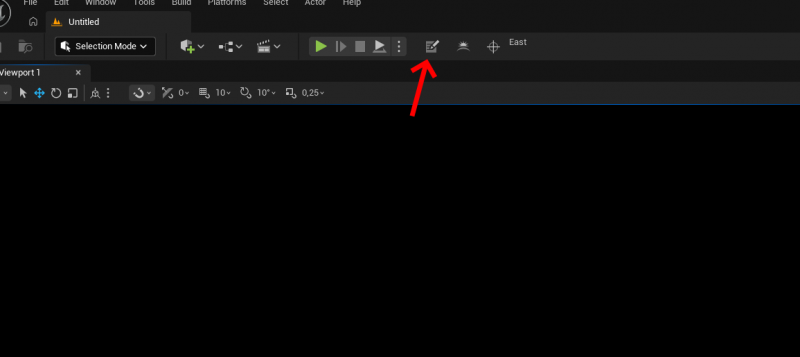
The window contains several options for setting up and working with the Modding SDK. For building a mod, only the Build Mod section is required.
Build Mod Settings
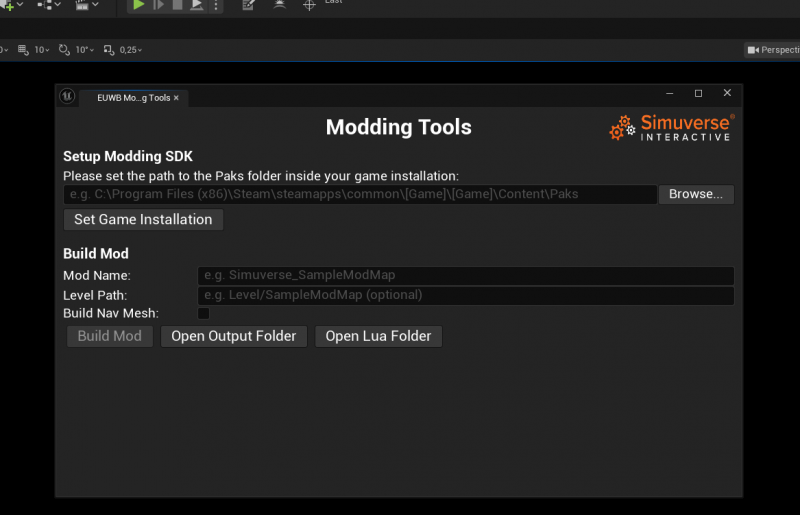
The Build Mod section contains the following options:
Mod Name
Enter the name of the plugin that contains your mod.
The name must match the name of your plugin.
For example:
Simuverse_SampleModMap
Level Path
If your mod contains a level, enter the path to the level inside your plugin starting from the plugin's Content folder.
Do not include the Content folder itself in the path.
For example, if your level is located at:
YourPlugin/Content/Level/SampleModMap.umap
enter:
Level/SampleModMap
If your mod does not contain a level, this field can be left empty.
Build Nav Mesh
Enable Build Nav Mesh if the Navigation Mesh of your level needs to be rebuilt.
This is only necessary if changes have been made to the map that affect the navigation areas used by passengers, for example when new Nav Mesh areas have been added or existing ones have been modified.
If no changes to the passenger navigation have been made, this option can remain disabled.
Building the Mod
Once the required values have been entered, click Build Mod.
The build process will start automatically.
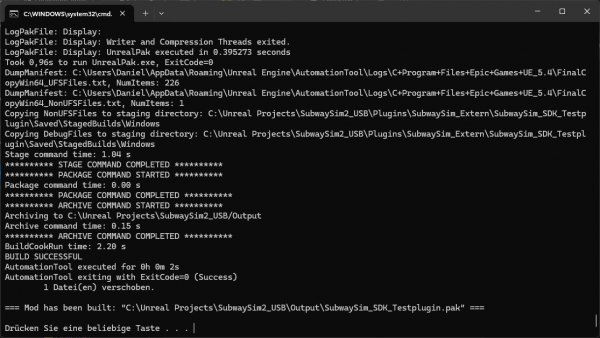
Unreal Engine will start cooking the mod. Depending on your PC hardware and the size of the mod, this process may take some time.
When finished, the generated .pak file will automatically be moved into the Output folder located in the SDK root directory.
Output and Lua Folder
The Modding Tools window also provides two useful buttons:
Open Output Folder
Opens the Output folder containing the finished .pak files generated by the build process.
Open Lua Folder
Opens the Lua folder of the plugin currently specified under Mod Name.
This is useful when working on or testing the Lua scripts of your mod.
Installing the Mod in SubwaySim 2
To load the mod in SubwaySim 2, place the generated .pak file into the following directory:
%userprofile%\Documents\My Games\SubwaySim 2\Mods
Testing Lua scripts without rebuilding the mod
- Create an empty folder for your plugin
%userprofile%\Documents\My Games\SubwaySim 2\Mods\YourName_YourMod\. - Copy the Lua scripts from your Lua folder inside this folder maintaining the same folder structure.
- The game will now use the Lua scripts from this folder if they exist, otherwise it falls back to the mod itself.
Have fun testing!
Your mod is now ready to be used in SubwaySim 2. Have fun testing your content!
© 2026 Simuverse Interactive · SubwaySim 2 Modding Wiki
All trademarks and registered trademarks are the property of their respective owners. This Wiki is provided for documentation and modding purposes only.