
Table of Contents
Accessing Basegame Assets
Experimental Feature
Accessing basegame assets through the Modding SDK is currently an experimental feature and still under active development.
Opening or accessing content from the game's .pak files may cause the Unreal Editor to become unstable or crash. Not all assets are currently expected to work correctly inside the Modding SDK.
This feature is being developed step by step and is provided to give the modding community an early look at where SubwaySim 2 modding is heading.
Future versions of the Modding SDK are intended to improve access to basegame content and make more existing assets available for use in custom maps and mods.
The Modding SDK can load content directly from the .pak files of your SubwaySim 2 installation.
This allows modders to inspect the structure of the basegame content directly inside the Unreal Editor. It is especially useful for understanding asset paths and references used by SubwaySim 2.
In the future, this system is also intended to allow assets from the basegame to be used directly on custom maps.
Why access Basegame Assets?
Most of the content shipped with SubwaySim 2 is stored inside .pak files.
Normally, the contents of these files are not visible inside the Modding SDK. This can make it difficult to understand which assets exist in the basegame or which paths are used when an asset is referenced by the game.
By connecting your SubwaySim 2 installation to the Modding SDK, the Unreal Editor can read the required .pak files and expose their content inside the Content Drawer.
This can be useful for:
- Finding asset paths used by the basegame
- Understanding how basegame content is organized
- Finding assets referenced by Lua scripts or other systems
- Understanding references to meshes, materials, textures, sounds, and other assets
- Preparing custom maps that make use of existing SubwaySim 2 assets
Opening the Modding Tools
First, open the SubwaySim 2 Modding SDK project in Unreal Editor.
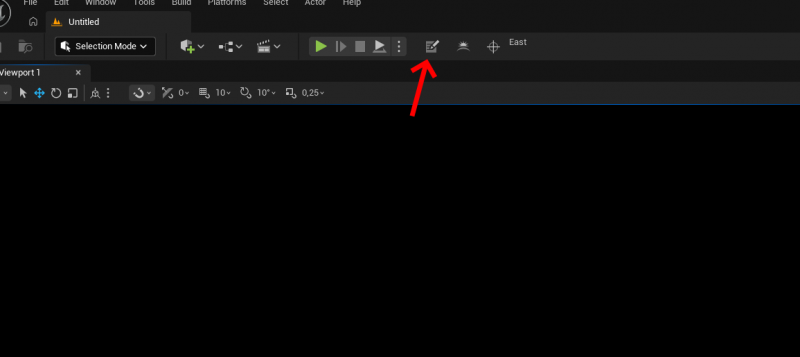
In the top toolbar next to the Play controls, you can find the Modding Tools button. The button uses a notepad icon.
Click the icon to open the Modding Tools window.
At the top of the window you will find the Setup Modding SDK section.
Setting the Game Installation
The Setup Modding SDK section contains a field where the path to the SubwaySim 2 .pak files can be entered.
The path must point to the Paks folder inside your SubwaySim 2 installation.
The exact location depends on where the game is installed.
For example:
C:\Program Files (x86)\Steam\steamapps\common\SubwaySim 2\SubwaySim2\Content\Paks
You can either enter the path manually or click Browse… to select the folder.
Once the correct folder has been selected, click:
Set Game Installation
The Modding SDK will then use this location to access the basegame .pak files.
Viewing Basegame Content
After the game installation has been configured, the Unreal Editor can read supported content from the SubwaySim 2 .pak files.
The available basegame content will appear inside the Content Drawer together with the content available to your plugin.
This allows you to browse the asset structure from within Unreal Editor instead of having to determine asset paths manually.
You can use the Content Drawer to inspect folders and locate assets such as:
- Static Meshes
- Materials
- Textures
- Sounds
- Blueprints
- Other game assets
Please keep in mind that this feature is still experimental. Accessing certain assets may currently cause errors or crashes inside the Unreal Editor.
Understanding Asset Paths
One of the main purposes of loading the basegame content is to make asset paths easier to understand.
Unreal Engine assets are often referenced using paths instead of filenames.
By browsing the basegame content in the Content Drawer, you can find the corresponding asset and inspect where it is located.
This makes it easier to understand how existing SubwaySim 2 systems reference their content and allows those paths to be used when developing your own mod.
Using Basegame Assets on Custom Maps
The basegame content integration is also being developed with the goal of allowing existing SubwaySim 2 assets to be used when creating custom maps.
This means that assets already shipped with the game may eventually be available to modders without having to copy those assets into the mod itself.
This can include assets such as:
- Environment objects
- Station assets
- Props
- Materials
- Other scenery elements
At the moment, this functionality is still under development.
The ability to see an asset in the Content Drawer does not mean that the asset is currently safe or fully supported for use in a custom mod.
The current implementation is intended to give the modding community an early insight into this system while development continues.
Changing the Game Installation
If SubwaySim 2 is moved to another location, reinstalled, or installed through another Steam library, the configured path may no longer be valid.
In this case:
- Open the Modding Tools
- Select the new
Content\Paksdirectory - Click Set Game Installation again
The Modding SDK will then use the newly selected game installation.
Troubleshooting
If no basegame content appears after setting the game installation, check the following:
- Make sure the selected directory is the
Content\Paksfolder of SubwaySim 2. - Make sure SubwaySim 2 is installed correctly.
- Make sure the selected folder actually contains the game's .pak files.
- Restart the Unreal Editor after changing the game installation if the content does not appear immediately.
- Make sure you are using a Modding SDK version that supports loading basegame content.
If the Unreal Editor crashes while browsing or opening basegame content, keep in mind that this functionality is currently experimental. Some assets may not yet be compatible with the Modding SDK.
What's next?
The current basegame content integration is only the beginning.
Its purpose is to give the modding community better insight into the structure of SubwaySim 2 and make it easier to understand asset paths and existing game content.
As development of the Modding SDK continues, this system is intended to become more stable and eventually allow supported basegame assets to be used directly when creating custom maps and mods.
© 2026 Simuverse Interactive · SubwaySim 2 Modding Wiki
All trademarks and registered trademarks are the property of their respective owners. This Wiki is provided for documentation and modding purposes only.