
Table of Contents
Creating a Plugin
On this page, you will learn how to create your own plugin, which will later contain all assets, scripts and content for your SubwaySim 2 mod. As explained in Modding Framework Explained, every mod in SubwaySim 2 is built as a plugin. If you have not read that chapter yet, please make sure to go through it before continuing, as it is essential to understand the plugin system.
Using the Mod Template
Inside the folder `SubwaySim_Extern`, you will find a template plugin called `Simuverse_ModTemplate`. This template serves as the base for every new mod.
To create your own plugin:
- Copy the entire folder `Simuverse_ModTemplate`
- Rename the copied folder to match the name of your project, e.g. `SubwaySim_SDK_Testplugin`
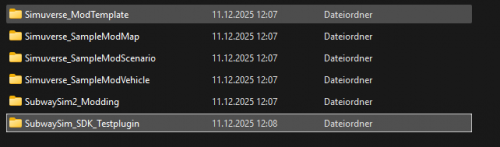
Important: Plugin names must not contain spaces, umlauts, or special characters. Use only letters, numbers, and underscores.
Understanding the Plugin Structure
Inside your renamed plugin folder, you will find:
- Content – Contains all Unreal Engine assets such as textures, materials, Blueprints, maps, and the `Movies` folder for video files.
- Lua – Contains all Lua scripts. The most important file here is `mod.lua`, your master script where all other Lua scripts used by your mod must be registered.
- Resources – Contains assets such as the plugin icon shown in the Unreal Plugin Manager.
- .uplugin file – The metadata/configuration file of your plugin.
—-
Renaming and Editing the .uplugin File
The `.uplugin` file must match the exact name of your plugin folder. For example:
SubwaySim_SDK_Testplugin.uplugin
Open this file with a text editor. Inside you will see several fields, but only two must be changed:
  "FriendlyName": "SubwaySim_SDK_Testplugin",
  "Description": "Content for SubwaySim SDK Testplugin",

Adjust these values to reflect your plugin name and description.
Preparing the mod.lua File
Open the file `Lua/mod.lua` using Visual Studio Code. Update the following fields according to your mod:
- Title
- Description
- Author (optional)

These values are used by the game to properly initialize and display your mod.
Starting the Unreal Engine Project
Launch the SDK by opening `SubwaySim2.uproject`. On first startup, Unreal Engine will compile shaders — this may take several minutes depending on your hardware. All future startups will be much faster.
Enabling Plugin Visibility in Unreal Engine
Once the editor has loaded, open the Content Drawer Settings. Enable:
- Show Engine Content
- Show Plugin Content
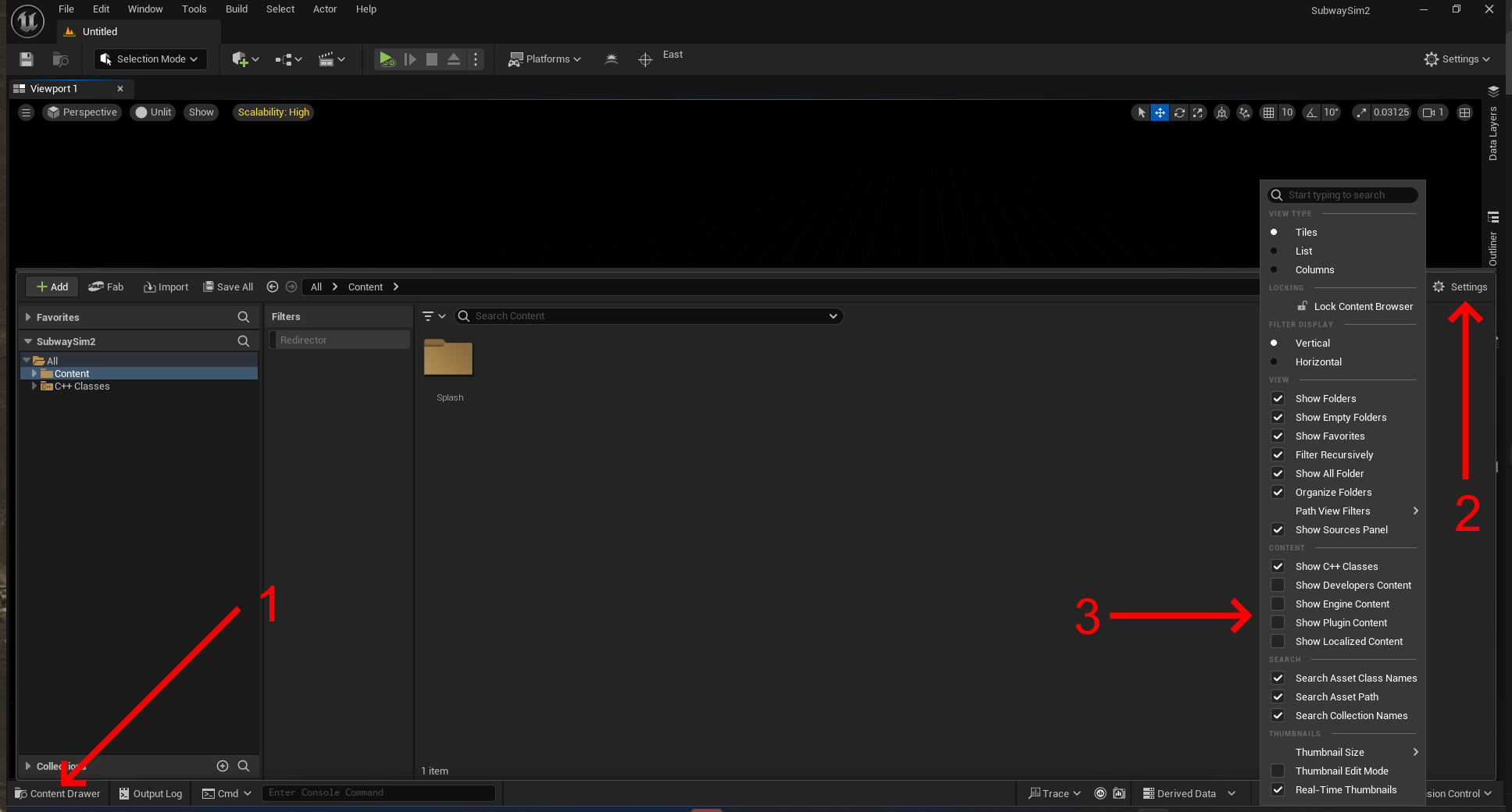
If your plugin is not visible, it must be manually activated:
- Go to `Edit → Plugins`
- Search for your plugin by name
- Activate it and restart the editor
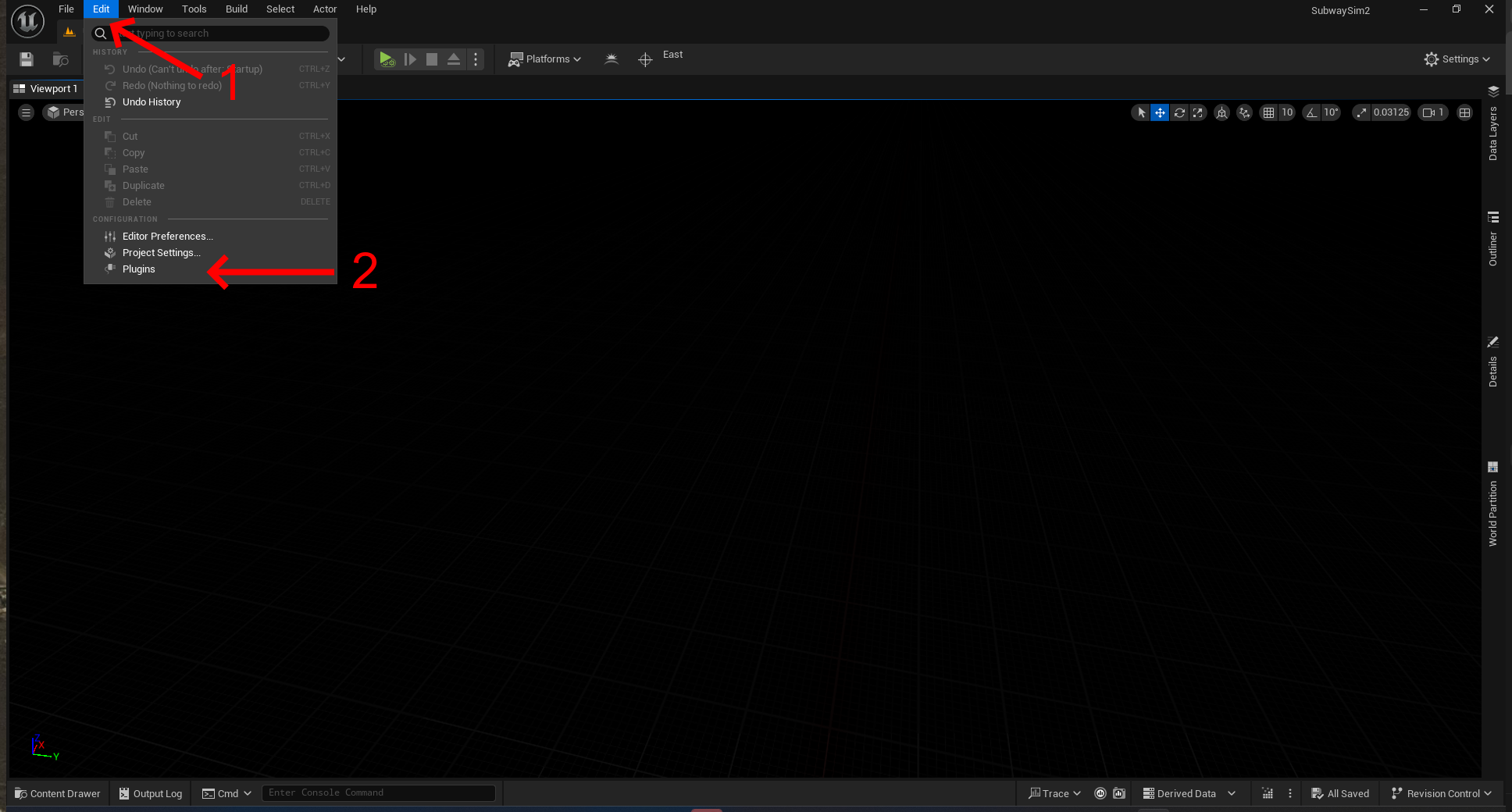
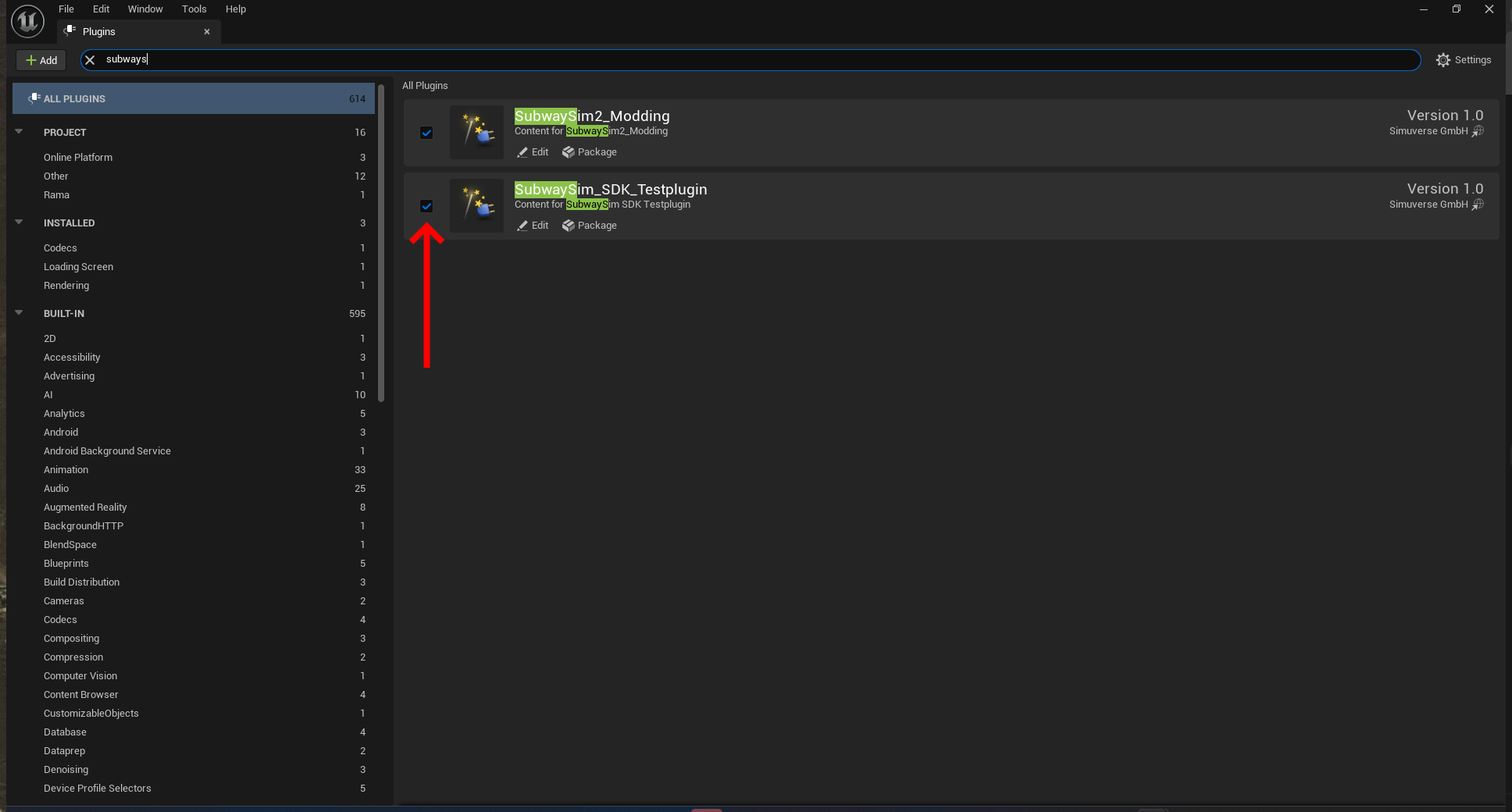
If you plan to create a map mod, you need to make sure that “Update Navigation Automatically” is enabled in the Editor for the NavMesh: Edit → Editor Preferences → Level Editor → Miscellaneous → Editing“.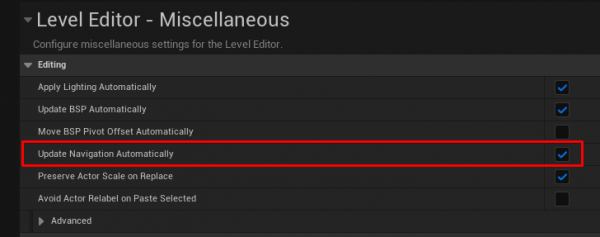
Viewing Your Plugin in the Editor
After activation, your plugin will appear in the Content Drawer.

Note that Unreal Engine only displays the Content folder of your plugin — Lua files are not visible inside the editor, as they are handled externally by the game.
Your Plugin Is Ready!
Your plugin is now fully set up and ready to be used.
In the next step, we will create the first level inside your plugin and prepare the basic environment needed for map construction in SubwaySim 2.
© 2026 Simuverse Interactive · SubwaySim 2 Modding Wiki
All trademarks and registered trademarks are the property of their respective owners. This Wiki is provided for documentation and modding purposes only.