Table of Contents
Creating a Simple Animation Blueprint
An Animation Blueprint (ABP) is responsible for managing and processing all animation-related logic of a vehicle in SubwaySim 2.
It receives simulation data, calculates bone transformations, and forwards the final animation pose to the Vehicle Blueprint, which then applies it to the Skeletal Mesh.
This chapter focuses on creating a simple Animation Blueprint, which is sufficient for:
- Wheel rotation
- Bogie movement
- Basic vehicle motion
More advanced animations such as couplings, doors, or additional vehicle systems are handled separately.
Creating the Animation Blueprint
To create an Animation Blueprint, navigate to the folder where your Skeletal Mesh is located.
- Right-click on the Skeletal Mesh
- Search for Animation Blueprint
- Select it from the menu
Name the Animation Blueprint following the same convention used for Control Rigs:
- Prefix: APB_
- Example: `APB_TestVehicle`
This ensures consistency and makes asset relationships easy to understand.
Setting the Correct Parent Class
After creating the Animation Blueprint, open it.
Before adding any logic, we must set the correct parent class:
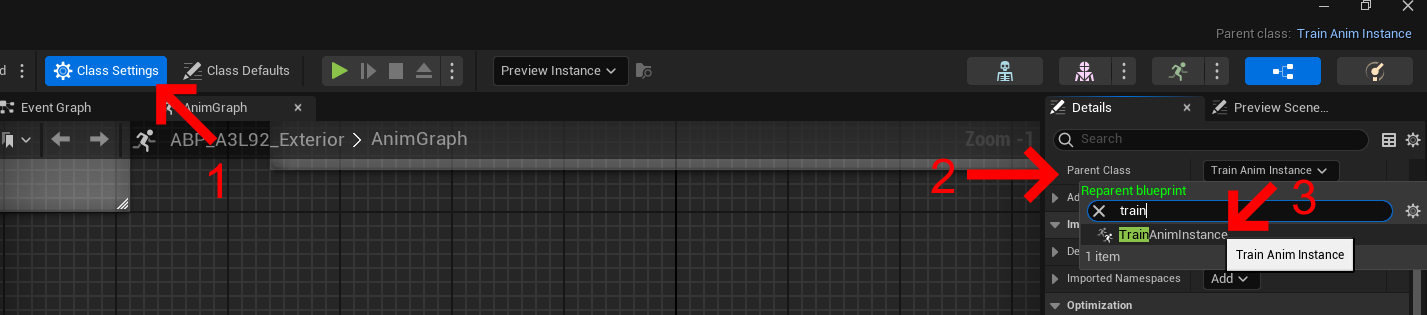
- Click Class Settings (top of the editor)
- Locate Parent Class
- Set it to Train Anim Instance
This step is mandatory. Without the correct parent class, required train-specific functions and data will not be available.
Structure of the Simple Animation Blueprint
The simple Animation Blueprint is divided into two conceptual parts:
- Part 1: Core animation logic for axles and bogies (covered on this page)
- Part 2: Advanced animations (covered in a separate chapter)
This page focuses only on Part 1, which is all that is required for basic vehicle functionality.
Adding the Control Rig Node
Inside the Animation Blueprint graph:
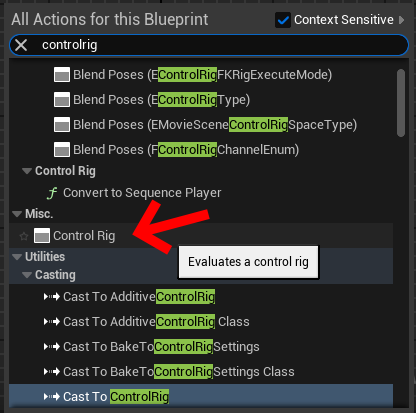
- Right-click in the graph
- Search for Control Rig under *Misc*
- Add the node
Connect:
- The Output Pose of the Control Rig node
- To the Final Animation Pose (Output Pose)
This ensures that all animation logic coming from the Control Rig is applied to the Skeletal Mesh.
Enabling Control Rig Inputs
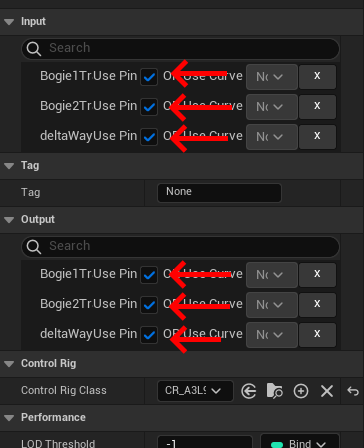
Select the Control Rig node.
In the Details panel on the right:
- Open the Input / Output section
- Enable all available input pins by checking their boxes
This exposes the variables previously created in the Control Rig:
- BogieRotation1
- BogieRotation2
- DeltaWay
These inputs must now be provided with data.
Supplying DeltaWay
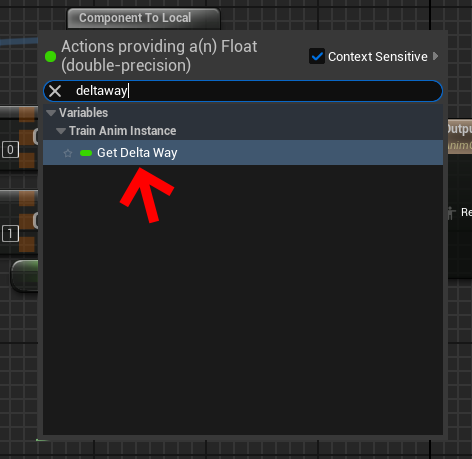
The DeltaWay value represents the distance the vehicle travels along the track and is required to calculate axle rotation.
To provide this value:
- Drag from the DeltaWay input pin
- Search for Get Delta Way
- Select the node
- Connect it to the Control Rig input
This automatically supplies the required movement data.
Supplying Bogie Transforms
To animate bogies correctly, we need to retrieve their transforms from the simulation.
- Right-click in the graph
- Search for Get Bogie Transforms
- Add the node
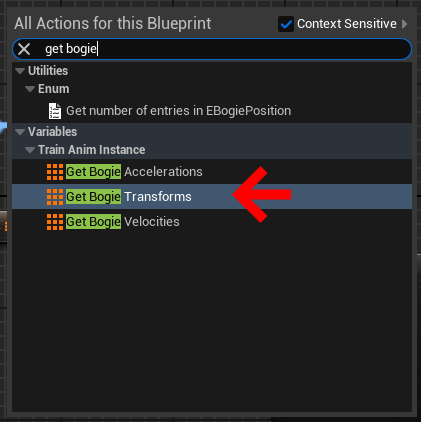
This node outputs an array of transforms.
From the array output:
- Drag a connection
- Search for Get (a ref)
- Select the node
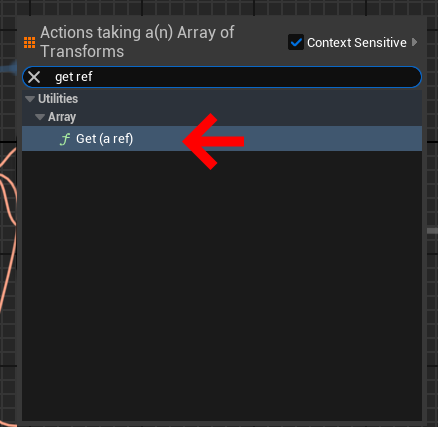
Repeat this for each bogie the vehicle has.
For a standard two-bogie vehicle:
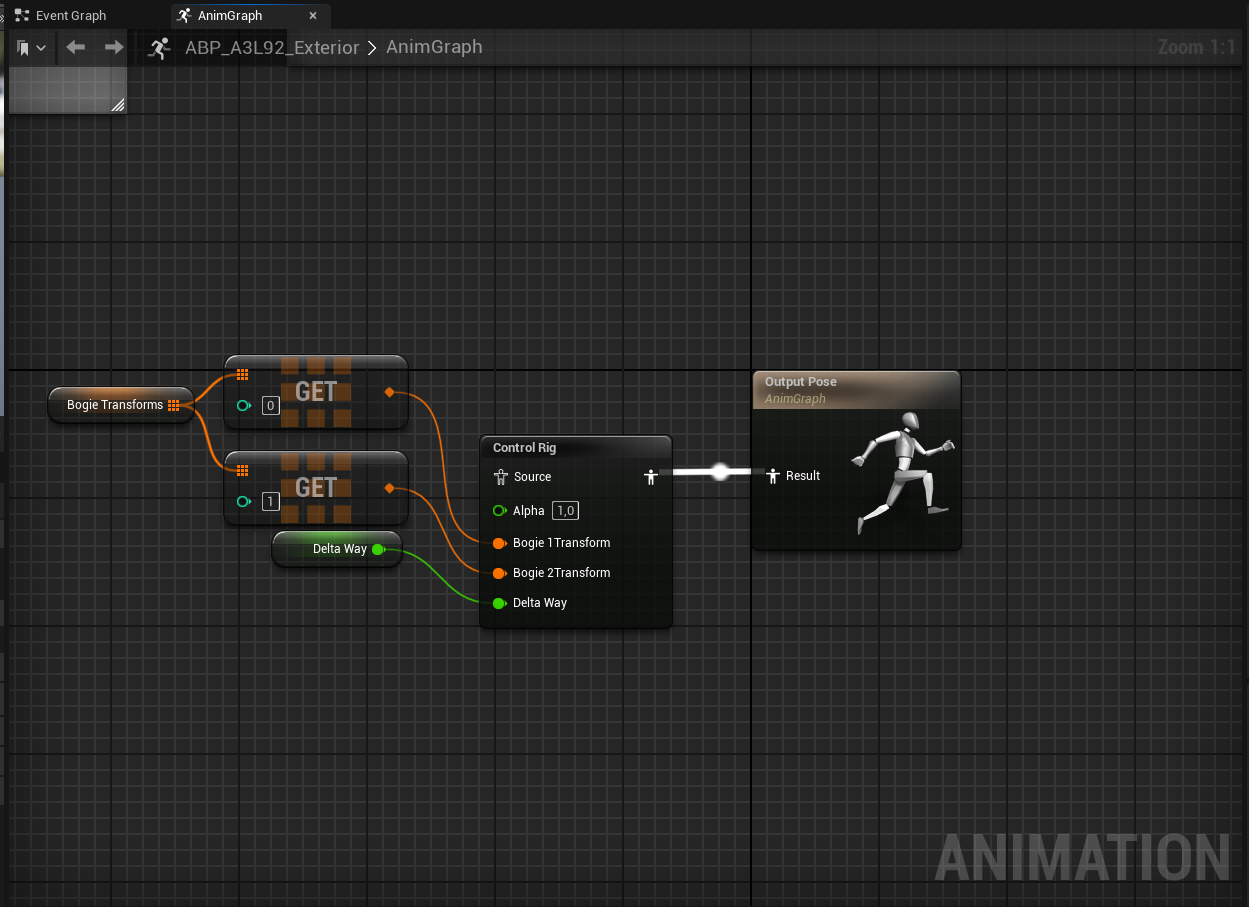
- BogieRotation1 → Index 0
- BogieRotation2 → Index 1
Connect each output to the corresponding Control Rig input.
Finalizing the Simple Animation Blueprint
Once all connections are set up:
- Verify that all Control Rig inputs are connected
- Ensure the correct indices are used for bogie transforms
- Click Compile
- Click Save
At this point, the simple Animation Blueprint is complete and fully functional.
About Complex Animation Blueprints
This Animation Blueprint covers only the minimal required setup for vehicle operation.
If your vehicle requires additional animated systems such as:
- Couplings
- Doors
- Advanced mechanical components
please continue with the dedicated chapter: Creating a Complex Animation Blueprint
That chapter builds upon the foundation established here.
© 2026 Simuverse Interactive · SubwaySim 2 Modding Wiki
All trademarks and registered trademarks are the property of their respective owners. This Wiki is provided for documentation and modding purposes only.