Table of Contents
Prepare a Map for SubwaySim
In this section, we prepare the map so it can be loaded and used inside SubwaySim 2.
At this stage, the basic map layout and track system already exist. Now we focus on preparing all required systems so the map works correctly with AI trains, routing, stations, and in-game logic.
This page serves as an overview and entry point for the individual preparation steps listed below. Each chapter will later be explained in more detail in its own dedicated page.
Overview
The preparation workflow consists of four mandatory core areas:
- Tracks & Layout
- Signals & Speed Limits
- Station Definitions
Optional systems such as passenger spawners or menu thumbnails can be added later.
Tracks and Layout
Before continuing, make sure you are familiar with track building using the Railtool:
In this example, we build a small test route that we will later use to validate AI spawning and routing.
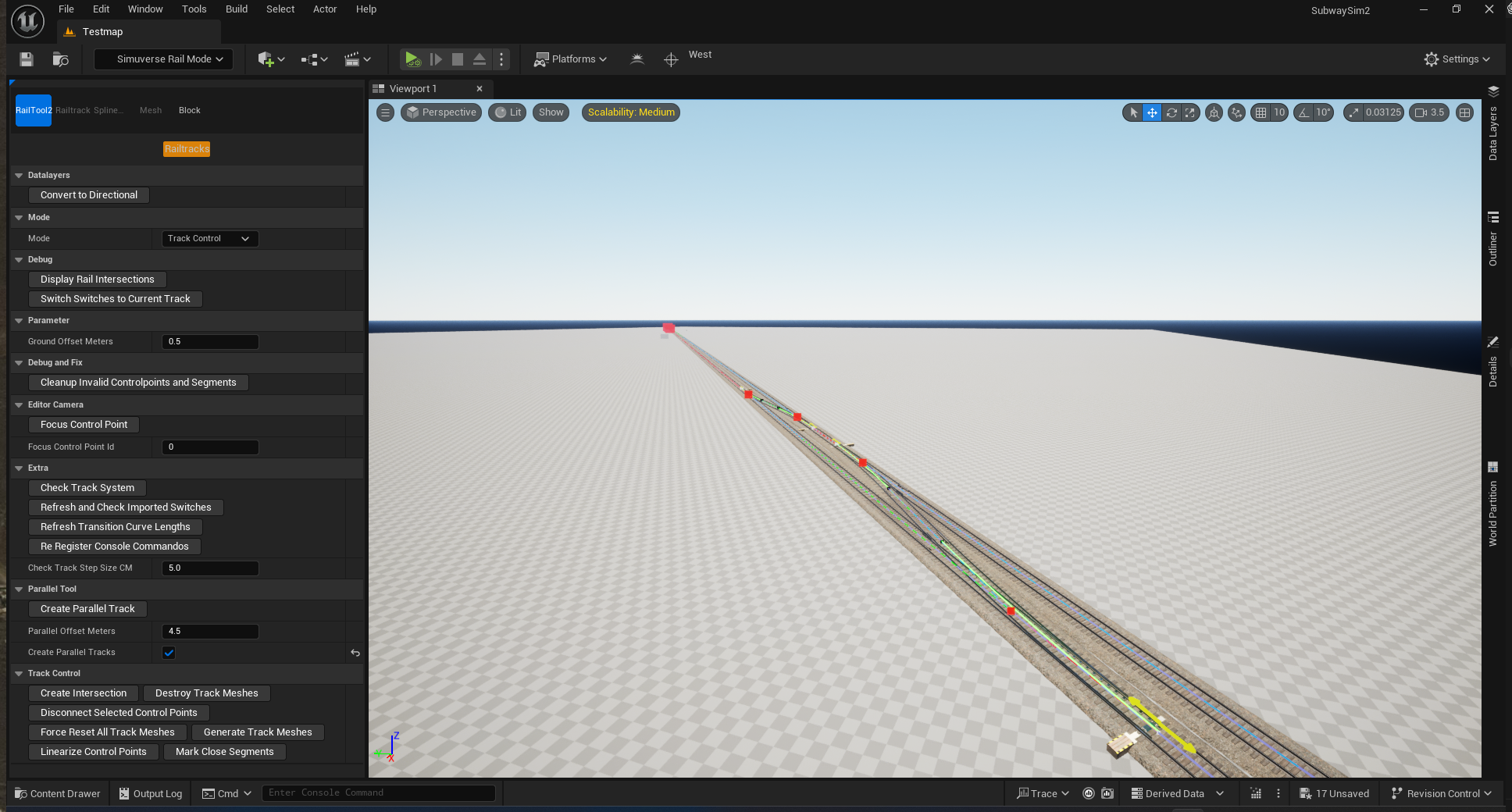
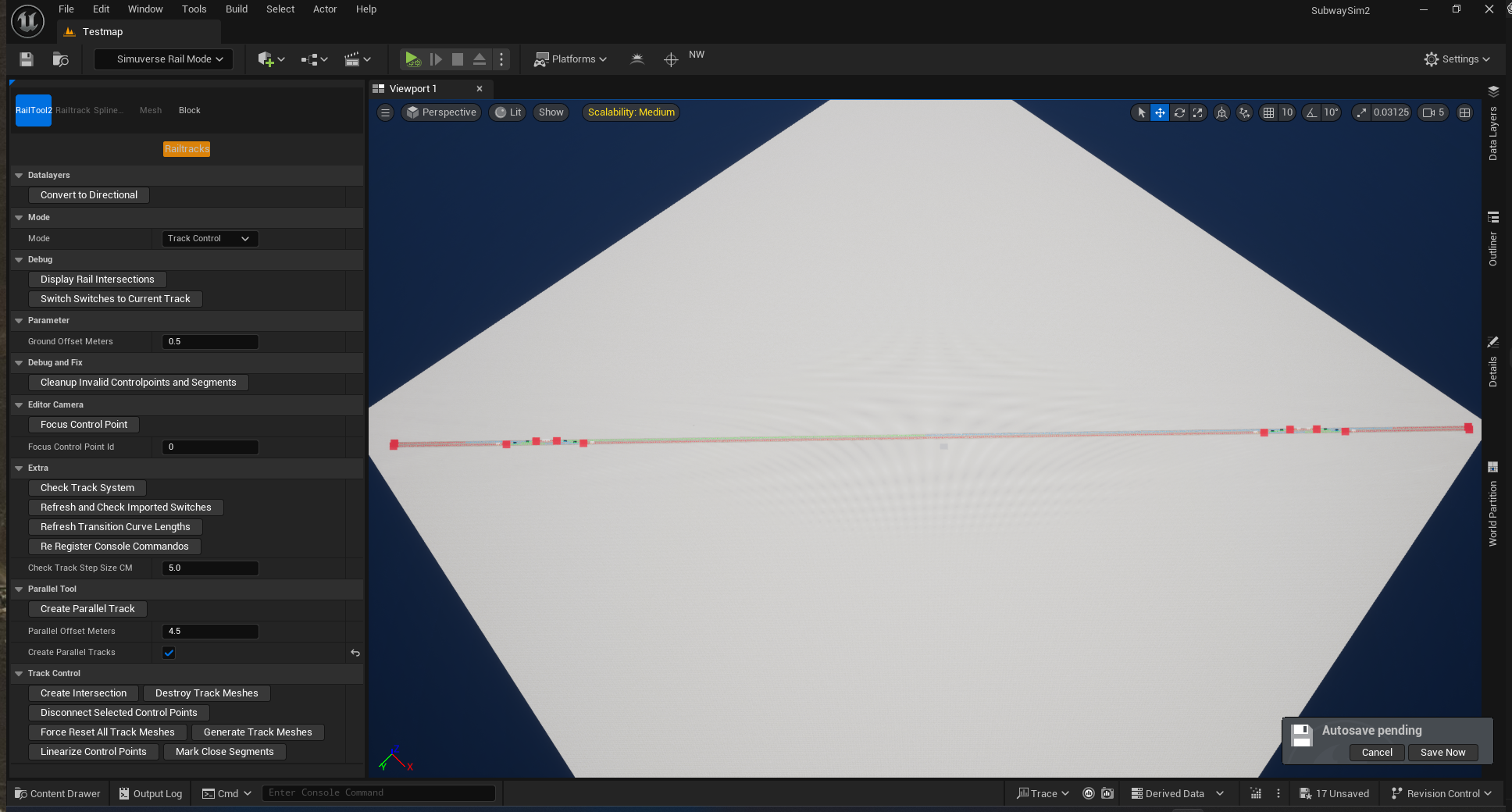
Building the Main Line
We start by creating a double-track main line on the test map that was created earlier in:
At both ends of the route, we create crossovers so trains can:
- switch from the left track to the right track
- switch from the right track to the left track
These crossovers are essential later for AI routing and timetable planning.
Creating a Depot Connection
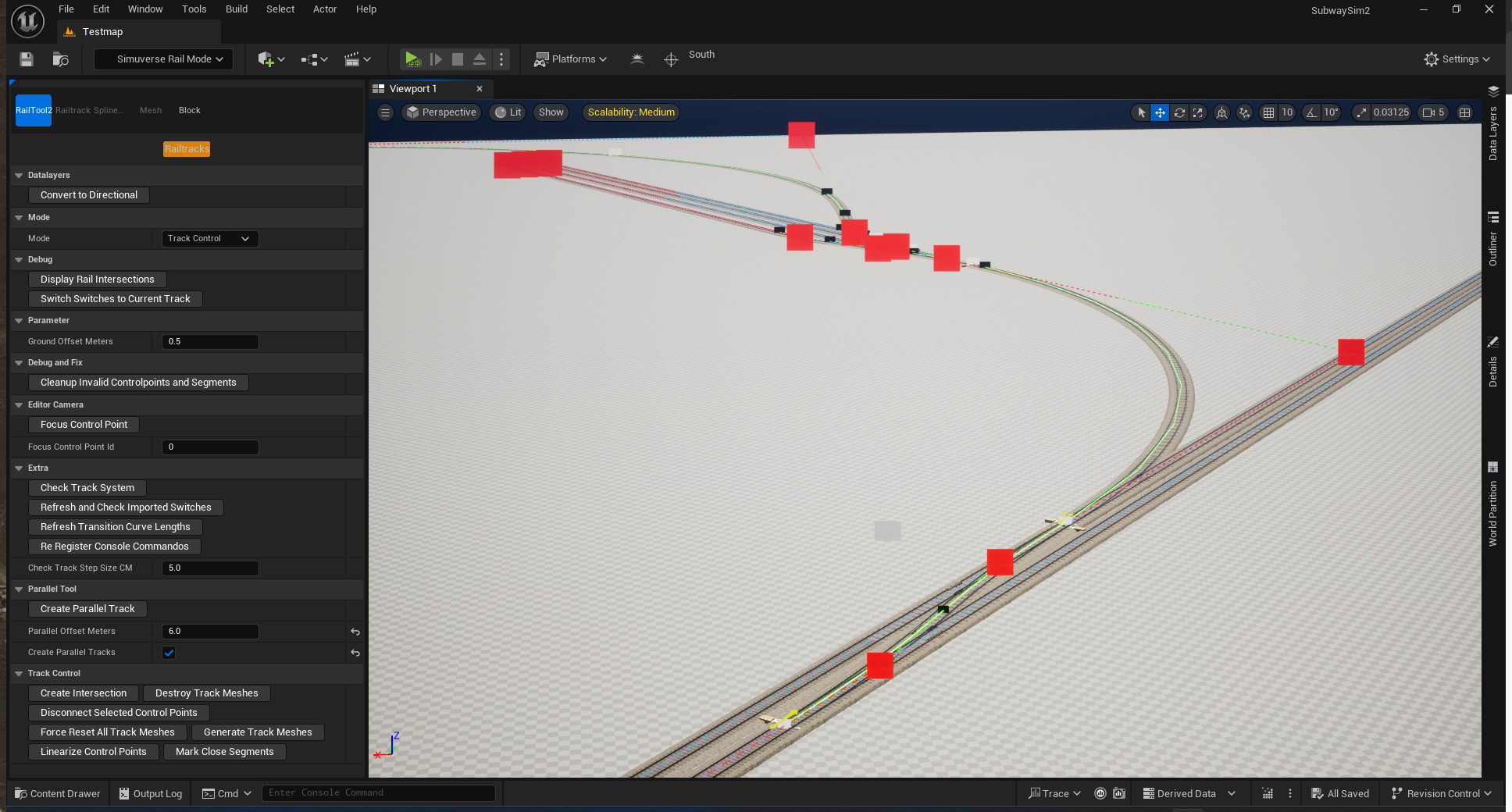
Once the straight main line is finished, we add a small depot area where trains can be stored.
To do this, we go to the middle of the main line and create another crossover between both tracks. This crossover will serve as the only access point to the depot.
We intentionally design the depot so that:
- trains can enter the depot only from one direction
This is a deliberate constraint and will later help demonstrate dispatching and routing logic.
Adding a Test / Inspection Track
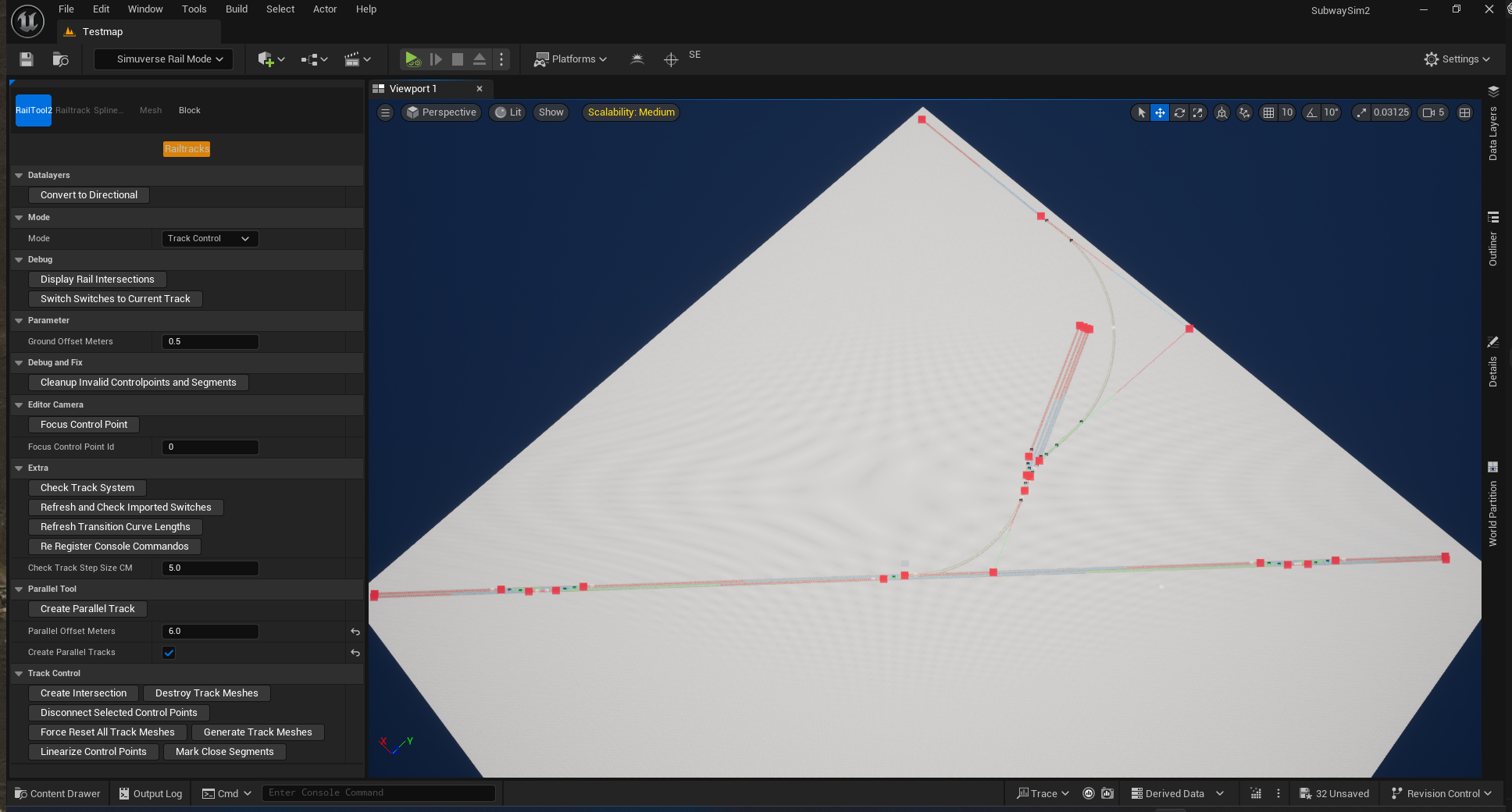
At the depot, we add one additional long track that runs past the depot on the outside.
This track can be used as:
- a test track for vehicles
- an inspection track for debugging
- a safe place to spawn and test new vehicles without blocking the main line
Important Note
⚠️ Data Layers must be set up while laying tracks
When building the track layout, it is essential to also create and assign the correct Data Layers at the same time.
In particular, make sure to:
- place and assign third rail (power rail) Data Layers
- place and assign tunnel Data Layers where applicable
These Data Layers are not just visual elements. They are required for:
- correct power supply logic
- tunnel-specific lighting and environment behavior
- proper interaction with vehicles and systems later in development
Adding or fixing missing Data Layers after the track layout is finished can be very time-consuming and error-prone.
Before continuing, make sure you have read and followed the instructions in:
Only continue once all required Data Layers are correctly set up along the entire route.
Signals and Speed Limits
Every map requires signals in order to spawn and operate trains correctly. It is not possible to place or spawn a train on a track unless there is a valid signal in front of and behind the train.
This rule is mandatory and must always be respected.
Signal Assets
All required signal assets can be found in the SubwaySim2_Modding plugin:
Path:
SubwaySim2_Modding / Infrastructure / Signals
Assets from SubwaySim2_Modding may always be used directly in your maps.
For details on why this is allowed, see:
Placing Buffer Stops and Signals
For every track end and exit, the following elements must be placed:
Buffer Stops
- Blueprint: BP_BufferStop
- Must be placed at every dead-end track
Signals
- Blueprint: BP_MS_SGRYSYG
- Must be placed at every exit and entry point of a track
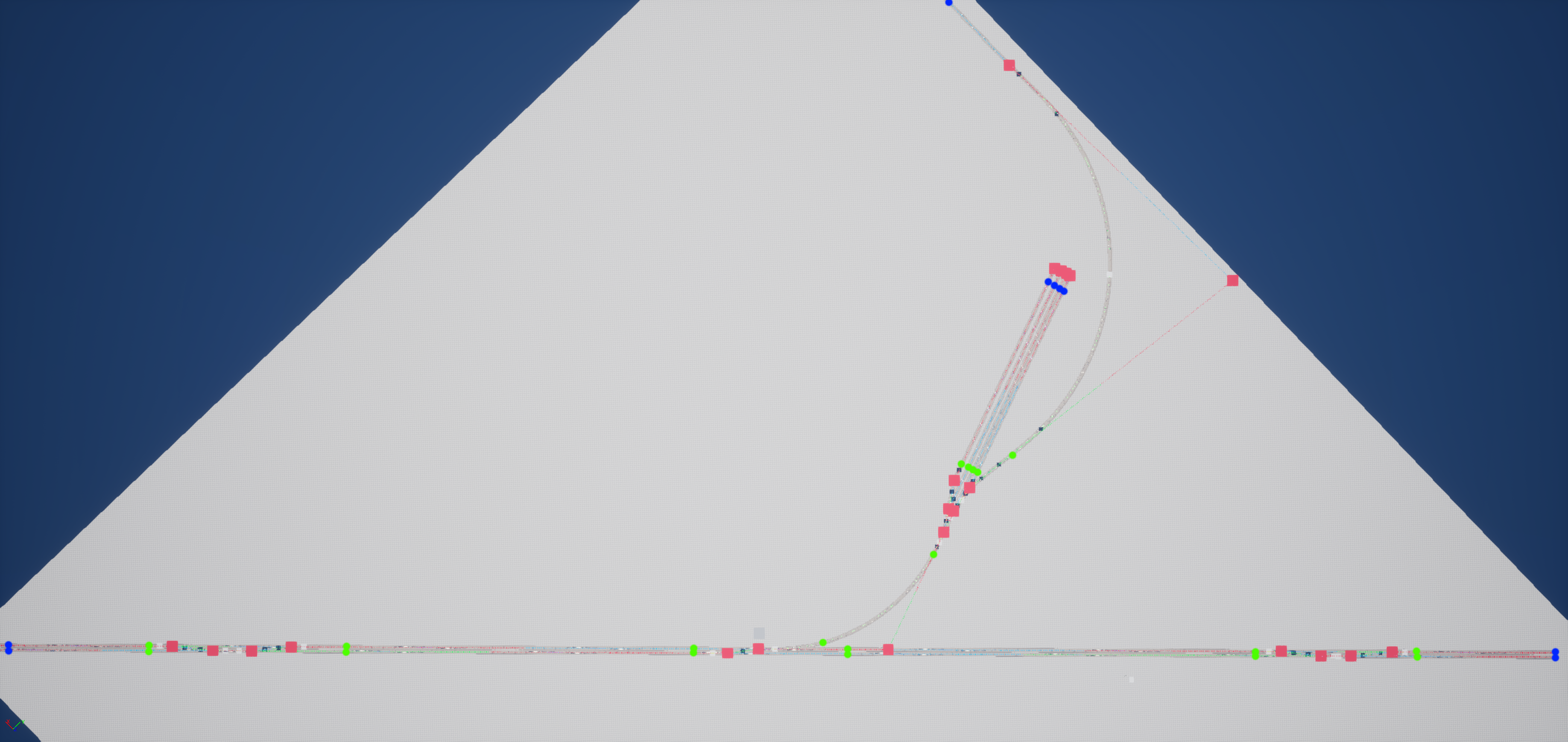
(Here an overview image is shown with:
- Green markers = Signals
- Blue markers = Buffer Stops)
Signal Speed Limits
Important Note
Speed limits and signal behavior in SubwaySim 2 follow the Berlin U-Bahn signaling logic.
This means:
- Speed limits apply immediately at the signal
- There is no delayed enforcement after passing the signal
Setting Speed Limits
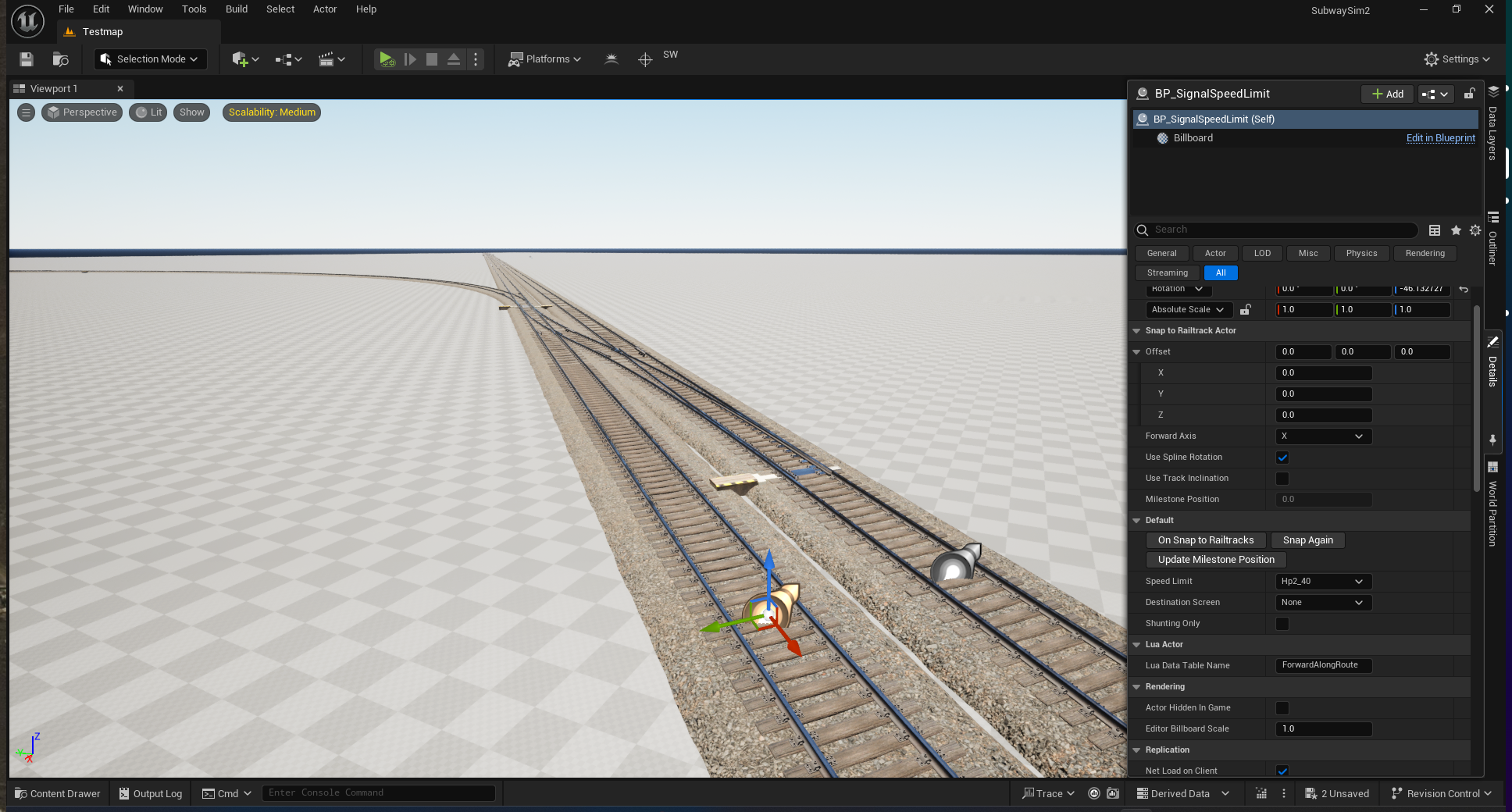
After all signals are placed, define how fast trains are allowed to travel using:
- BP_SignalSpeedLimit
This blueprint is placed:
- at the point where the train is expected to pass
- in the direction of travel
Using this blueprint, you can:
- define a speed limit
- optionally add additional indicators (e.g. track number indicators)
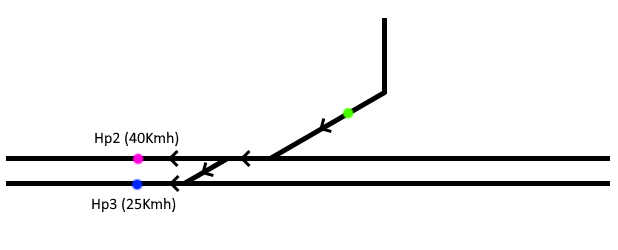
- Green markers = Signals
- Pink markers = Signal Speed Limit (40 km/h)
- Blue markers = Signal Speed Limit (25 km/h)
After placing buffer stops, signals, and speed limits, the map is prepared from a signaling perspective.
Station Definitions
Station Definitions are a mandatory part of every map that should support AI trains.
Blueprint:
SubwaySim2_Modding / GameFramework / RailwaySystem / **BP_StationDefinition**
A BP_StationDefinition must be placed once per station. Inside this Blueprint, all platforms belonging to that station are defined.
In our example map we will need:
- Three Station Definitions for passenger stations
- One Station Definition for the depot
Placing a Station Definition
Drag BP_StationDefinition onto the track. The Blueprint will automatically snap to the rail.
Repeat this step for every station and the depot.
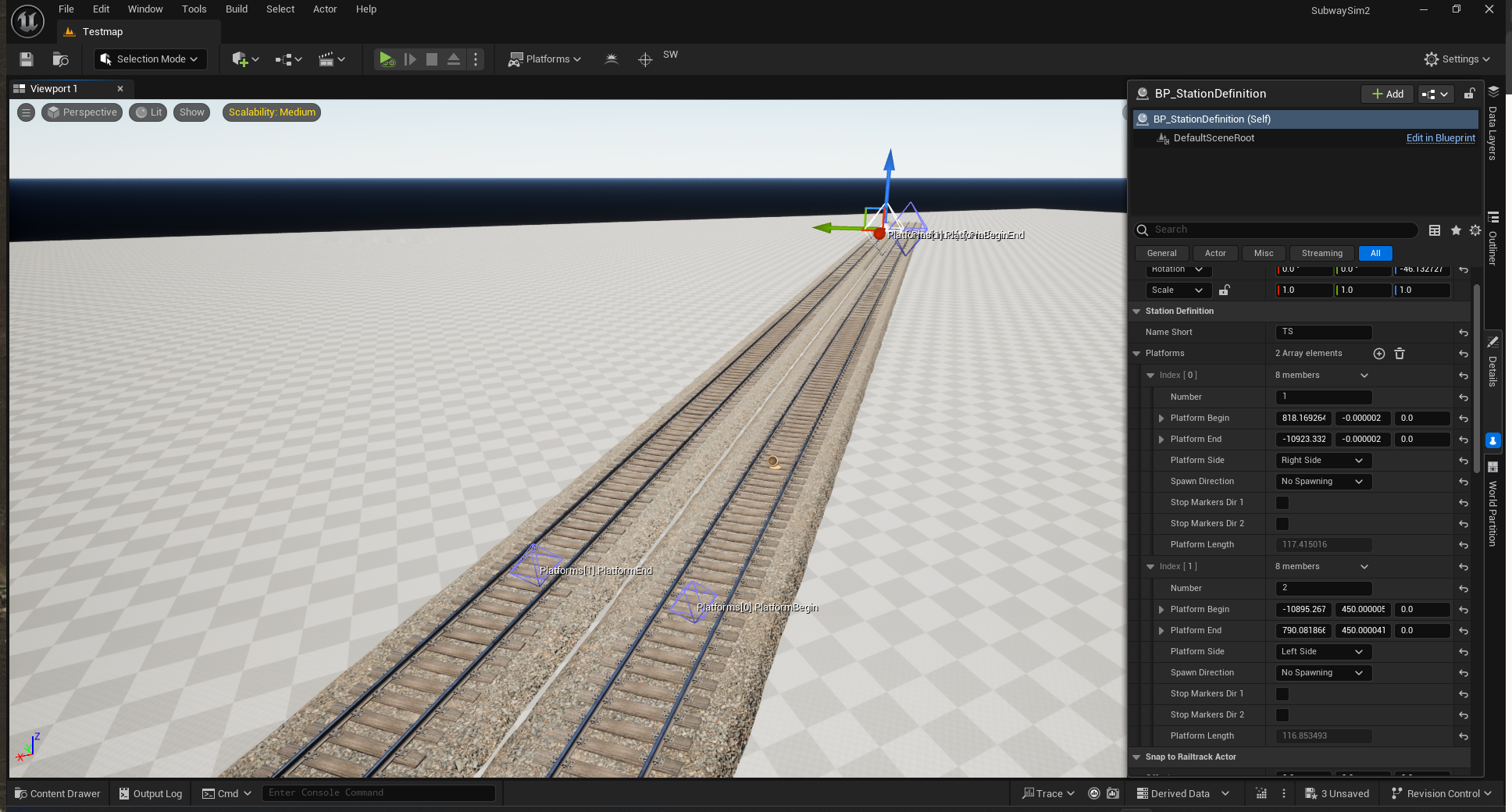
Station Definition Settings
Select the placed BP_StationDefinition and open the Details panel.
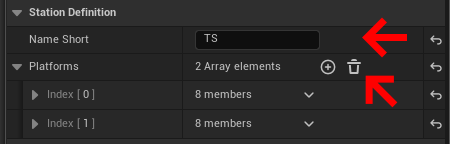
Inside the Station Definition section you will find:
- Name Short
Short station identifier (station code).
  Example:
  Warschauer Straße → `WA`
  TestStation → `TS`
Defining Platforms
Each station can have one or more platforms.
To add a platform:
- Click the + button in the Platforms array
Two markers will appear:
- Platform Begin
- Platform End
Placement rules:
- Platform End points towards the buffer stop / track end
- Platform Begin points towards the open track
- IMPORTANT:
The rotation of Begin and End markers must be consistent across the entire map (all platforms must follow the same direction logic)
Platform Properties
| Property | Description |
|---|---|
| Number | Platform number. Referenced later in Lua and timetables. |
| Platform Begin | XYZ coordinates of the platform start marker. |
| Platform End | XYZ coordinates of the platform end marker. |
| Platform Side | Platform side relative to track direction (Begin → End). Options: No Platform, Left, Right. |
| Spawn Direction | Currently not relevant. Used for passenger spawning logic. |
| Stop Markers Dir 1 | Automatically generates stop markers for direction 1. |
| Stop Markers Dir 2 | Automatically generates stop markers for direction 2. |
| Platform Length | Auto-calculated platform length. Important for AI stopping accuracy and Lua logic. |
Player Spawns (Career Mode)
For career mode, the map must define player spawn locations. These determine where the player appears when taking over a train during a career run.
Placing player spawns is quick and does not require any Lua setup at this stage.
Placing a Player Spawn
Player spawns are provided as a Blueprint inside the SDK.
Path:
SubwaySim2_Modding / GameFramework / SubwaySim2 / **BP_PlayerSpawn**
Drag BP_PlayerSpawn into your level and place it at the desired location. Rotate the actor so that the arrow points in the direction the player should face after spawning.
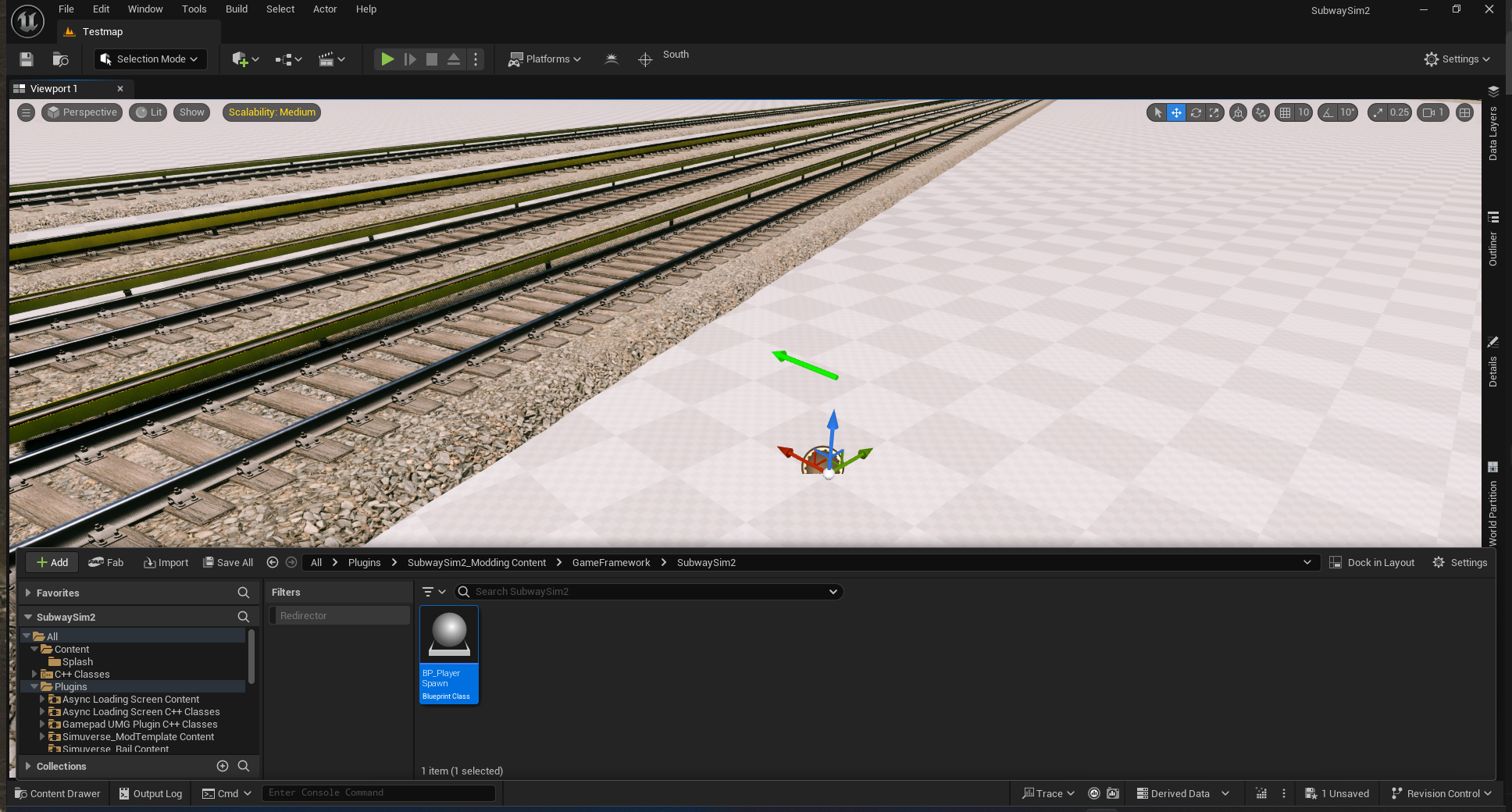
Typically, player spawns are placed:
- on platforms
- near stopping positions
- inside depots (optional)
Configuring Player Spawn Settings
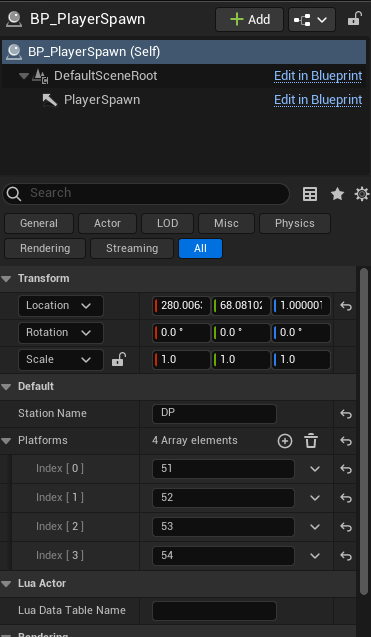
After placing the actor, select it and open the Details panel.
The following settings are relevant:
- Station Name
Short station code (e.g. `DP`, `TS`).
Must match the station short name used later in Map.lua.
- Platforms
List of platform numbers for which this spawn is valid.
These platform numbers must correspond to the platforms defined in the station’s **BP_StationDefinition**.
Using this setup, you can control which platforms can be used as takeover points in career mode.
Important Note
The player spawn actors only define physical spawn locations.
Actual career mode logic (such as:
- takeover stations
- available vehicles
- probabilities
- route closures)
is configured later in:
- Create Map.lua
Do not add career logic here — only place and configure the spawn actors.
Finalizing Station Setup
Configure all stations until the station layout matches the intended design.
Repeat this process for:
- The opposite terminus
- The intermediate station near the depot
- The depot itself
Once Station Definitions are finished, the map is ready for:
- AI train spawning
- Timetables
- Station-based routing
Next Step: Creating the Map.lua
At this point, the map layout and all required level elements are prepared:
- tracks and crossovers are in place
- signals and speed limits are configured
- station definitions are placed and finalized
The next step is defining the runtime logic of the map.
This is done in the Map.lua, where you will:
- register the map so it appears in the menu
- link the Unreal level to the map
- define stations and platforms for AI and player spawning
- create AI timetables and services
- configure dispatching and depot logic
At the same time, you can already continue to visually build out and refine the map:
- place platforms and station structures
- add props and environment details
- further shape stations and depots using editor tools
For this, you can use tools such as:
Both workflows – Map.lua logic and visual map building – can be developed in parallel.
Continue with:
© 2026 Simuverse Interactive · SubwaySim 2 Modding Wiki
All trademarks and registered trademarks are the property of their respective owners. This Wiki is provided for documentation and modding purposes only.