Table of Contents
Laying Tracks
Overview
In this section you will learn how to place railway tracks in your map using the Railtool. Placing tracks comes with several important considerations and requires basic familiarity with the Unreal Editor.
If you are not yet comfortable with Unreal Editor navigation and controls, please take some time to familiarize yourself before continuing.
Initial Setup: RailwaySubSystem
Placing the RailwaySubSystem Blueprint
The first step is to place the RailwaySubSystem master Blueprint into your level.
This Blueprint acts as the central configuration point for all railway-related systems and defines:
- Superstructures
- Data Layers
- Track behavior settings
To place it:
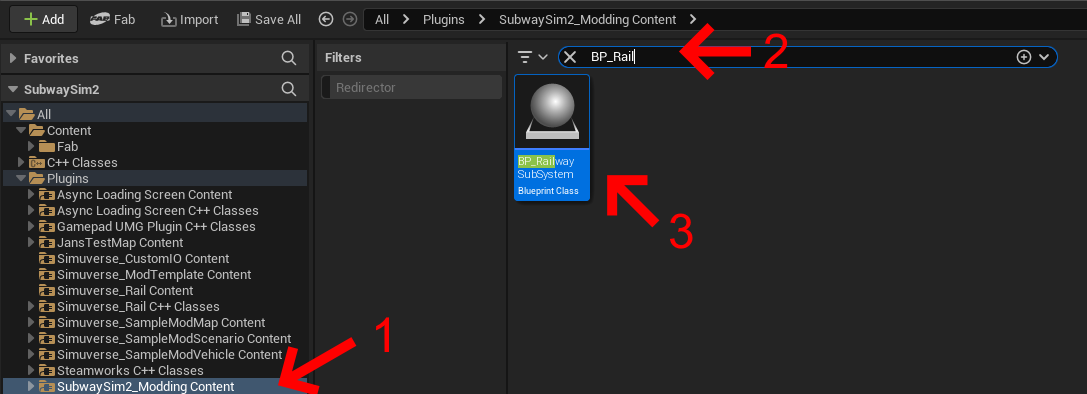
- Open the Content Drawer
- Navigate to SubwaySim2_Modding Content
- Locate the Blueprint BP_RailwaySubSystem
- Drag it into your level
Select the Blueprint in the World Outliner and set its position in the Details panel to: X = 0.000000 / Y = 0.000000
This ensures the subsystem is positioned correctly.
Railway System 2 Settings
With BP_RailwaySubSystem selected, scroll down in the Details panel to the section Railway System 2.
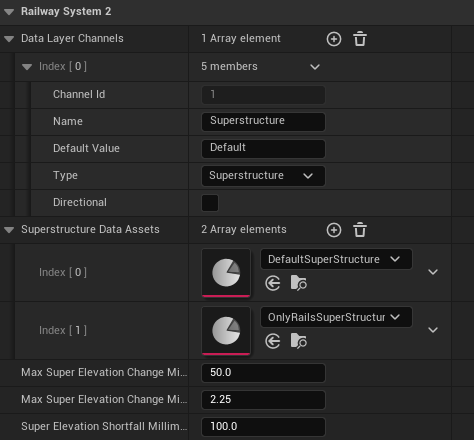
This section contains all settings required before placing tracks.
Data Layer Channels
The Data Layer Channels section defines which Data Layers the Railtool can use.
These include:
- Superstructure Data Layers
- Guide Rail Data Layers
- Third Rail Data Layers
- Custom Data Layers
You can:
- Add a channel using the + button
- Remove a channel using the Trash icon
Each channel consists of the following fields:
| Property | Description |
|---|---|
| Channel Id | Automatically assigned index. Channel 1 should always be the Superstructure. |
| Name | Name of the Data Layer. |
| Default Value | Default value applied when no track data is set. |
| Type | Data Layer type: Side, Superstructure, String, Integer, Float |
| Directional | If enabled, the Data Layer is applied only in one direction. Default is both directions. |
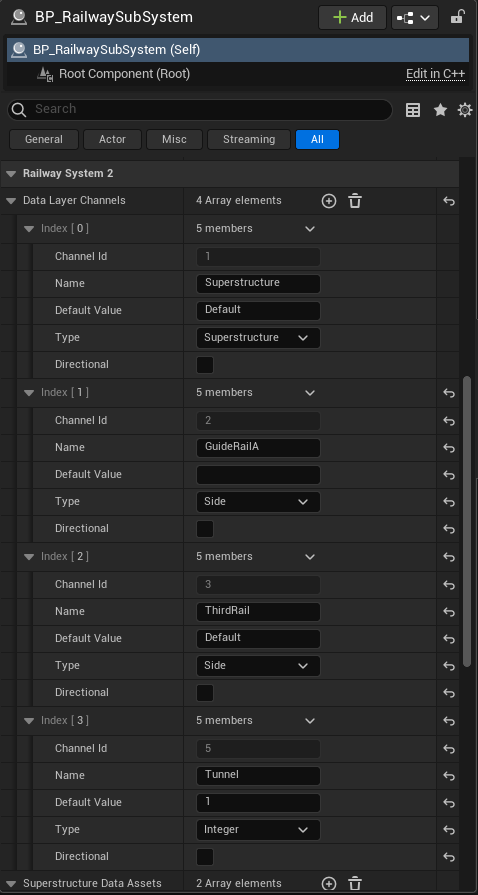
Once Guide Rails, Third Rails, and other infrastructure elements are configured in your Superstructure, the Data Layer Channels section will contain multiple entries.
This typically includes:
- A Superstructure Data Layer
- One or more Guide Rail Data Layers
- A Third Rail Data Layer
- Additional custom Data Layers
One commonly used custom Data Layer is Tunnel.
The Tunnel Data Layer is used to mark tunnel sections along the track. When applied, it ensures tunnel areas are treated correctly by the game, including proper lighting behavior.
Without this Data Layer, tunnel sections may appear incorrectly lit or not fully dark during gameplay.
Superstructure Data Assets
In this section, you add all Superstructure Data Assets that should be available for track creation.
These assets define:
- Rail geometry
- Sleeper meshes
- Ballast
- Clamps
- Guide Rail and Third Rail behavior
Make sure all required Superstructures are added here before placing tracks.
Superelevation
Superelevation describes the banking of tracks in curves to compensate for centrifugal forces.
The Railtool supports automatic superelevation using the following parameters:
| Property | Default | Description |
|---|---|---|
| Max Super Elevation Change Millimeter Per Sec | 50.0 | Maximum change per second |
| Max Super Elevation Change Millimeter Per Meter | 2.25 | Maximum change per meter |
| Super Elevation Shortfall Millimeter | 100.0 | Allowed deviation / tolerance |
These default values are suitable for most cases and can be adjusted depending on track design and realism requirements.
Entering Rail Mode
After setting up the RailwaySubSystem correctly, we can begin placing tracks.
Open the Mode Selection in the Unreal Editor and switch to Simuverse Rail Mode.
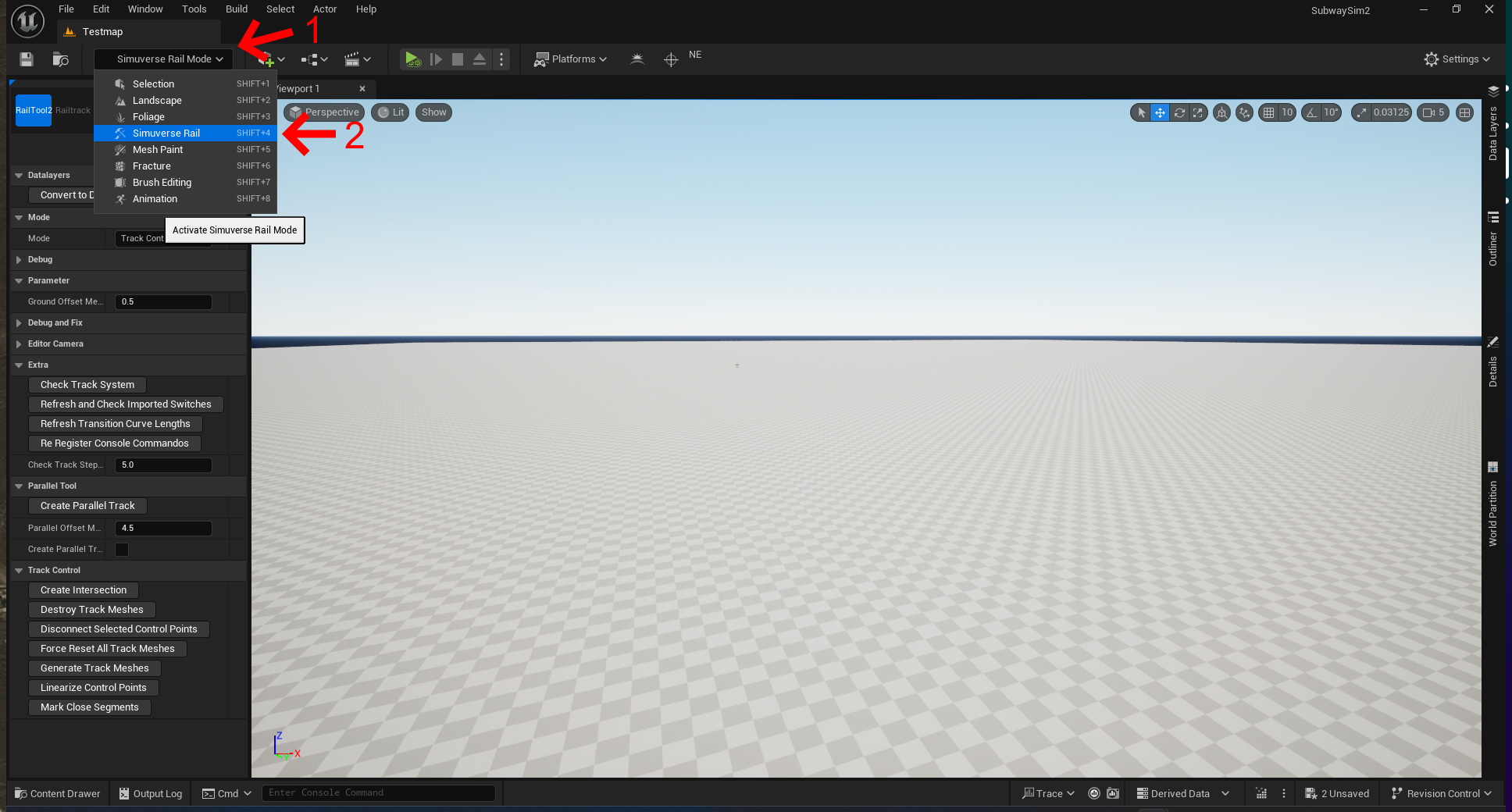
⚠️ Important: Tracks can ONLY be created, edited, or removed in Simuverse Rail Mode. Do not delete track meshes in Selection Mode, as this can cause severe rendering and logic issues within the Railtool.
Rail Mode Interface
When entering Simuverse Rail Mode, a tool panel appears on the left side of the editor.
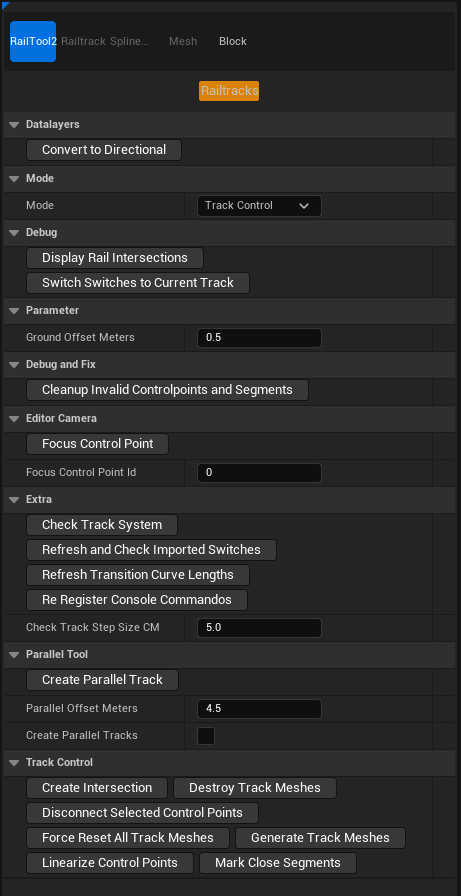
Left Sidebar Overview
Data Layers
This section controls how Data Layers are handled on tracks.
- Convert to Directional
Converts existing Data Layers into directional layers, allowing different values depending on track direction.
Mode
Defines the active editing mode. You can switch between the following modes using the dropdown menu:
- Track Control
Used for creating, connecting, and editing track control points.
- Height Control
Used to adjust vertical alignment and elevation of tracks.
- Data Layer
Used to assign or modify Data Layer values along track segments.
Debug
Debugging tools to visualize and inspect track behavior.
- Display Rail Intersections
Displays intersections and connection points between tracks.
- Switch Switches to Current Track
Forces switches to align with the currently selected track.
Parameters
General configuration values for track placement.
- Ground Offset Meters
Defines the vertical offset of tracks above the ground.
Default value: **0.5 meters**
Debug and Fix
Tools for cleaning up and repairing track data.
- Cleanup Invalid Controlpoints and Segments
Removes invalid or corrupted control points and track segments from the map.
Editor Camera
Camera helper functions for navigating complex track layouts.
- Focus Control Point
Moves the editor camera to the control point specified by ID.
- Focus Control Point ID
The control point number used for focusing the camera.
Extra
Advanced diagnostic and maintenance tools.
- Check Track System
Scans the entire track system for errors or inconsistencies.
- Refresh and Check Imported Switches
Validates imported switches and refreshes their data.
- Refresh Transition Curve Length
Recalculates transition curve length for smooth geometry and correct superelevation behavior.
- Re-Register Console Commands
Re-registers Railtool-related console commands in case they were lost.
- Check Track Step Size CM
Validates the internal step size (cm) used for mesh generation.
Parallel Tool
Tools for creating parallel tracks.
- Create Parallel Track
Creates a new track parallel to the selected one.
- Parallel Offset Meters
Defines the distance between selected and parallel track.
- Create Parallel Tracks
If enabled, track meshes are generated immediately.
If disabled, only control points are created.
Track Control
Core tools for managing track geometry.
- Create Intersection
Creates a connecting control point between two existing control points.
- Destroy Track Meshes
Removes all generated track meshes from the map.
- Disconnect Selected Control Points
Breaks the connection between selected control points.
- Force Reset All Track Meshes
Resets all track meshes to their default state.
- Generate Track Meshes
Regenerates all track meshes on the map.
- Linearize Control Points
Aligns the middle point (of three) into a straight line.
- Mark Close Segments
Highlights segments that are placed too close to each other.
At this point, the Rail Mode interface should be fully understood, and you are ready to begin placing and shaping track geometry.
Understanding Track Placement
Before we start placing tracks, it is important to understand how track placement works in SubwaySim 2.
Unlike classic spline-based tools, the Railtool uses Control Points.
Control Points Instead of Spline Points
Control Points describe:
- Track direction
- Curve radius
- Transition behavior
- Connections between track segments
Example: an S-curve can be defined using only four Control Points:
- Entry direction
- First curve transition
- Second curve transition
- Exit direction
This mirrors real-world railway alignment planning and ensures:
- Smooth geometry
- Predictable curvature
- Proper superelevation handling
(See the attached diagram.)
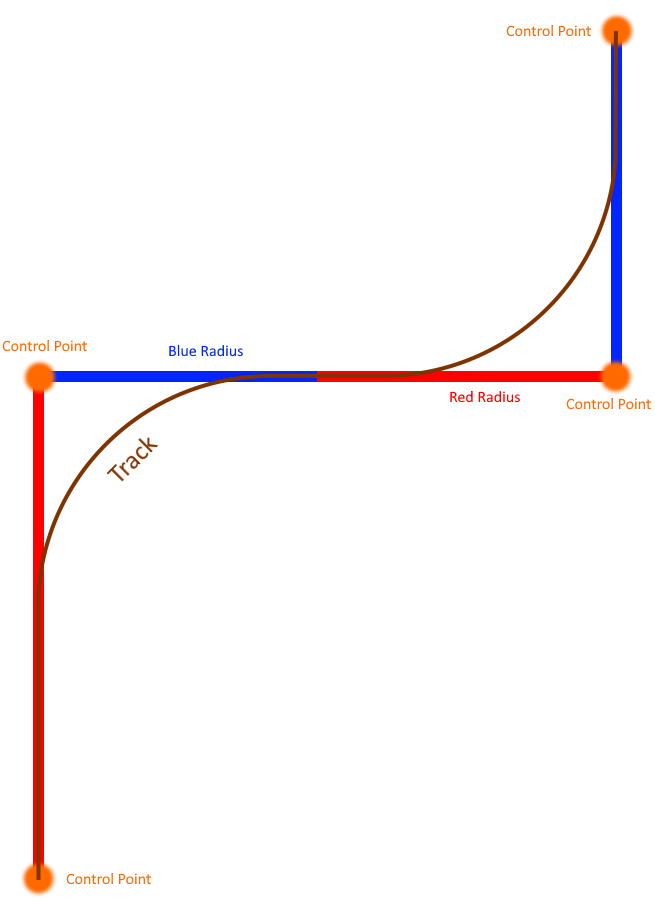
Advantages of the Control Point System
- Fewer points for complex track shapes
- Cleaner and more readable layouts
- More realistic curves and transitions
- Easier maintenance and modification
- Better compatibility with switches and intersections
Creating Your First Track
Now we can begin creating our first track.
Creating Control Points
To create a Control Point:
- Hold CTRL
- Left-click on the Landscape
Repeat at another position:
- Hold CTRL
- Left-click at a different location
A straight track segment will be generated between the points.
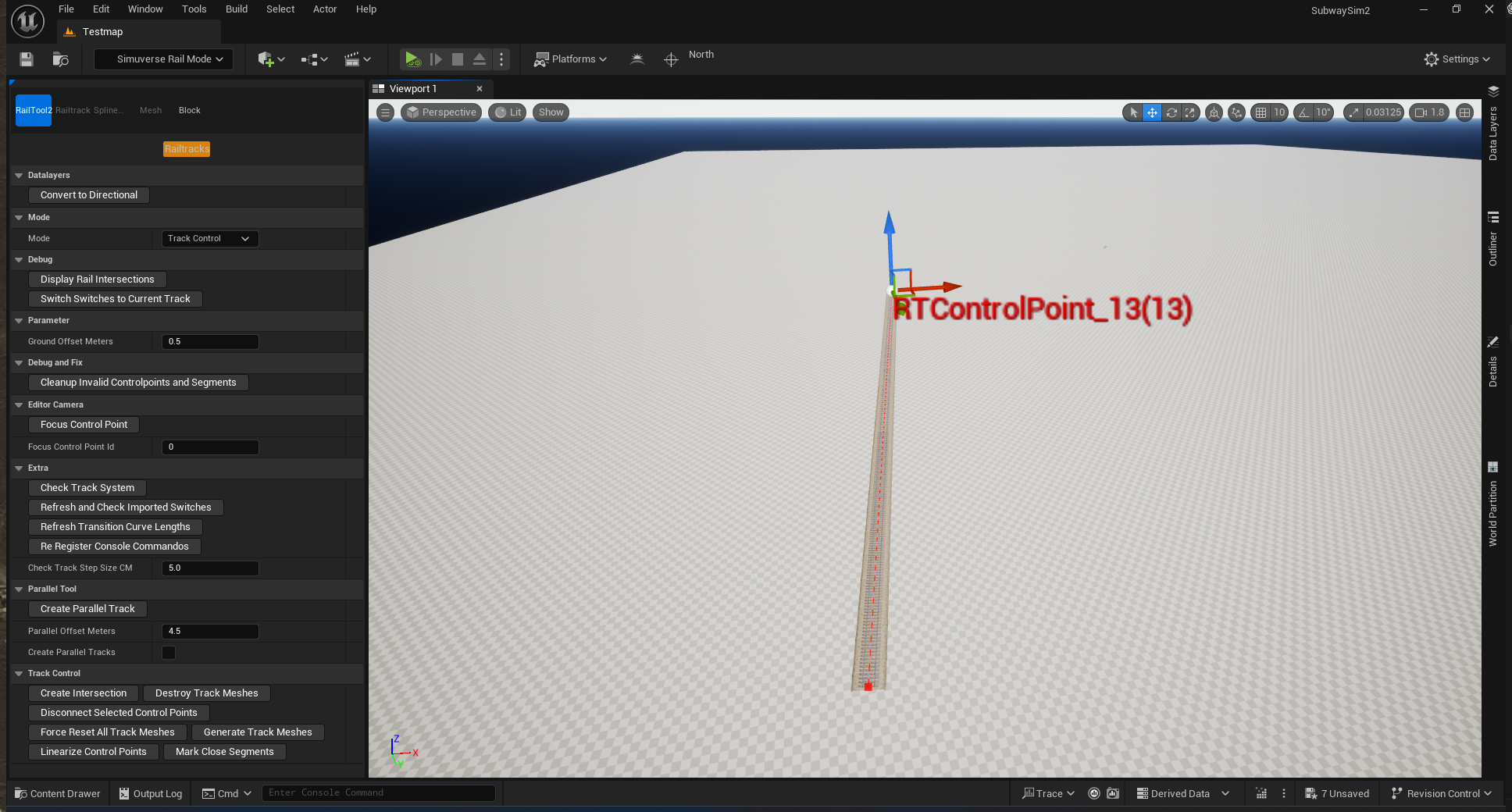
Recreating the Example Layout
Recreate the layout shown in the diagram by placing Control Points for:
- Straights
- Curves
- Smooth transitions
Your track should look similar to the example below:
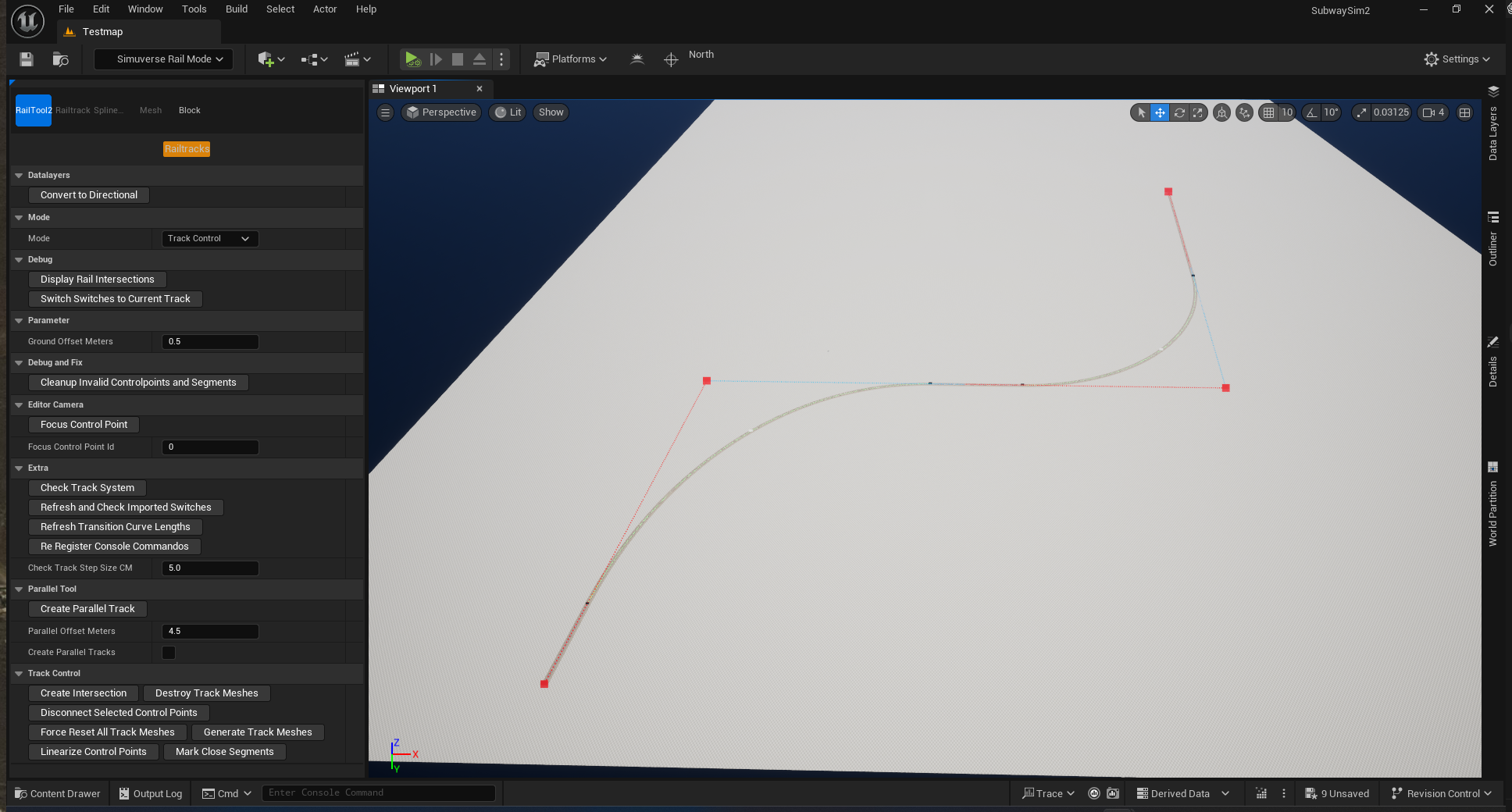
Editing a Control Point for Curves
To shape curves:
- Select a Control Point
- Open the Details panel
If Control Points are hard to select:
- Move the camera around
- Click from a different angle
- Zoom in closer
Control Point Parameters Explained
When selecting a Control Point, the Details panel exposes parameters for curve behavior, transitions, and superelevation.
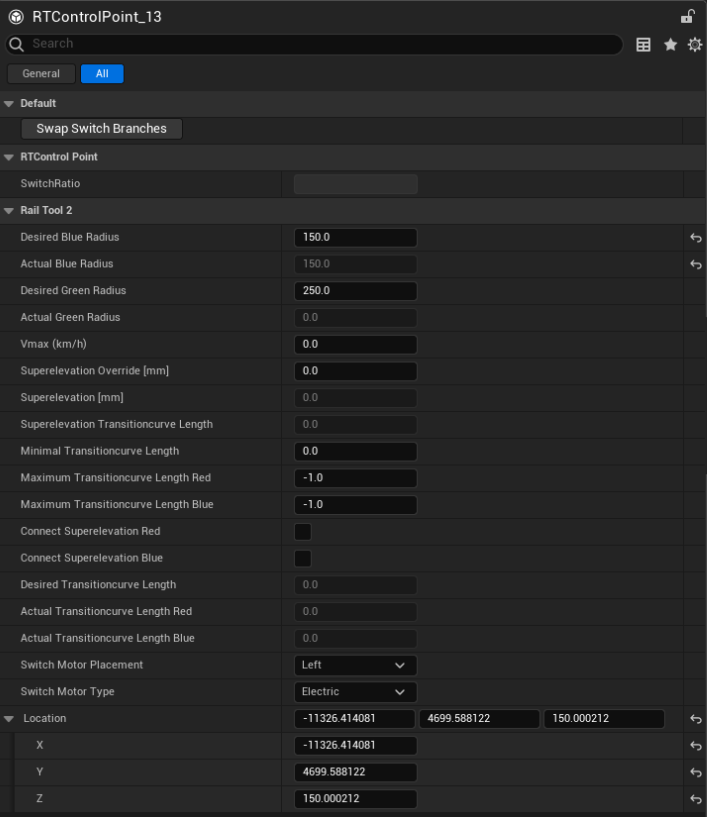
Curve Radius Settings
| Parameter | Description |
|---|---|
| Desired Blue Radius | Target curve radius of the blue control line. |
| Actual Blue Radius | Currently generated radius for the blue line. |
| Desired Green Radius | Target curve radius of the green control line. |
| Actual Green Radius | Currently generated radius for the green line. |
Superelevation Settings
| Parameter | Description |
|---|---|
| Vmax (km/h) | Internal value for superelevation calculations (not in-game max speed). |
| Superelevation Override [mm] | Manual override for calculated shortfall. |
| Superelevation [mm] | Currently applied superelevation in millimeters. |
| Superelevation Transitioncurve Length | Length for gradual banking change. |
| Minimal Transitioncurve Length | Minimum allowed transition length. |
Transition Curve Settings
| Parameter | Description |
|---|---|
| Desired Transitioncurve Length | Target transition curve length. |
| Actual Transitioncurve Length Red | Actual length on the red side. |
| Actual Transitioncurve Length Blue | Actual length on the blue side. |
| Maximum Transitioncurve Length Red | Maximum allowed on red side. |
| Maximum Transitioncurve Length Blue | Maximum allowed on blue side. |
Superelevation Connection
| Parameter | Description |
|---|---|
| Connect Superelevation Red | Connects banking to the red neighboring segment. |
| Connect Superelevation Blue | Connects banking to the blue neighboring segment. |
Switch-Related Settings
| Parameter | Description |
|---|---|
| Switch Motor Placement | Side of track for switch motor placement. |
| Switch Motor Type | Manual or electrically driven. |
Transform Settings
| Parameter | Description |
|---|---|
| Location | World-space XYZ location of the Control Point. |
Understanding these parameters enables precise control over track geometry and realistic results.
Creating Switches
In this section we will create our first switch.
Creating the Base Tracks
Create a straight track using two Control Points. Then:
- Select both Control Points with SHIFT + Left Click
- Enable the Parallel Tool
- Click Create Parallel Track
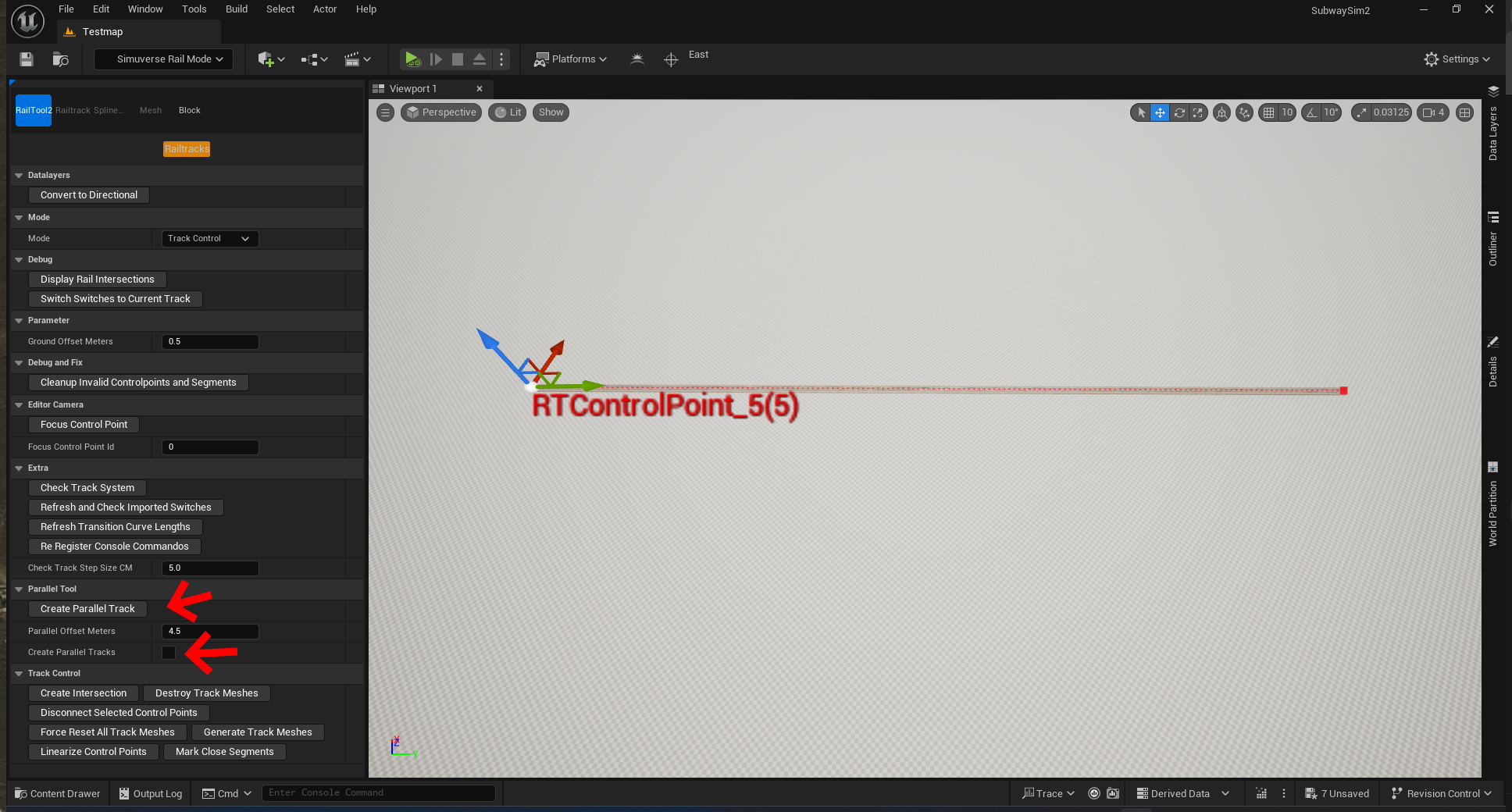
A second, parallel track is created.
Gizmo Setup (Important)
For precise duplication and movement:
- Set the gizmo coordinate system to Local
- Align it to the track axis
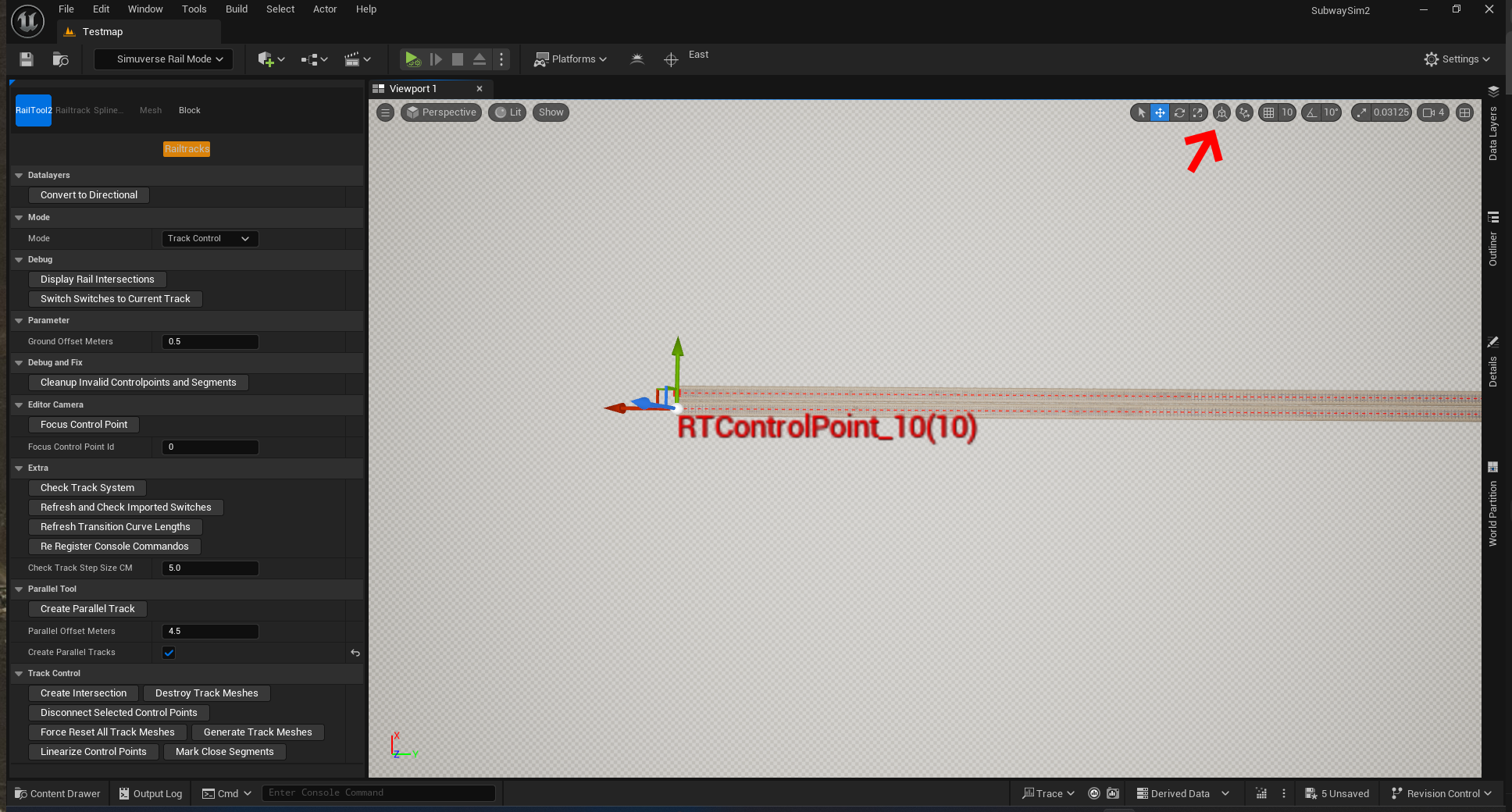
Aligning the Gizmo Rotation
- Press M to cycle gizmo rotation modes
- Align the gizmo with the track direction
Duplicating Control Points
For the first track:
- Select a Control Point
- Hold ALT
- Drag it along the track direction
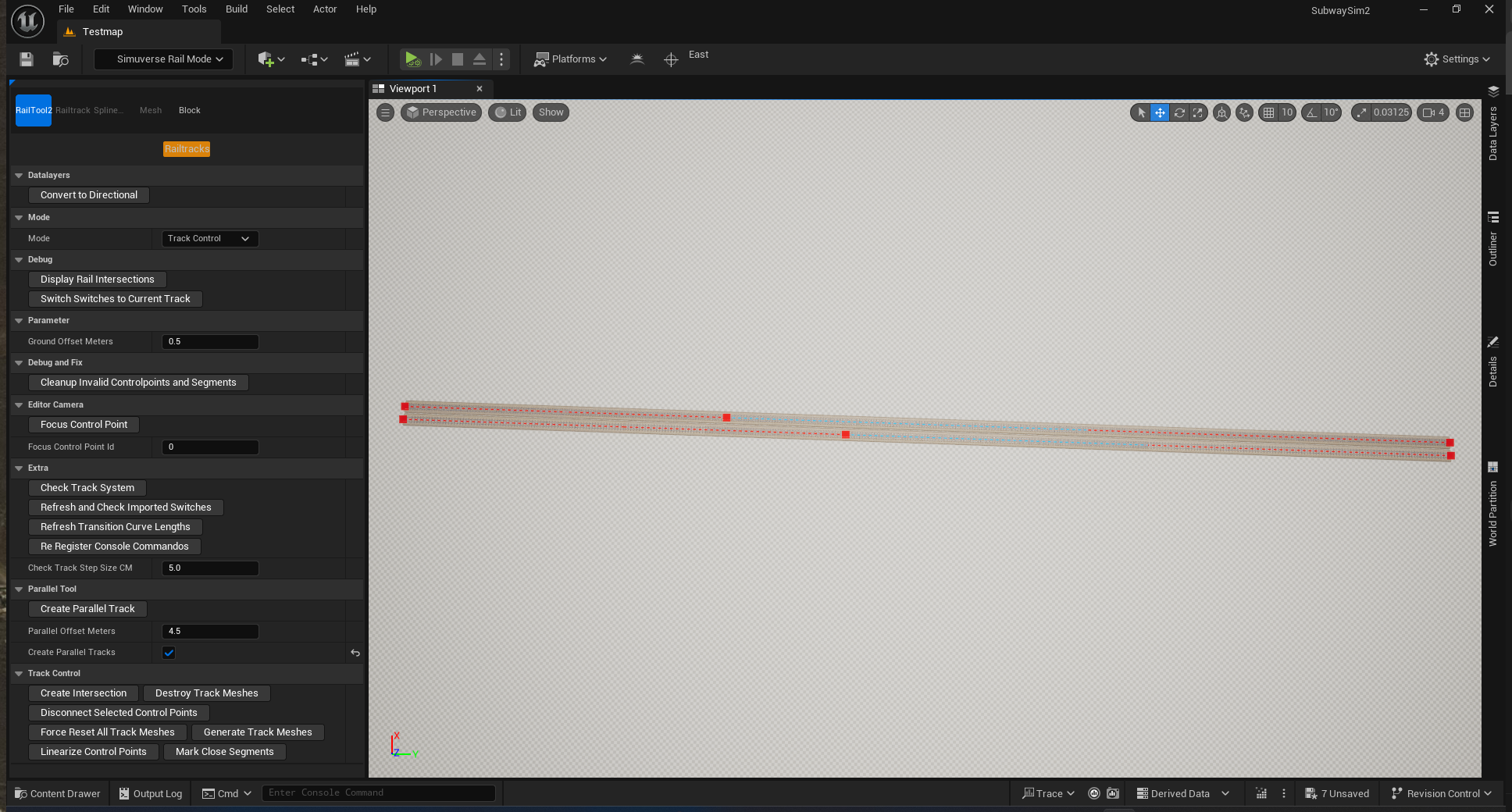
Repeat on the parallel track and offset slightly to create the diverging branch.
Connecting Control Points to Create a Switch
- Select one Control Point
- Hold CTRL
- Left-click the other Control Point
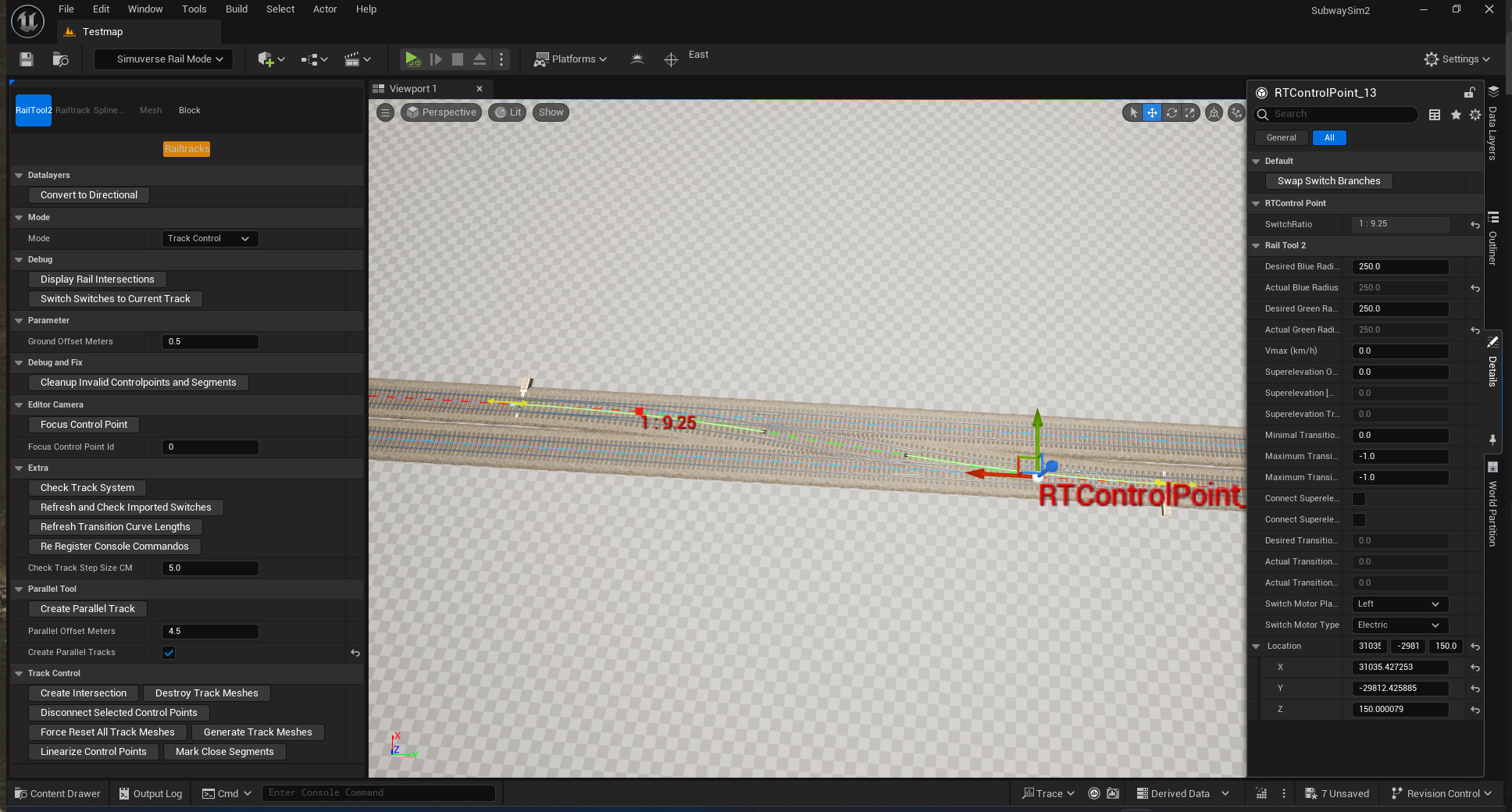
The Railtool generates a switch between the two tracks.
Editing the Switch
You can refine a switch by:
- Moving Control Points
- Changing curve radius
- Adjusting switch motor type
- Adjusting motor placement
The Railtool displays the frog type in red text and in the Control Point Details panel.
Height Control Points
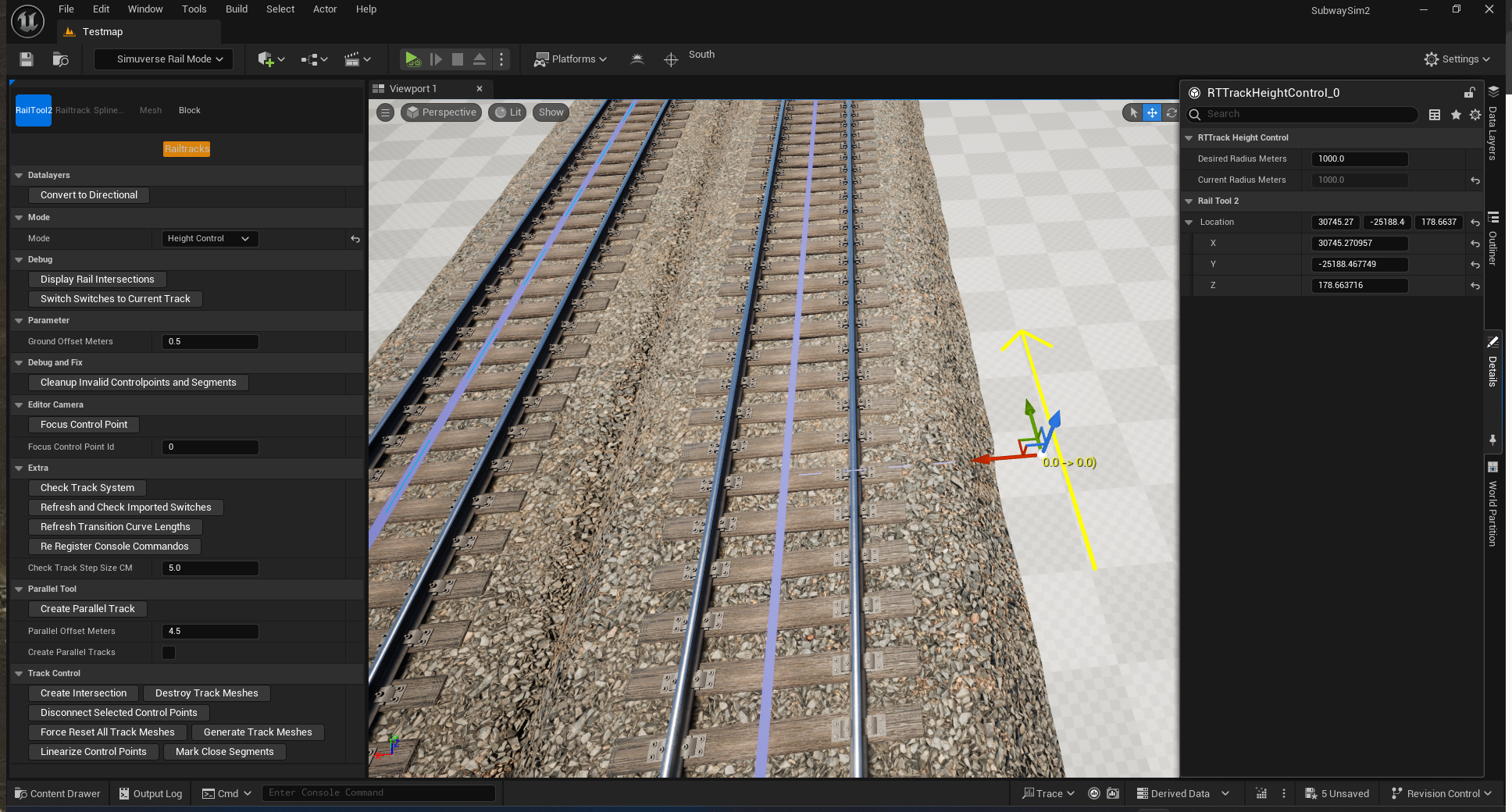
The Railtool also supports vertical geometry using Height Control Points.
Creating Height Control Points
- Open the Mode dropdown
- Select Height Control
- Hold CTRL
- Left-click directly on the track
Defining Track Elevation
Select a Height Control Point and adjust:
| Parameter | Description |
|---|---|
| Desired Radius Meters | Target radius for vertical transitions. |
| Current Radius Meters | Calculated and applied radius. |
The Railtool calculates:
- Gradients between points
- Smooth vertical transitions
Important Notes
- Height Control Points affect only vertical alignment
- Horizontal geometry remains unchanged
- Avoid placing points too close together
Working with Data Layers
Data Layers define additional track properties such as:
- Third Rail
- Guide Rails
- Tunnel markers
- Speed limits
To work with Data Layers:
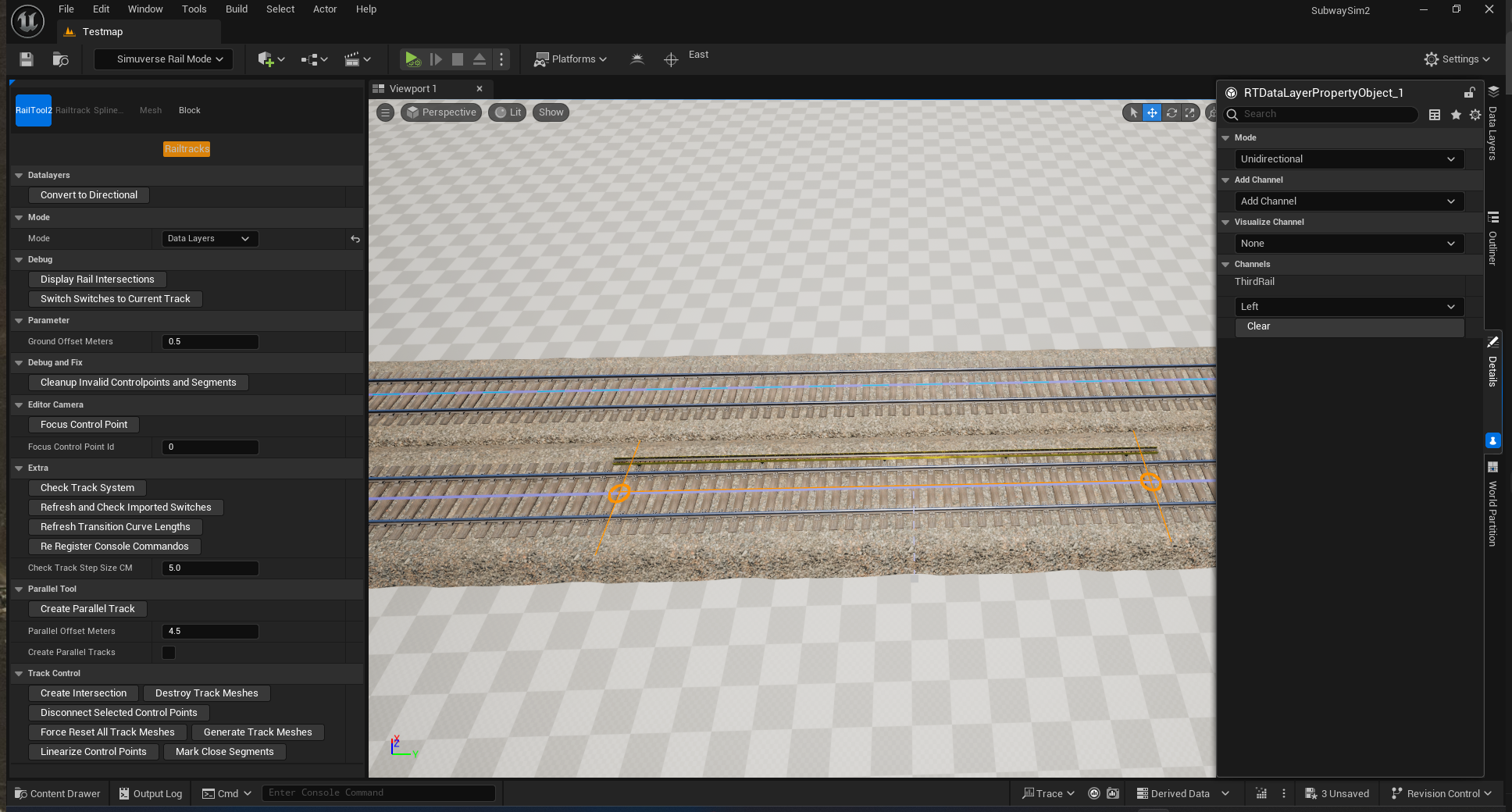
- Open the Mode dropdown
- Select Data Layers
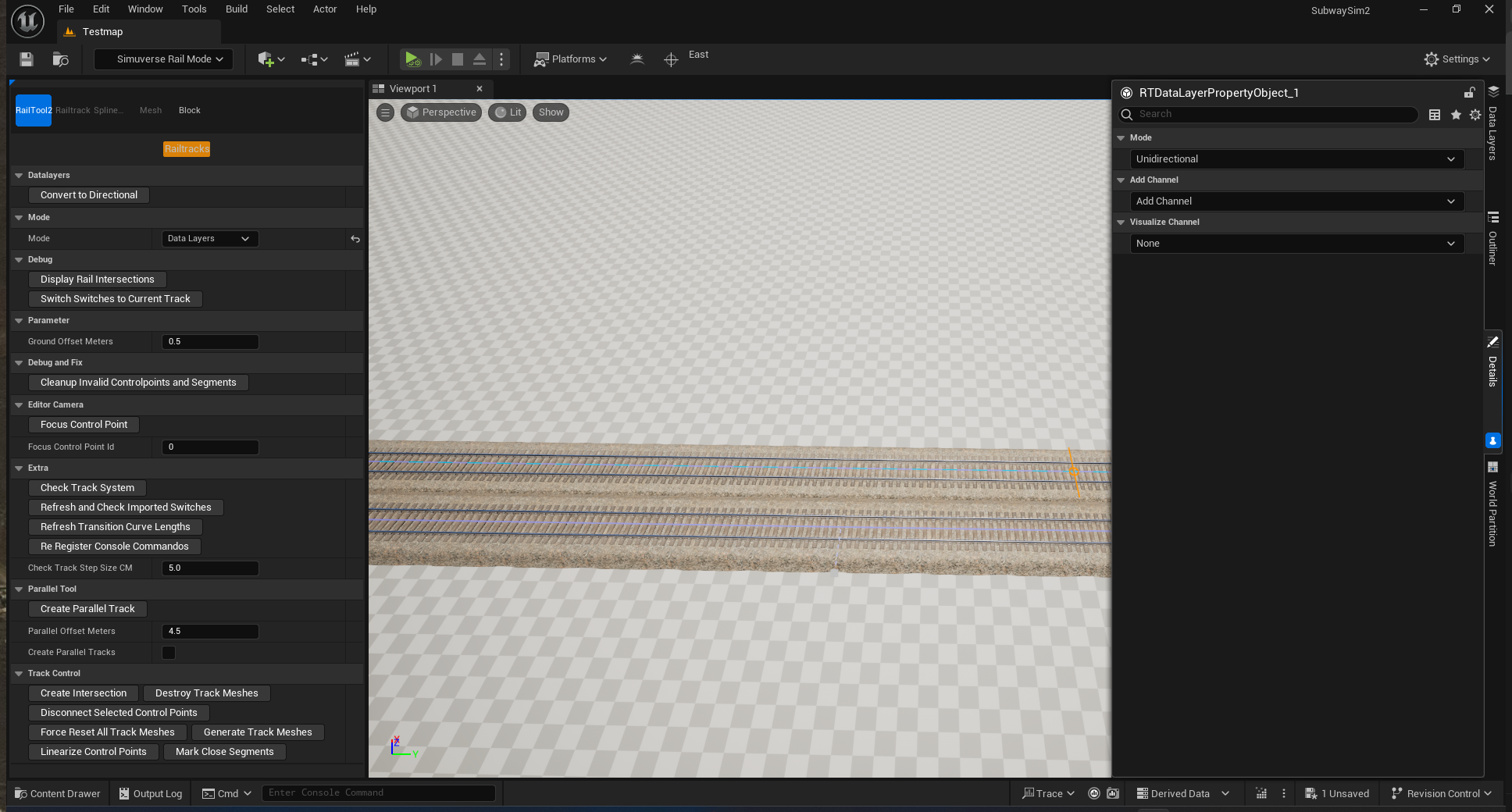
Data Layer Mode – Settings Overview
| Setting | Description |
|---|---|
| Mode | Direction behavior of the Data Layer. |
| Add Channel | Selects which channel is applied. |
| Visualize Channel | Visual overlay for a selected channel. |
Mode Settings
| Option | Description |
|---|---|
| Unidirectional | Applies in both directions (e.g. Third Rail, Tunnel). |
| Bidirectional | Applies only in one direction (e.g. Speed Limits). |
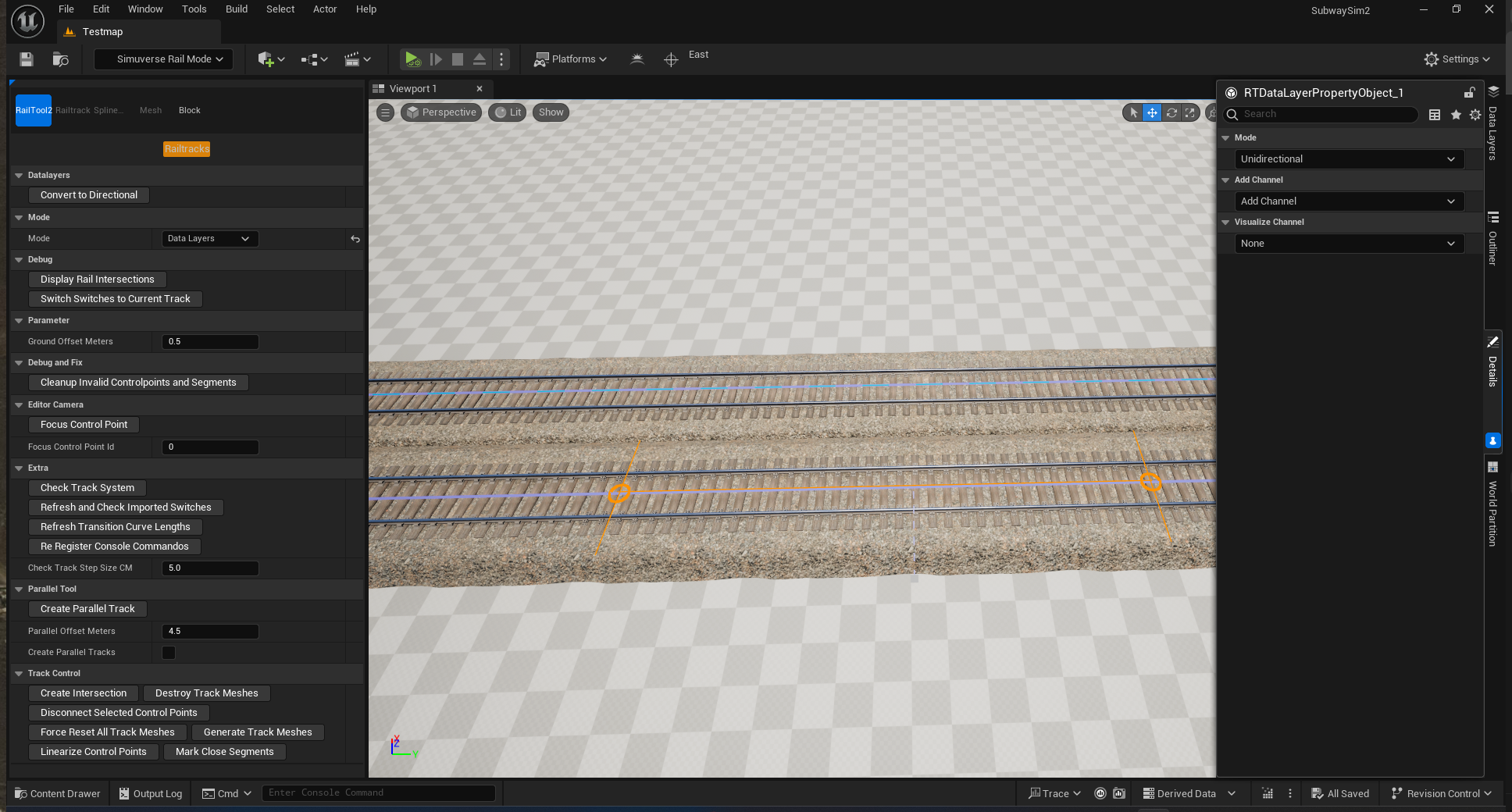
Placing a Data Layer (Example: Third Rail)
- Hover over a segment (highlighted orange)
- Left-click to set a start point
- Move along the track
- Left-click again to set the end point
Assigning the Data Layer
- Open Add Channel
- Select ThirdRail
- Choose placement: None / Left / Right / Both
- Select Left
Visualizing Data Layers
Optional:
- Open Visualize Channel
- Select Third Rail
Removing or Modifying Data Layers
- Select a track section
- Open Add Channel
- Set value to None or Clear
Conclusion
With this, the basic principles of track placement have been explained.
Creating clean and realistic railway layouts requires practice. We recommend studying the tracks used in the SampleModMap to learn proper Control Point placement, curve design, and Data Layer usage.
Next Step
With the track layout completed, including curves, switches, height profiles, and Data Layers, your map’s railway infrastructure is now in place.
The next step is to prepare the map for use in SubwaySim 2 by configuring all required settings and validating the setup.
© 2026 Simuverse Interactive · SubwaySim 2 Modding Wiki
All trademarks and registered trademarks are the property of their respective owners. This Wiki is provided for documentation and modding purposes only.