Table of Contents
Importing Switches
Imported switches are used when the Railtool cannot generate a special switch type reliably.
Most standard switches can be created directly with the Railtool. However, more complex constructions (for example DW, EKW, DKW, special double crossovers, or asymmetric real-world layouts) vary a lot between networks and often require manual modelling.
In those cases, the switch is built in a 3D program (usually Blender), exported as FBX, imported into SubwaySim 2, and finally wrapped into a Blueprint so the Railtool can use it like any other switch.
This page covers:
- When imported switches are needed
- Using already included imported switches from the SDK
- The full pipeline for creating your own imported switch:
modelling → paths → export → import → animations → Blueprint → Railtool connection
1) When Do You Need Imported Switches?
Use imported switches when:
- the Railtool does not support the geometry (e.g. DKW, EKW, DW, special crossings, double crossovers)
- your switch has a non-standard shape/radius/angle that cannot be generated cleanly
- you need an exact real-world design
- you need special frog/guard layouts or custom sleeper/gear parts
You do NOT need imported switches for:
- normal crossings (they have no moving parts)
- standard left/right turnouts supported by Railtool
Crossings (no moving parts) are generated by Railtool and do not need custom building.
2) Using Built-in Imported Switches (SDK / Base Game)
The Modding SDK ships with a variety of imported switches that are used by the base game.
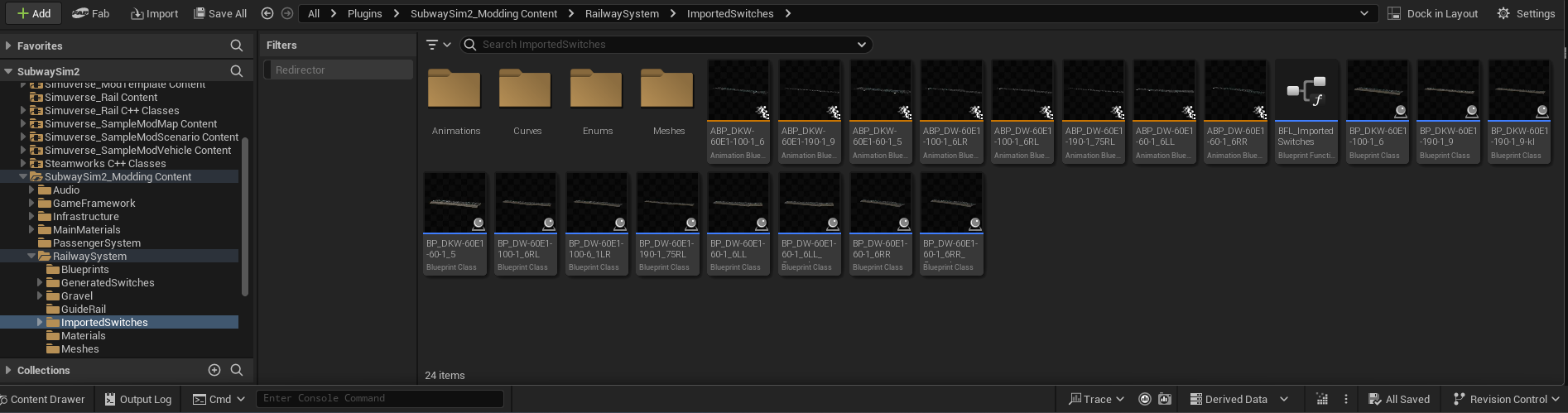
You can find them here:
SubwaySim2_Modding / RailwaySystem / ImportedSwitches
Inside this folder, you will see many switch assets.
Important:
- Only use the BP_… Blueprints for placement in levels.
- The Blueprints contain the configuration needed for Railtool and animations.
- StaticMeshes / SkeletalMeshes alone are NOT enough.
2.1 Placing an Imported Switch in the Level
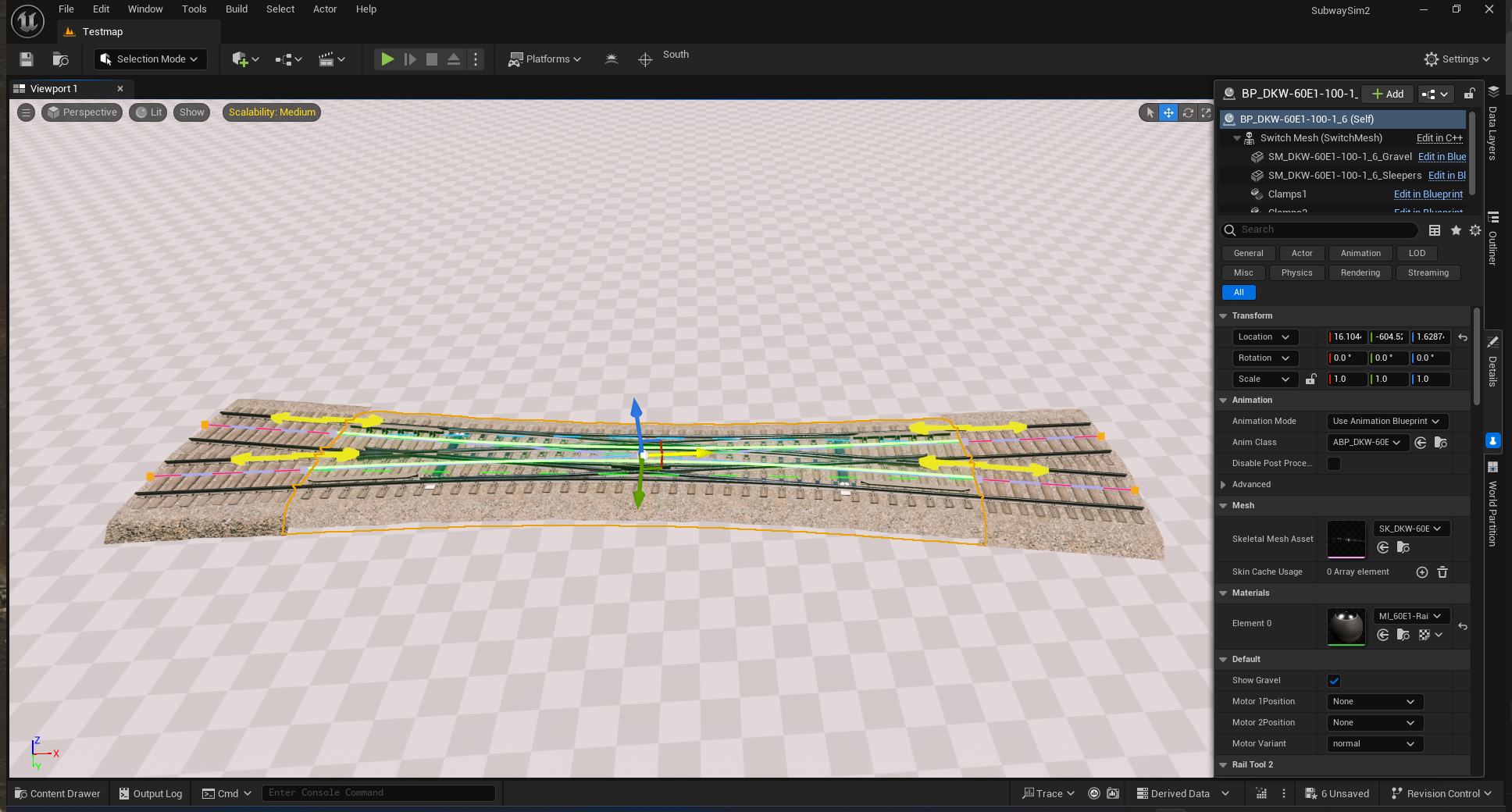
1. Make sure you are in Selection Mode in the Unreal Editor
(important: not in Railtool mode while placing the BP)
2. Drag the desired BP_… imported switch into your level.
3. You can freely move and rotate it like any normal actor.
4. Align it to your intended layout.
(This is manual placement, so take your time.)
2.2 Connecting the Switch to Railtool Tracks
Once the switch is placed, it needs to be connected to the Railtool track network:
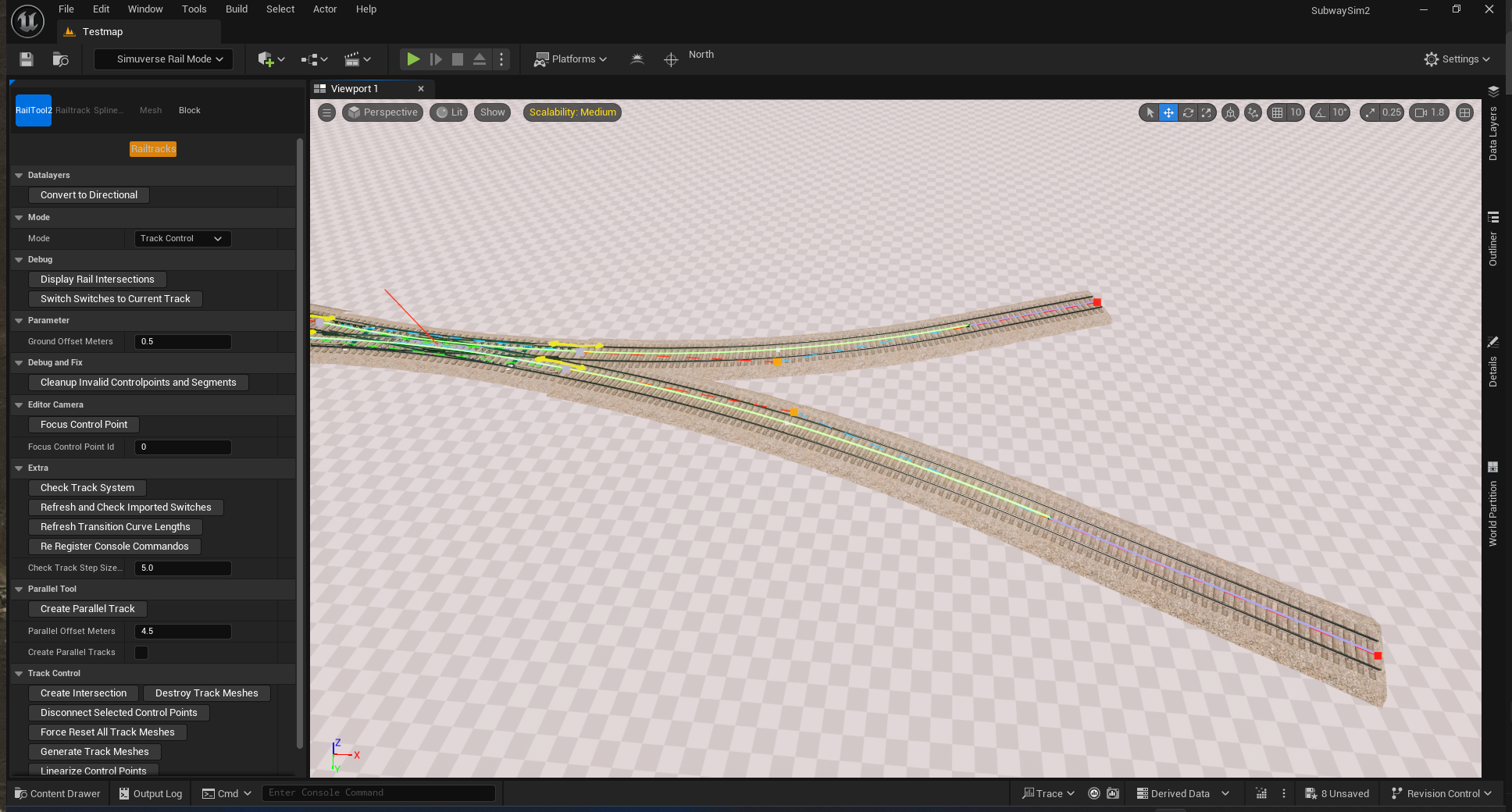
- Switch to the Railtool workflow:
- Use the Control Points of the imported switch
- Connect your Railtool track splines to those Control Points (same idea as normal Railtool elements)
After this step:
- the imported switch behaves like a normal track element
- AI routing and signaling can work, as long as the surrounding network is valid
3) Creating Your Own Imported Switches
If none of the provided switches fit your needs, you can create your own imported switch.
Typical reasons include:
- unique geometry
- special crossover layouts
- prototype or fictional designs
- real-world designs that differ from the base assets
The full workflow looks like this:
1) Planning & naming
2) Modelling rails + frogs + guards
3) Creating drivable paths (critical!)
4) Sleepers, clamps, gravel
5) UVs & materials
6) Rigging blades + throw bars
7) Animations (NLA)
8) Export FBX
9) Import into Unreal (SkeletalMesh, StaticMeshes, paths, animations)
10) Animation Blueprint (ABP)
11) Switch Blueprint (RTImportedSwitchActor)
12) Test in level + connect with Railtool
This is the same concept used by base game imported switches.
4) Terminology (German + English)
Quick translation list used in references and modelling:
| English | German |
|---|---|
| Rail | Gleis |
| Blade | Zunge |
| Stock (Rail) | Backenschiene |
| Frog | Herzstück |
| Flangeway | Rillenweite |
| Guard Rail | Radlenker |
| Guide Rail | Leitschiene |
| Switch Motor | Weichenmotor |
| Sleepers | Schwellen |
| Hollow Sleeper (Tub) | Trogschwelle |
5) Switch Parts Explained
5.1 Rail Profile
We generally build everything in the 60E1 rail profile.
That means:
- your rail meshes match the prepared 60E1 assets in the SDK
- your dimensions, trims, and clearances align with existing track content
5.2 Blade and Stock Rail
The blade rail is the moving part of the switch. The stock rail is the fixed rail the blade presses against.
Key details:
- The blade starts thin and gradually becomes thicker until it transitions into a near-normal rail profile.
- The stock rail also changes shape around the blade area.
- The blade sits slightly higher than the standard rail but must keep the correct track gauge.
This transition is critical:
- visually (looks correct)
- physically (wheels can pass)
- for flangeway clearance at frog and guards
5.3 Frog
The frog is where rails intersect and split.
It is usually the most complex part because:
- rail geometry intersects
- flangeway must remain correct
- wings and guard guidance must prevent derailment / clipping
- some switch types have double or triple frog variants
5.4 Throw Bar and Switch Motor / Lever
The throw bar and motor move the blades.
Important behavior:
- Blades do NOT start moving at exactly the same time
- One blade starts slightly earlier than the other (realistic behavior)
- Some switches can also use manual levers instead of motors
If you animate blade movement:
- include this offset in timing/curves
- make sure throw bar geometry doesn’t clip
5.5 Guard Rails and Guide Rails
Guard rails and guide rails keep wheels aligned over frogs.
- Guard rails prevent the wheelset from drifting sideways at the frog.
- Guide rails are used when geometry is tight or guard rails don’t fit.
When a guard rail does not fit cleanly:
- add a small guide rail piece
- look at previously made switches for style reference
5.6 Clamps
Switches use several clamp types:
- normal rail clamps
- blade clamps
- guard clamps
- special clamps where space is too tight
Clamps often become the biggest performance cost if modelled fully. (We cover optimization later.)
6) Switch Types (Crossing, Switch, DW, EKW, DKW)
6.1 Rail Crossing
Crossings are NOT switches. They have no moving parts. Railtool can generate them → no custom build required.
6.2 Normal Switch
A standard switch (single turnout) can be generated by Railtool. No custom build needed in most cases.
6.3 DW (Doppelweiche / Double Switch)
DW is basically two switches extremely close together that intersect. These currently must be custom built because Railtool cannot reliably generate them.
6.4 EKW (Einfache Kreuzungsweiche)
EKW is a crossing with a switch integrated. Custom build required.
6.5 DKW (Doppelkreuzungsweiche)
DKW is like EKW but allows switching between tracks in multiple directions. Even more complex → custom build required.
6.6 DKW: “Blades Inside” vs “Blades Outside”
DKW has two typical constructions:
- blades outside the two frogs
- blades inside the frogs
Outside blades:
- more complex to build
- often allow higher speeds
Inside blades:
- simpler geometry
- often tighter constraints
7) Planning + Naming Convention
Before modelling, decide:
- rail profile (we assume 60E1)
- radius (e.g. 100 m)
- angle ratio (e.g. 1:6)
- direction pattern (left/right sequence)
Example naming:
DW-60E1-100-6:1LR
Some softwares don’t like “:” so you may see:
DW-60E1-100-1_6LR
Keep the naming consistent across:
- Blender file collection names
- exported FBX names
- Unreal folders
- Blueprint names
8) Modelling in Blender
We assume you are working inside a prepared file like:
60E1-Rail.blend
This file already contains prepared meshes and references. Follow its folder / collection structure:
- create a new Collection for your switch
- keep rails, sleepers, clamps, paths separated
8.1 Curves and Paths (Foundation)
First we set up our angle, example 1:6:
1) Place a single vertex in world origin
2) Extrude it 6 m along X-Axis
3) Extrude it 1 m along Y-Axis
4) Fill the 2 lonely verts → you now have a triangle
The edge that is ~6.08 m long will be called “c”.
Next we make a 100° circle and align it so that the bottom vertex sits in the origin. Recommended:
- a vertex count divisible by 4
- individual edge length ~0.6 m (as close as possible)
Example: 1024 verts.
Delete unnecessary verts (keep only the range you need).
Now:
- extrude the triangle edge “c”
- move the circle along X until the circle is tangent to “c”
How to align precisely (recommended):
- enable snapping (active element)
- select a vertex, then select all verts
- edge snap it to “c”
- if still crossing the edge, select another vertex
This is faster and more precise than eyeballing.
Now you have the left curve more or less done.
You still need a right curve:
- duplicate the first curve
- move it so that the very start sits in world origin
- rotate by 180° / mirror along X
Now add a straight edge, convert them to curves. At this point your switch layout curves should look correct.
8.2 Creating Drivable Paths (Export-Ready / Critical!)
Paths define where trains can drive. They MUST be correct, otherwise routing will fail.
Workflow:
- duplicate your curves
- convert to meshes
- cut them short a bit
- make sure they all start at the same point (if your layout requires it)
- extrude the edges 0.1 m up so they are easier visible
Important rule:
- Wherever paths intersect, they must share IDENTICAL vertex positions.
- The paths need the exact same verts wherever they intersect.
Naming recommendation:
- PathLeft
- PathRight
- PathStraight
(and more if needed)
These paths will later be referenced inside the Switch Blueprint SwitchConfigurations.
8.3 Rails + Flangeway (Array + Curve Modifiers)
Rails:
- take the 60E1Double mesh
- duplicate it
- add an Array modifier (enable “Merge”)
- add a Curve modifier and select one of your curves
- repeat for all required rail segments
Flangeway / wheel space:
- do the same with the “Abstand” mesh (shows the wheel clearance / flangeway)
After that you should have rails + clearance along the curves.
8.4 Sleepers (Array on Curves)
Next, sleepers:
- take an existing sleeper mesh (often WoodenSleeper2.6)
- add a constant offset array of 0.6 m (if not already existing)
- add a curve modifier and put it onto the curves
After lengthening and vertex merging you should have sleepers aligned.
8.5 Frogs: Cut-Out + Stitching the Heart
At first the frog area will look wrong because rails intersect.
Step 1: Cut out the parts where the flangeway and rail intersect.
Step 2: Model the frog:
- lengthen rails to the intersecting points
- use references (real photos or existing switches)
- don’t forget the wings
- keep flangeway clearance correct
Frogs will always look a bit weird in Blender – don’t worry. Focus on clearance and correct geometry.
8.6 Blades + Stock Rails
Blades:
- take BladeRailDouble mesh
- put it on the curves you need
- rotate if needed (thick part should be as close to center as possible)
- duplicate the middle piece and move both the second middle and thin end piece to where the blade starts intersecting with the rail
- move the thin end to where the blade ends
- delete the face from the “wrong” blade
Now:
- select each segment and bridge edges (linear)
- add as many cuts as needed so each segment is about 0.6 m long
- delete unneeded faces
- sharpen the thin end edges
- apply the curve modifier
Stock rail:
- duplicate StockRailDouble
- add curve modifier
- align it to the corresponding rail
Repeat for all blade/stock sections.
Goal:
- blade sits correctly against stock rail
- gauge stays correct
- no clearance issues
8.7 Guards and Guides
Guard rail:
- duplicate GuardRailDouble mesh
- put it on the required curve segments
- trim it if needed
If a guard does not fit:
- add a small metal piece called guide rail (“Leitschiene”)
- look at previously made switches for reference
8.8 Hollow Sleepers + Throw Bar
Hollow sleepers:
- take HollowSleeper mesh
- move it to the end of your blades in between two sleepers
- make sure the steel part doesn’t intersect → adjust position if needed
Throw bar:
- take ThrowBar and ThrowBarNuts meshes
- move them to the same point and align them with the blade ends
Make sure:
- flangeway clearance is OK in both blade positions
- throw bar doesn’t clip the hollow sleeper
8.9 Clamps (Tedious but Required)
Clamps are the most tedious part.
Helper setup:
- add an edge loop lengthwise through every sleeper (can be removed later)
- add an edge loop lengthwise through all rails (except blades)
Placement workflow:
1) take RailClamp mesh
2) edge snap it to the middle of the first sleeper and middle of the rail
3) duplicate it along X by 0.6 m (sleeper spacing)
4) press Shift+R to repeat until you cover the full length
5) move clamps to align with the curve of the rail
6) rotate all clamps individually to match the rail direction
Why not instances/arrays:
- you may need to adjust clamps individually
- pivots must rotate properly per clamp
Blade clamps:
- use ClampK_BladeBUILD on the corresponding stock rail
Guard clamps:
- use ClampK_GuardBUILD on the corresponding guard rail
Special clamps:
- when clamps clip, separate them and build a “special clamp”
8.10 Clamp Optimization Choices
Clamps are a lot of geometry. You have two approaches:
Correct way (best performance, more work):
- separate special clamps, blade clamps and guard clamps from the rest
- add sockets for clamp positions
- write down single/double clamp info
- place clamps via Instanced Meshes in Engine
This is easier for symmetrical switches (especially DKW quarters).
Lazy way (often good enough to start):
- export clamps as a separate StaticMesh
- apply strong LODs to reduce performance impact
Recommendation:
- start with the lazy way
- optimize later if performance becomes a problem
8.11 Gravel
Take a gravel mesh (GravelOEBB or GravelSubway depending on usage) and apply curve modifiers (often multiple curve passes).
Then:
- apply modifiers
- merge parts together (avoid overlaps / Z-fighting)
- make sure ends connect correctly to adjacent gravel
UV important:
- gravel must match texel density of normal gravel mesh
- project from view (top-down) and apply same texel density
9) UVs and Textures
UVs are quite simple because we use a tileable trimsheet: RailTileSet.
Workflow:
- select shiny metal parts → cube project → texel density 5.12 px/cm on a 1k texture
- move those UVs into the shiny section of the trimsheet (upper part)
- rust parts → second section
- repeat for wood/concrete parts
Consistency matters:
- same texel density as base assets avoids “patchy” look in-game
10) Rigging and Animating
Imported switches need blade movement.
We use an Armature.
10.1 Rigging
1) Create your root bone:
Name: **Rail**
2) Assign a vertex group called “Rail” to everything that is static (non-moving):
- rails (excluding blades)
- frogs
- guards
- sleepers
- gravel
- clamps (if included here)
Fast workflow:
- merge the static meshes temporarily
- select all faces
- CTRL+G → assign to vertex group “Rail”
3) For each blade:
- place your first bone at the start of the blade (thick end)
- move its end to the thin end
- subdivide the bone twice → 4 bones per blade
- align the bones to the curved blade centerline
- bones should sit in the middle of the blade
Naming convention:
Blade(direction from → direction to)_(left/right blade)(bone index starting at thick end)
Examples:
- BladeLR_L1
- BladeLR_L2
- BladeRL_R3
Throw bars:
- vertex groups named after their attached blade
- include the final number accordingly
Skinning:
- parent blades to the armature with Automatic Weights
- then verify each bone in Pose Mode (fix if something didn’t skin correctly)
10.2 Animating
Example: A DW usually has 2 animations:
- BladeSwitch1 (SW1)
- BladeSwitch2 (SW2)
Typical timing example:
- frame 1: one blade side is “closed”
- frame 20: opposite blade starts moving (slightly later)
- frame 80: one side returns to neutral
- frame 100: the other side reaches the final switched position
Example rotation values (will vary):
- R1: 1°
- R2: 0.5°
Important:
- blades don’t move at the same time (offset timing)
- ensure flangeways can pass without clipping
- ensure throw bars do not intersect hollow sleepers
Graph Editor:
- set curves to linear
Output requirement:
- both animations must be NLA strips
- naming must match what you will reference in Unreal (BladeSwitch1 / BladeSwitch2)
11) Exporting (FBX)
Export groups (recommended):
- SkeletalMesh FBX (armature + blades + any skinned parts)
- Animations FBX (or included depending on your workflow)
- StaticMeshes FBX (sleepers, gravel, clamps if separate)
- Paths FBX (all paths can be in one FBX)
Folder structure:
- follow the SDK conventions (keep it clean and consistent)
Paths requirement:
- names must be clean and unique (PathLeft, PathRight, etc.)
- paths must share vertices at intersections
12) Importing Into Unreal (SubwaySim 2 SDK)
Import categories:
12.1 SkeletalMesh and Animations
Import the SkeletalMesh like a vehicle:
- place it into your plugin folder structure (ImportedSwitches / YourSwitchName / …)
- import animations into an Animations subfolder
Verify:
- skeleton is correct
- animations play correctly on preview
12.2 StaticMeshes and Paths
StaticMeshes:
- import normally
Paths:
- can be imported from one FBX
- IMPORTANT: disable “Combine Meshes”
- each path must become its own StaticMesh asset
- verify that PathLeft/PathRight/PathStraight exist as separate meshes
13) Animation Blueprint (ABP)
Create an Animation Blueprint for the switch.
Rules:
- place it with other imported switch ABPs (same structure)
- Parent Class must be: Lua Anim Instance
- follow naming conventions
Workflow (recommended):
- copy/paste an existing imported switch ABP as a base
- make SW1 / SW2 (or your blade groups) variables in the ABP
- assign your Anim Sequences to those variables
- update “Layered Blend per Bone” to your blade bone names
(triple check for typos and correct order)
If blades don’t move:
- wrong bone names
- wrong skeleton
- animations not assigned
- NLA strips not exported correctly
14) Switch Blueprint Setup (RTImportedSwitchActor)
This Blueprint is what you actually place in the world and what Railtool integrates with.
It combines:
- SkeletalMesh component
- StaticMesh components (optional: gravel/clamps/sleepers if separate)
- Animation Blueprint
- RailTool2 SwitchConfigurations (critical)
14.1 Create the Blueprint
1) Create Blueprint Class 2) Parent Class: RTImportedSwitchActor 3) Name it coherently, e.g.:
BP_IS_DW_60E1_100_1_6LR
14.2 Assign Meshes and ABP
In the Blueprint:
- assign your SkeletalMesh
- set Animation Mode to use your Animation Blueprint
- assign your ABP
Optional:
- add StaticMesh components for clamps/gravel/sleepers if those were exported separately
14.3 RailTool2 SwitchConfigurations
Open the Blueprint Details and locate:
RailTool2 → SwitchConfigurations
Each SwitchConfiguration defines one valid route through the switch.
Each configuration links:
- a Path mesh (PathLeft / PathRight / PathStraight / …)
- animation state values for SW1 / SW2 / …
Example idea:
- Route “Left”:
Path = PathLeft
    SW1 = 1 (end)
    SW2 = 0
* Route “Right”:
    Path = PathRight
    SW1 = 0
    SW2 = 2
Notes:
- You can cycle through SwitchConfigurations (index 0, 1, 2, …) for debugging.
- If you can’t see changes, check the ABP (bone names, variables, animation assignment).
14.4 Optional Construction Script Toggles
Some imported switches need optional toggles:
- hide gravel (bridge / slab track scenarios)
- swap sleepers (wood vs concrete)
Typical setup:
- exposed variables
- Set Visibility calls in Construction Script
14.5 Switch Motors
If your switch uses motor meshes:
- determine motor placement in Blender
- copy relative location/rotation into the Blueprint
- optionally use an enum for motor positions (like base switches)
15) Testing the Switch in the Level
1) Make sure you are in Selection Mode 2) Drag your BP_… imported switch into the level 3) Move/rotate it into position 4) Connect it with Railtool ControlPoints:
→ [[manual:subwaysim:map_construction:laying_tracks|Laying Tracks]]
Validate:
- drive each route (player and/or AI) over all paths
- check for clipping at frogs and blade ends
- verify blade animations match selected route
- verify signals / route setting behave as expected on connected tracks
16) Extra Info: Calculating the Angle
Example 1:6:
1/6 = 0.1666...
atan(0.1666...) = 9.462322208...
Rounded to 4 decimals:
9.4623°
It can be useful to maintain a list of known angles to avoid repeating the math.
17) Common Pitfalls
- Paths do not share identical vertices at intersections
- Wrong pivot/orientation → switch doesn’t align with adjacent tracks
- ABP bone names mismatch → blades never move
- SwitchConfigurations missing/incorrect → trains take wrong routes
- Frog flangeway clearance wrong → clipping / derail-looking behavior
- Clamp geometry too heavy → performance issues (use LODs or instancing)
- Gravel overlaps adjacent ground → add a toggle (visibility) or adjust mesh
Next Step
Once your imported switch is placed and connected successfully, continue building your track network as usual:
© 2026 Simuverse Interactive · SubwaySim 2 Modding Wiki
All trademarks and registered trademarks are the property of their respective owners. This Wiki is provided for documentation and modding purposes only.