Table of Contents
Creating a Level
In this chapter, you will learn how to prepare a new map with a Landscape so that tracks, objects, and environment assets can be placed correctly. This is the first step in building your own world for SubwaySim 2.
Preparing the Plugin Folder
Before creating a level, we first need to set up a dedicated folder inside your plugin. Create a new folder named Level.
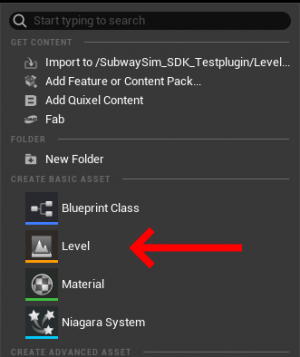
Inside this folder, right-click to open the content creation menu. Select Level and name your new map freely — but remember:
Important: No spaces, no special characters, and no umlauts.
Converting the Level to World Partition
After creating and naming your level, it must be converted into a World Partition level.
To do this:
- Go to the Tools menu.
- Select Convert Level at the bottom.
- Choose your newly created level in the file picker.
- Enable the required checkboxes (as shown in the screenshot).
- Click OK.
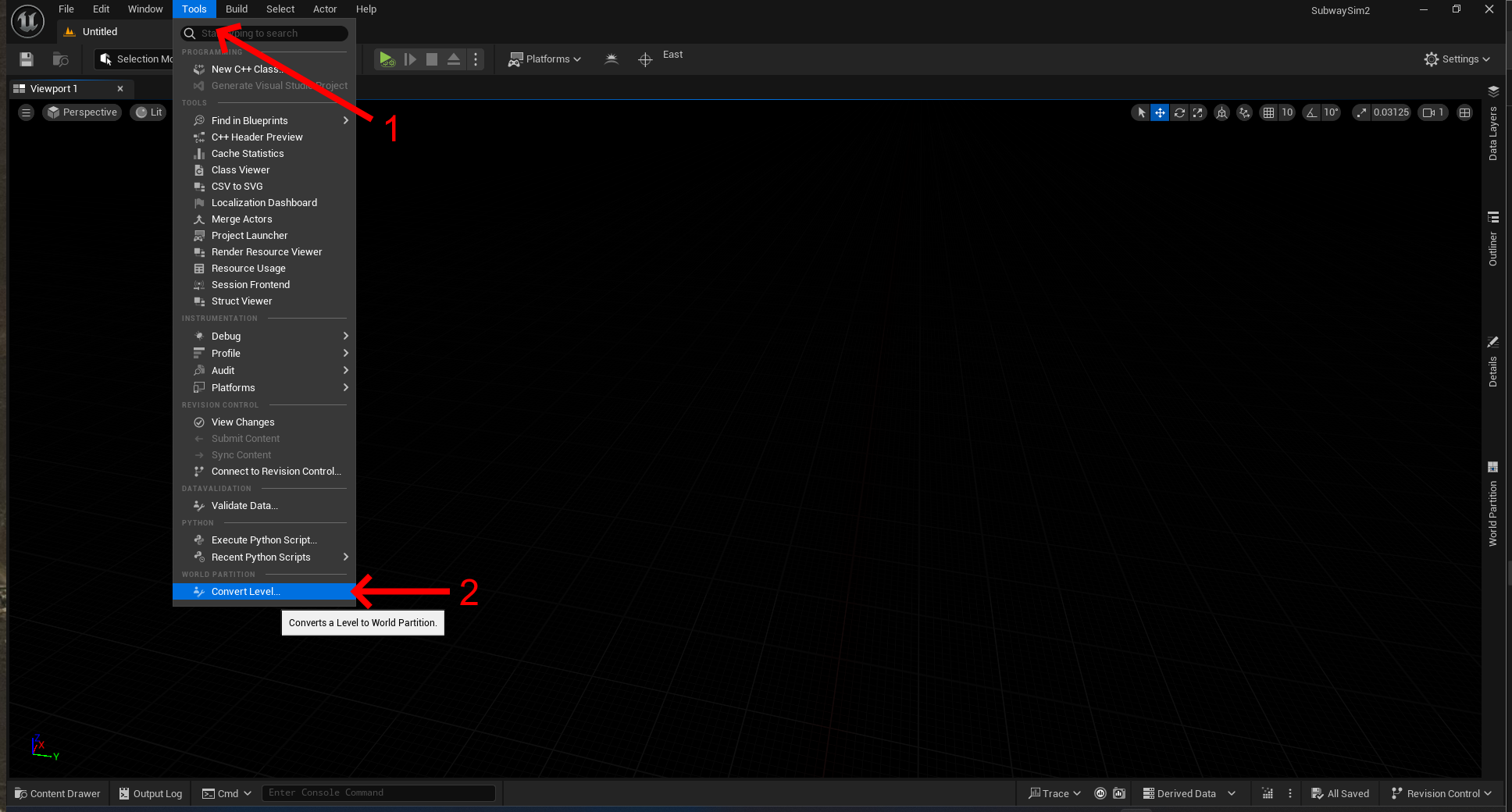

Unreal Engine will now convert your world into streamed partitions.
Double-click the level in the Content Drawer to load it. You will see the level name and icon at the top-left of the viewport.
Since the map is new, it will be completely empty — no Landscape and no lighting.
Setting the GameMode
Another important step when preparing a new level is assigning the correct GameMode. Without this step, SubwaySim 2 will not recognize that your map should run using the Lua-driven systems required for modding.
To set the GameMode:
- Open the World Settings panel
(found in the top-right menu under Settings → World Settings).
- In the World Settings, search for GameMode Override.
- Set the GameMode to: BP_LuaGameMode
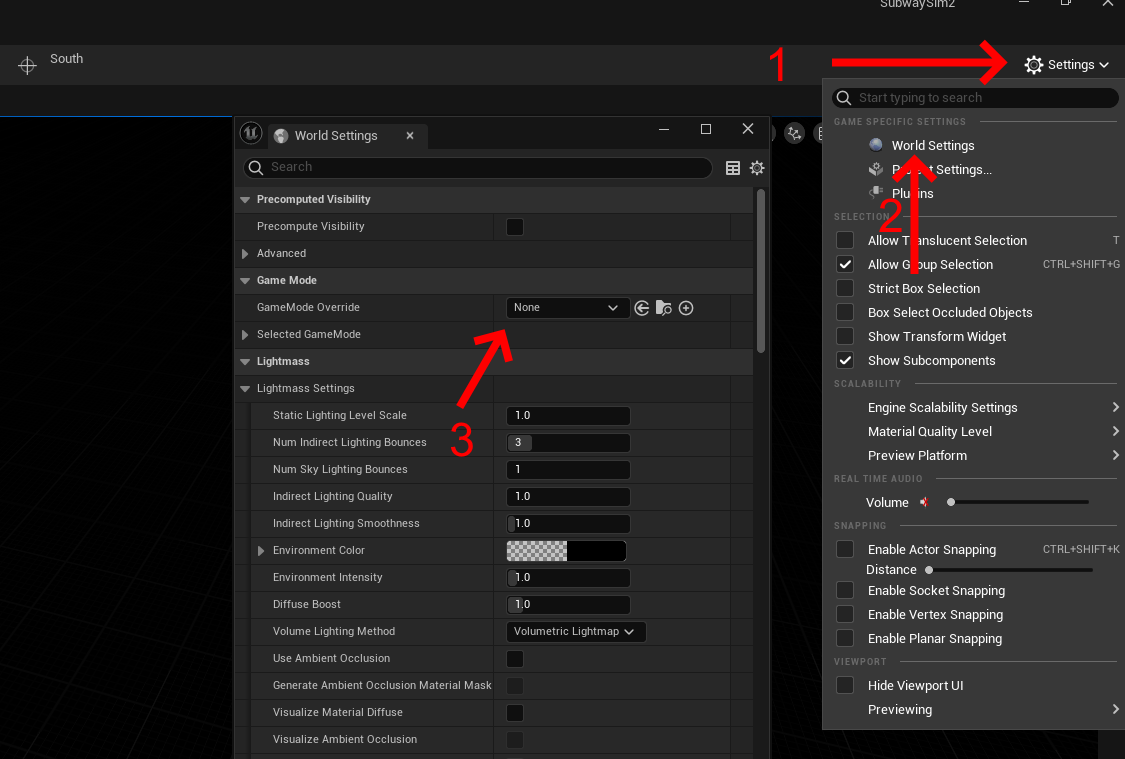
This tells SubwaySim 2 that your map uses the Lua-based gameplay framework, ensuring that scripts, interactions, and mod functionalities behave as expected in-game.
Adding the World Partition Window
To control which parts of the world are loaded, we need to enable the World Partition window.
- Go to Window → World Partition → World Partition.
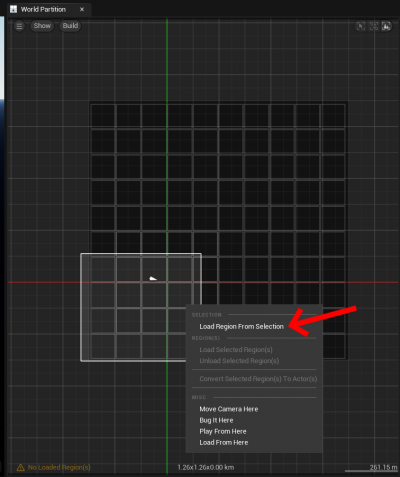
- A new panel will appear with a top-down grid of your world.
- Hold Left Mouse Button and drag to select an area.
- Right-click the selection and choose Load Region from Selection.
Loaded regions appear blue and allow you to place assets.
Adding Basic Lighting for Editing
To work comfortably inside the editor, SubwaySim 2 provides a dedicated editor-only lighting setup. Instead of manually placing individual lighting actors, we use a predefined Blueprint called BP_Sky.
This Blueprint contains the complete temporary lighting setup required for editing maps inside Unreal Engine.
To add editor lighting:
- Open the Content Drawer
- Navigate to the following path inside the SubwaySim2_Modding plugin:
SubwaySim2_Modding / GameFramework / EditorTimeOnly
- Drag BP_Sky into your level
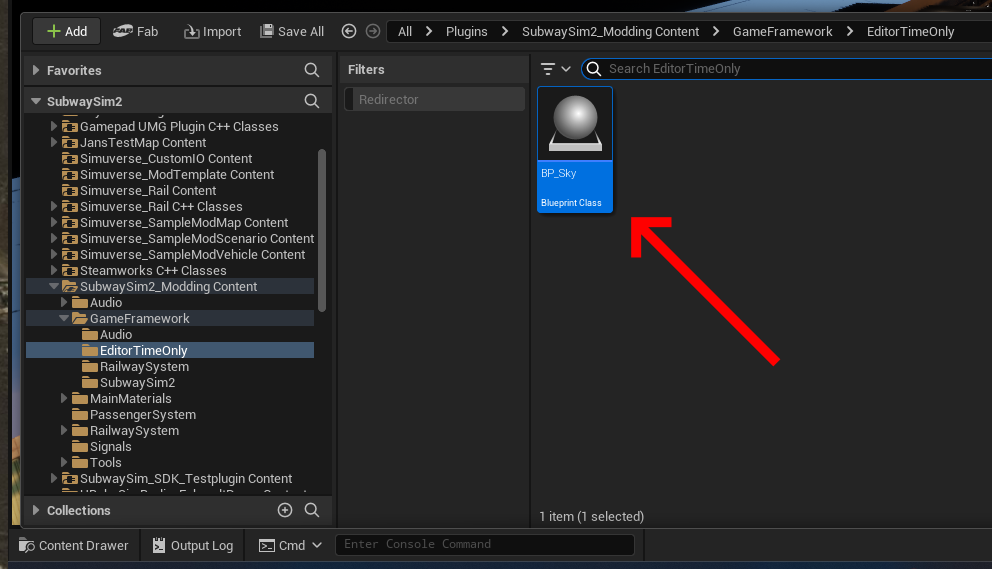
Once placed, the Blueprint automatically provides:
- Sky atmosphere
- Sun / directional lighting
- Ambient skylight
This lighting setup allows you to properly see and edit your map while working in the editor.
SubwaySim 2 uses its own internal Core lighting system at runtime. For licensing reasons, this system cannot be included in the Modding SDK.
The BP_Sky Blueprint is therefore used only for editor work. When the map is loaded in the game, this Blueprint is automatically removed and replaced by the game's native lighting system.
You can use the settings inside BP_Sky to roughly preview different times of day while editing. These changes are only visual aids for development and do not affect the final in-game lighting.

Editor Lighting Behavior in Game
No additional steps are required to disable editor lighting before exporting the map.
Although BP_Sky is used as an editor lighting helper, it must not remain active during gameplay, as it would conflict with SubwaySim 2’s internal lighting system.
For this reason, BP_Sky destroys itself at runtime:
- Inside the BP_Sky Blueprint, the Event BeginPlay triggers a Destroy Actor node.
- This ensures that BP_Sky exists only for editing inside Unreal Engine, but is removed immediately when the level starts running.
This ensures that:
- The editor lighting setup never remains active in the final game
- The in-game lighting system remains fully controlled by SubwaySim 2
Creating a Landscape
To continue building your map, you will need a Landscape as the foundation for terrain, tracks, and world geometry.
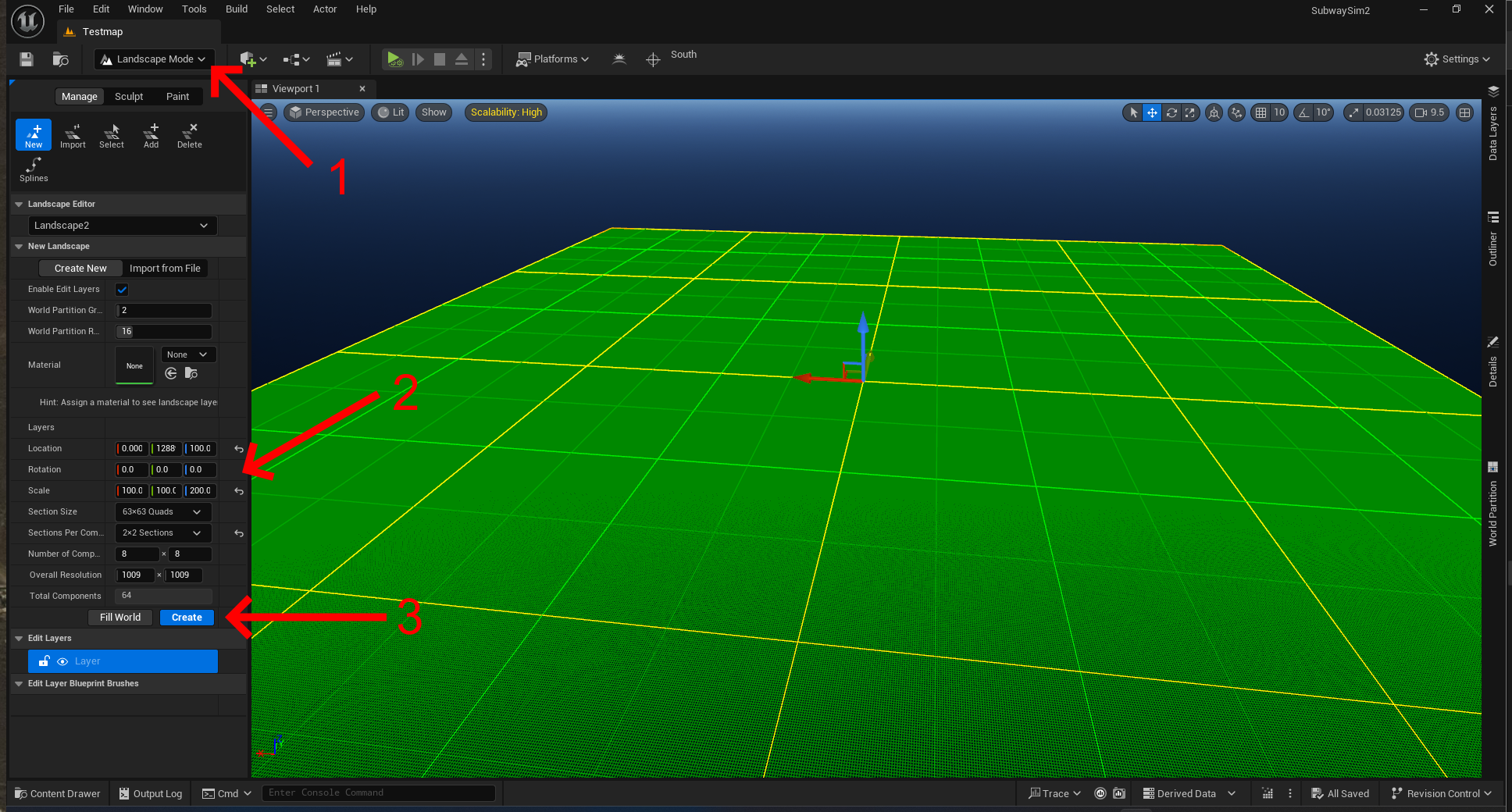
To create one, switch to the Landscape Mode, which you can find in the mode selection at the upper left of the editor. Alternatively, you can open it using the shortcut:
【⇧ Shift】 + 【2】
Once you enter Landscape Mode, the editor will automatically detect that your level does not yet contain a landscape and will display a large grid of green tiles. These tiles represent the area where the base landscape will be created.
Before generating the landscape, verify that all settings match the provided screenshot. Correct settings are essential to ensure compatibility and proper terrain behavior.
After confirming the settings, click Create. Your landscape will now be added to the world.
Expanding or Reducing the Landscape
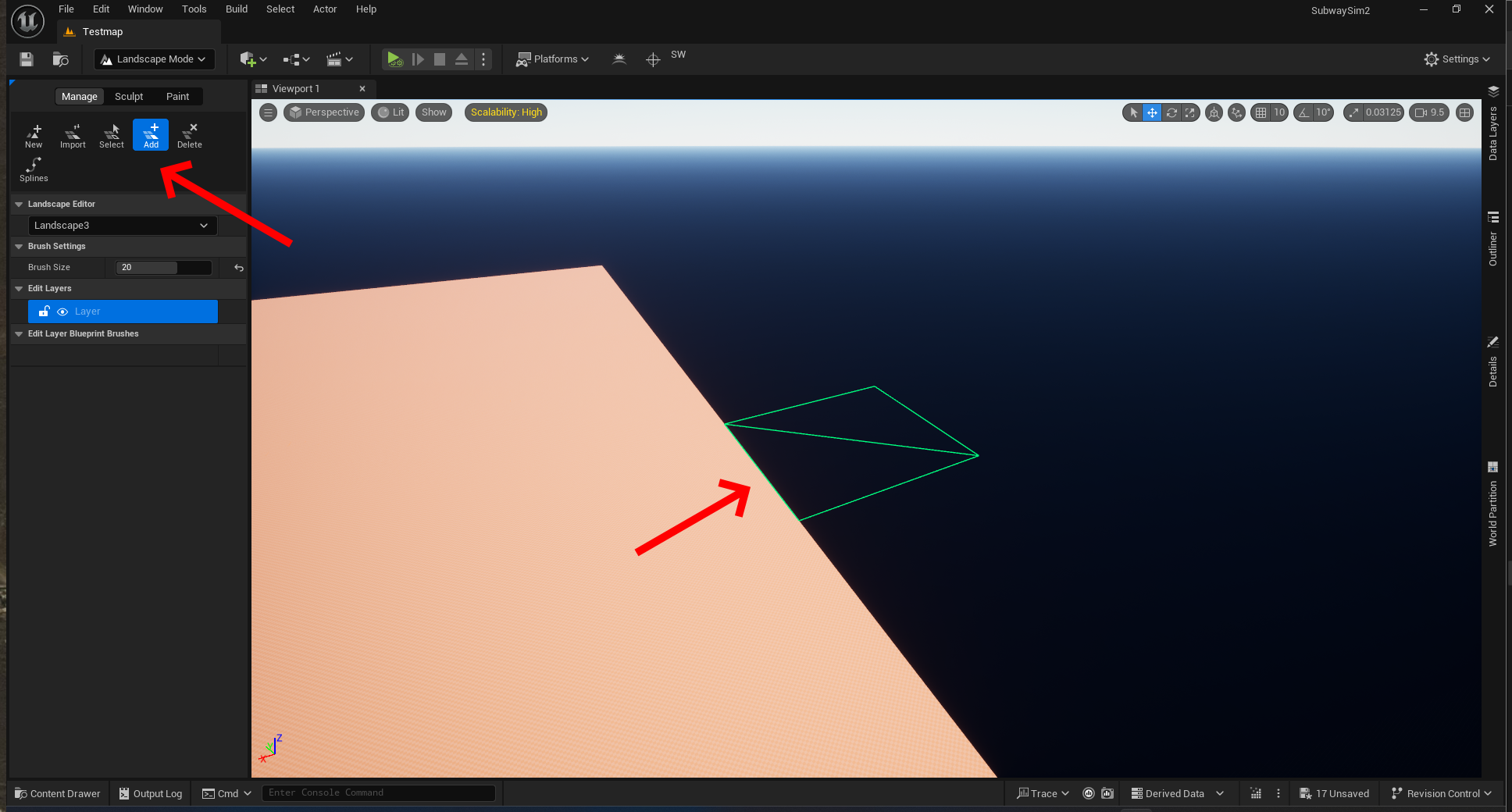
Landscapes in Unreal Engine are flexible and can be expanded or reduced in size.
To modify your landscape:
- Switch to the Manage tab within Landscape Mode.
- Use Add to place new tiles.
- Use Delete to remove tiles.
Important: You can only add landscape tiles at the outer edges of the existing landscape. Extending the terrain from the center is not possible.
Next Steps
With your landscape created, your map is now ready to be expanded further — whether by placing objects, adding environment details, or laying tracks.
For additional guidance on how to bring assets from other SDK plugins into your own mod, refer to: Migrating Assets into a User Plugin
© 2026 Simuverse Interactive · SubwaySim 2 Modding Wiki
All trademarks and registered trademarks are the property of their respective owners. This Wiki is provided for documentation and modding purposes only.